Firebase for Mobile Apps: Authentication and Database Guide
Firebase has become the default backend for mobile app prototypes and MVPs. Google’s platform provides authentication, real-time databases, cloud functions, analytics, and more, all without managing servers. For Australian startups looking to ship fast, Firebase removes an enormous amount of backend complexity.
This guide covers the two Firebase services you will use in nearly every project: Authentication and Cloud Firestore. We will walk through practical implementation with code examples for iOS, Android, and React Native.
Why Firebase for Mobile Apps
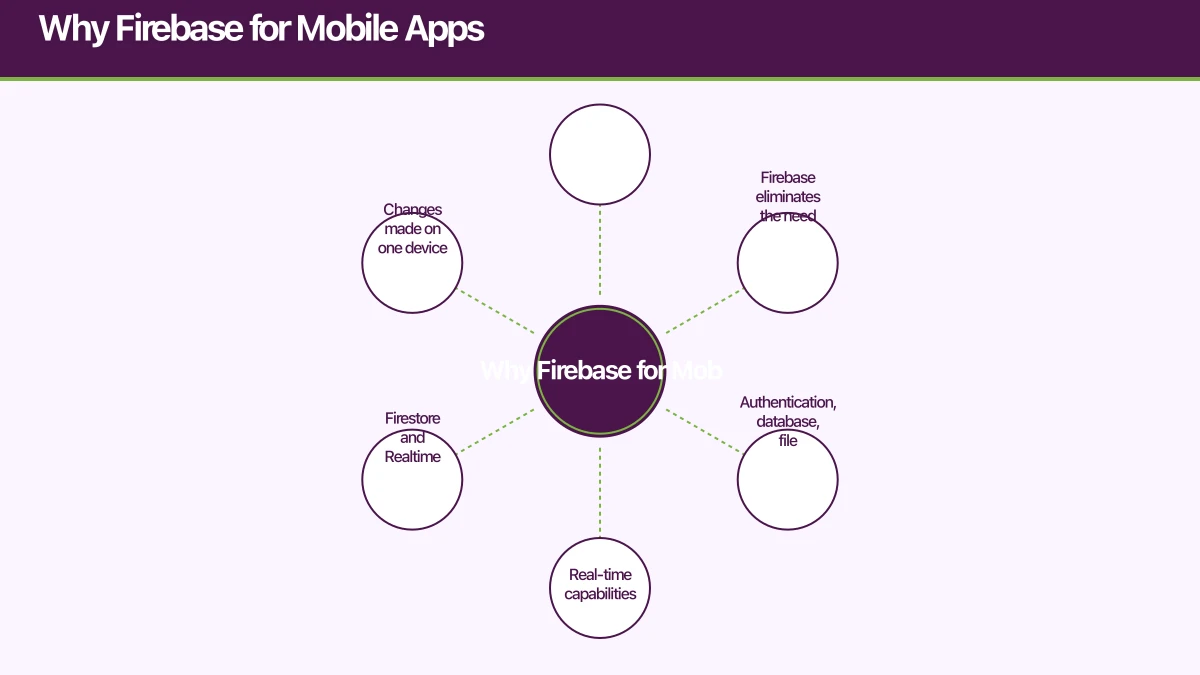
Speed to market. Firebase eliminates the need to build, deploy, and maintain a custom backend for common functionality. Authentication, database, file storage, and push notifications are available out of the box.
Real-time capabilities. Firestore and Realtime Database provide real-time data synchronisation. Changes made on one device appear on others within milliseconds.
Generous free tier. The Spark (free) plan includes 50,000 authentication operations per month, 1 GB Firestore storage, and 50,000 daily document reads. This is sufficient for most MVPs and early-stage apps.
Scales automatically. Firebase handles scaling infrastructure as your app grows. You do not need to worry about server provisioning until you reach very high volumes.
Offline support built in. Firestore includes offline persistence by default on mobile. Reads and writes work without internet, and data syncs automatically when connectivity returns.
Setting Up Fi
rebase
Project Creation
- Go to the Firebase Console (console.firebase.google.com)
- Click “Add project” and name it
- Enable Google Analytics (recommended for mobile apps)
- Create the project
iOS Setup
- In the Firebase Console, add an iOS app with your bundle ID
- Download
GoogleService-Info.plistand add it to your Xcode project - Add Firebase SDK via Swift Package Manager or CocoaPods:
# Podfile
pod 'Firebase/Auth'
pod 'Firebase/Firestore'- Initialise Firebase in your app delegate or SwiftUI app:
import Firebase

@main
struct MyApp: App {
    init() {
        FirebaseApp.configure()
    }

    var body: some Scene {
        WindowGroup {
            ContentView()
        }
    }
}
Android Setup
- Add an Android app in the Firebase Console with your package name
- Download
google-services.jsonand place it inapp/ - Add dependencies:
// Project-level build.gradle
classpath 'com.google.gms:google-services:4.3.5'

// App-level build.gradle
apply plugin: 'com.google.gms.google-services'

dependencies {
    implementation 'com.google.firebase:firebase-auth-ktx:20.0.3'
    implementation 'com.google.firebase:firebase-firestore-ktx:22.1.2'
}
React Native Setup
npm install @react-native-firebase/app
npm install @react-native-firebase/auth
npm install @react-native-firebase/firestore
Follow the platform-specific setup for iOS and Android as described in the React Native Firebase documentation.
Firebase Authenticat
 ion
ion
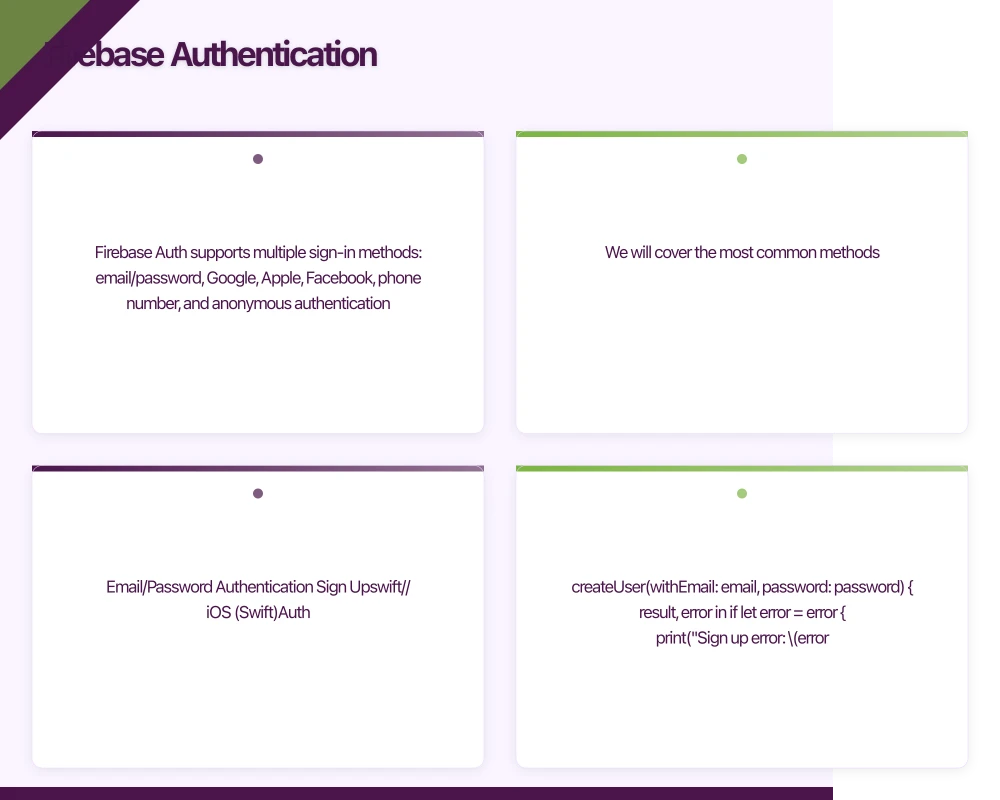
Firebase Auth supports multiple sign-in methods: email/password, Google, Apple, Facebook, phone number, and anonymous authentication. We will cover the most common methods.
Email/Password Authentication
Sign Up
// iOS (Swift)
Auth.auth().createUser(withEmail: email, password: password) { result, error in
    if let error = error {
        print("Sign up error: \(error.localizedDescription)")
        return
    }
    guard let user = result?.user else { return }
    print("User created: \(user.uid)")
}
// Android (Kotlin)
Firebase.auth.createUserWithEmailAndPassword(email, password)
.addOnSuccessListener { result ->
val user = result.user
Log.d("Auth", "User created: ${user?.uid}")
}
.addOnFailureListener { exception ->
Log.e("Auth", "Sign up failed: ${exception.message}")
}// React Native
import auth from '@react-native-firebase/auth';
const signUp = async (email, password) => {
try {
const result = await auth().createUserWithEmailAndPassword(email, password);
console.log('User created:', result.user.uid);
} catch (error) {
console.error('Sign up error:', error.message);
}
};Sign In
// iOS
Auth.auth().signIn(withEmail: email, password: password) { result, error in
    if let error = error {
        print("Sign in error: \(error.localizedDescription)")
        return
    }
    print("Signed in: \(result?.user.uid ?? "")")
}
Sign In with Apple
Required for iOS apps that offer any third-party sign-in method:
// iOS: Sign In with Apple + Firebase
import AuthenticationServices
import CryptoKit

func startSignInWithAppleFlow() {
    let nonce = randomNonceString()
    currentNonce = nonce

    let request = ASAuthorizationAppleIDProvider().createRequest()
    request.requestedScopes = [.fullName, .email]
    request.nonce = sha256(nonce)

    let controller = ASAuthorizationController(authorizationRequests: [request])
    controller.delegate = self
    controller.performRequests()
}

// In the delegate callback:
func authorizationController(
    controller: ASAuthorizationController,
    didCompleteWithAuthorization authorization: ASAuthorization
) {
    guard let appleIDCredential = authorization.credential as? ASAuthorizationAppleIDCredential,
          let nonce = currentNonce,
          let appleIDToken = appleIDCredential.identityToken,
          let idTokenString = String(data: appleIDToken, encoding: .utf8)
    else { return }

    let credential = OAuthProvider.credential(
        withProviderID: "apple.com",
        idToken: idTokenString,
        rawNonce: nonce
    )

    Auth.auth().signIn(with: credential) { result, error in
        if let error = error {
            print("Firebase sign in error: \(error.localizedDescription)")
            return
        }
        print("Signed in with Apple: \(result?.user.uid ?? "")")
    }
}
Auth State Listener
Listen for authentication state changes to update your UI:
// iOS
Auth.auth().addStateDidChangeListener { auth, user in
    if let user = user {
        // User is signed in
        self.navigateToMainScreen(userId: user.uid)
    } else {
        // User is signed out
        self.navigateToLoginScreen()
    }
}
// Android
Firebase.auth.addAuthStateListener { auth ->
val user = auth.currentUser
if (user != null) {
navigateToMainScreen(user.uid)
} else {
navigateToLoginScreen()
}
}Password Reset
Auth.auth().sendPasswordReset(withEmail: email) { error in
    if let error = error {
        print("Reset error: \(error.localizedDescription)")
        return
    }
    print("Password reset email sent")
}
Cloud Fires
 tore
tore
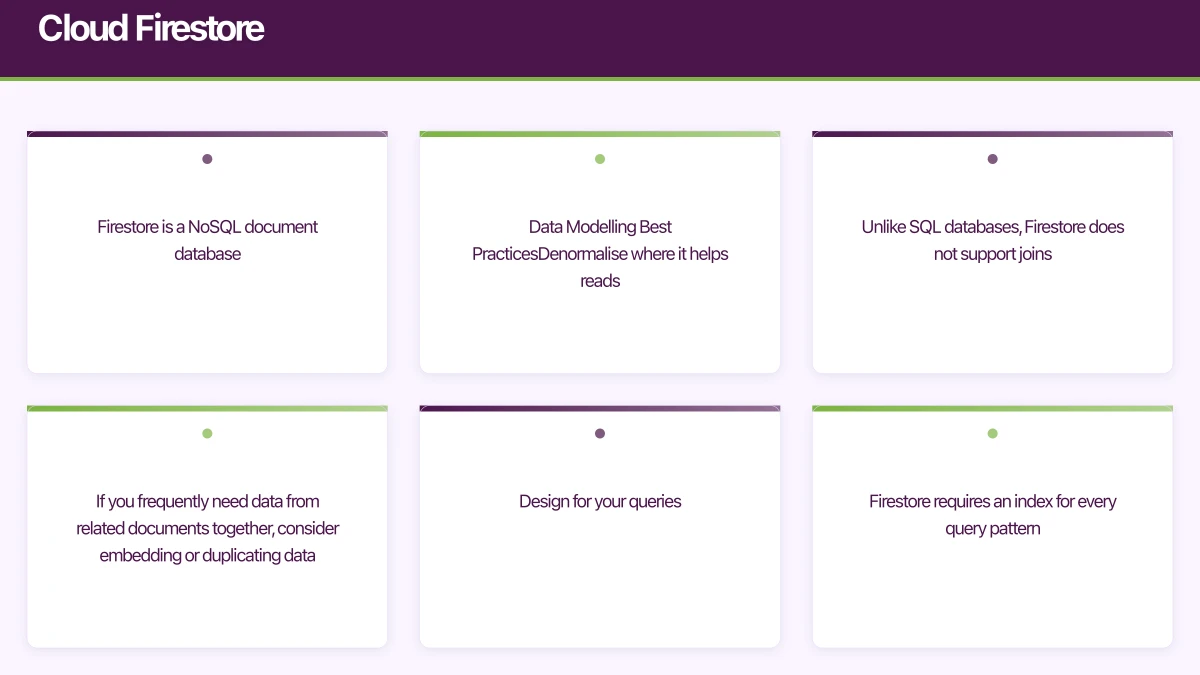
Firestore is a NoSQL document database. Data is organised into collections and documents, similar to JSON:
users (collection)
  +-- user_123 (document)
  |   +-- name: "Sarah"
  |   +-- email: "[email protected]"
  |   +-- tasks (subcollection)
  |       +-- task_1 (document)
  |       |   +-- title: "Design mockups"
  |       |   +-- isCompleted: false
  |       +-- task_2 (document)
  |           +-- title: "Write code"
  |           +-- isCompleted: true
  +-- user_456 (document)
      +-- ...
Data Modelling Best Practices
Denormalise where it helps reads. Unlike SQL databases, Firestore does not support joins. If you frequently need data from related documents together, consider embedding or duplicating data.
Design for your queries. Firestore requires an index for every query pattern. Plan your data structure around the queries your app needs.
Keep documents small. Firestore charges per document read, and documents have a 1 MB size limit. Store large data (images, files) in Cloud Storage and reference them from documents.
Writing Data
// iOS: Add a document
let db = Firestore.firestore()

// Auto-generated ID
let ref = db.collection("users").document(userId).collection("tasks").addDocument(data: [
    "title": "Design mockups",
    "isCompleted": false,
    "createdAt": FieldValue.serverTimestamp(),
    "priority": 1
]) { error in
    if let error = error {
        print("Error adding document: \(error)")
    } else {
        print("Document added with ID: \(ref.documentID)")
    }
}
// Android: Add a document
val db = Firebase.firestore
val task = hashMapOf(
"title" to "Design mockups",
"isCompleted" to false,
"createdAt" to FieldValue.serverTimestamp(),
"priority" to 1
)
db.collection("users").document(userId)
.collection("tasks")
.add(task)
.addOnSuccessListener { docRef ->
Log.d("Firestore", "Added with ID: ${docRef.id}")
}
.addOnFailureListener { e ->
Log.e("Firestore", "Error adding document", e)
}Reading Data
Single Document
// iOS
db.collection("users").document(userId).getDocument { document, error in
    if let document = document, document.exists {
        let data = document.data()
        let name = data?["name"] as? String ?? ""
        print("User name: \(name)")
    }
}
Query a Collection
// Android: Query tasks
db.collection("users").document(userId)
    .collection("tasks")
    .whereEqualTo("isCompleted", false)
    .orderBy("priority")
    .limit(20)
    .get()
    .addOnSuccessListener { querySnapshot ->
        val tasks = querySnapshot.documents.map { doc ->
            Task(
                id = doc.id,
                title = doc.getString("title") ?: "",
                isCompleted = doc.getBoolean("isCompleted") ?: false
            )
        }
        updateUI(tasks)
    }
Real-Time Listener
This is where Firestore excels. Listen for real-time changes:
// React Native: Real-time listener
import firestore from '@react-native-firebase/firestore';

const unsubscribe = firestore()
  .collection('users')
  .doc(userId)
  .collection('tasks')
  .orderBy('createdAt', 'desc')
  .onSnapshot(
    (querySnapshot) => {
      const tasks = querySnapshot.docs.map(doc => ({
        id: doc.id,
        ...doc.data(),
      }));
      setTasks(tasks);
    },
    (error) => {
      console.error('Listener error:', error);
    }
  );

// Clean up when component unmounts
return () => unsubscribe();
Updating and Deleting
// iOS: Update specific fields
db.collection("users").document(userId)
    .collection("tasks").document(taskId)
    .updateData([
        "isCompleted": true,
        "completedAt": FieldValue.serverTimestamp()
    ])

// iOS: Delete a document
db.collection("users").document(userId)
    .collection("tasks").document(taskId)
    .delete()
Batch Writes
For atomic operations across multiple documents:
// Android: Batch write
val batch = db.batch()

val taskRef1 = db.collection("users").document(userId)
    .collection("tasks").document(taskId1)
batch.update(taskRef1, "isCompleted", true)

val taskRef2 = db.collection("users").document(userId)
    .collection("tasks").document(taskId2)
batch.delete(taskRef2)

val statsRef = db.collection("users").document(userId)
batch.update(statsRef, "completedCount", FieldValue.increment(1))

batch.commit()
    .addOnSuccessListener { Log.d("Firestore", "Batch committed") }
    .addOnFailureListener { e -> Log.e("Firestore", "Batch failed", e) }
Security Rules
Firestore Security Rules control who can read and write data. Never deploy with open rules in production.
rules_version = '2';
service cloud.firestore {
  match /databases/{database}/documents {
    // Users can only access their own data
    match /users/{userId} {
      allow read, write: if request.auth != null && request.auth.uid == userId;

      // Tasks subcollection inherits user access
      match /tasks/{taskId} {
        allow read, write: if request.auth != null && request.auth.uid == userId;

        // Validate task data
        allow create: if request.resource.data.keys().hasAll(['title', 'isCompleted'])
          && request.resource.data.title is string
          && request.resource.data.title.size() > 0
          && request.resource.data.title.size() <= 200
          && request.resource.data.isCompleted is bool;
      }
    }

    // Deny all other access
    match /{document=**} {
      allow read, write: if false;
    }
  }
}
Security Rules Testing
Test your rules before deploying using the Firebase Emulator Suite:
firebase emulators:start --only firestoreWrite tests with the @firebase/rules-unit-testing package to verify your rules enforce the expected access patterns.
Firestore Offline Persistence
Firestore enables offline persistence by default on iOS and Android. On web (including React Native Web), you need to enable it explicitly.
Key behaviours:
- Reads return cached data when offline
- Writes are queued locally and synced when connectivity returns
- Real-time listeners fire with cached data, then update when online data arrives
Monitor pending writes:
// iOS: Check if a document has pending writes
db.collection("users").document(userId)
    .collection("tasks")
    .addSnapshotListener { snapshot, error in
        guard let snapshot = snapshot else { return }

        for change in snapshot.documentChanges {
            if change.document.metadata.hasPendingWrites {
                // This document has local changes not yet synced
                print("Pending: \(change.document.documentID)")
            }
        }
    }
Cost Optimisation Tips
Firebase pricing is based on usage. For Australian startups watching their burn rate:
-
Minimise document reads. Each Firestore document read costs money. Use listeners (which count as one read per change) instead of polling. Cache aggressively.
-
Structure data to reduce reads. If your list screen needs data from 50 documents, consider denormalising that data into a single summary document.
-
Use Firestore bundles. Pre-package common queries as bundles served from CDN, reducing direct Firestore reads.
-
Set spending alerts. In the Firebase Console, set budget alerts to avoid unexpected bills.
-
Use the emulator for development. The Firebase Emulator Suite runs locally at no cost, so your development activity does not count toward usage.
When to Outgrow Firebase
Firebase is excellent for MVPs and apps with moderate scale. Consider a custom backend when:
- You need complex relational queries that Firestore cannot support efficiently
- Your data model is highly relational and denormalisation creates excessive duplication
- You need server-side business logic more complex than Cloud Functions can handle efficiently
- Firestore costs become prohibitive at scale (typically at very high read volumes)
For most Australian startups, Firebase comfortably supports the first year or more of growth. At eawesome, we frequently recommend Firebase for initial launches and help teams migrate to custom backends when they reach the appropriate scale.
Scaling your app’s backend? Cloud Geeks specialises in cloud infrastructure that grows with your user base across Australia.
Awesome Apps operates under the Ganda Tech Services umbrella, delivering end-to-end technology solutions for Australian businesses.
Talk to a Sydney app developer — free.
30 minutes. We'll tell you what your app needs, how long it takes, and what it costs. Real answers, no sales pitch.
Book Free App Strategy Call →Free · 30 minutes · No obligation