Widgets have evolved from simple glanceable information displays into a critical engagement surface for iOS apps. With iOS 18’s enhanced interactivity features now reaching majority device adoption, widgets can include buttons, toggles, and even text input. For Australian app developers, widgets represent one of the highest-leverage features you can build—they keep your app visible on users’ home screens while driving re-engagement.
The WidgetKit framework has matured significantly since its introduction in iOS 14. The interactivity features added in iOS 17 and expanded in iOS 18 transform what’s possible. This guide covers everything from basic widget implementation to advanced patterns like Live Activities and App Intents integration.
Understanding the Widget Architecture
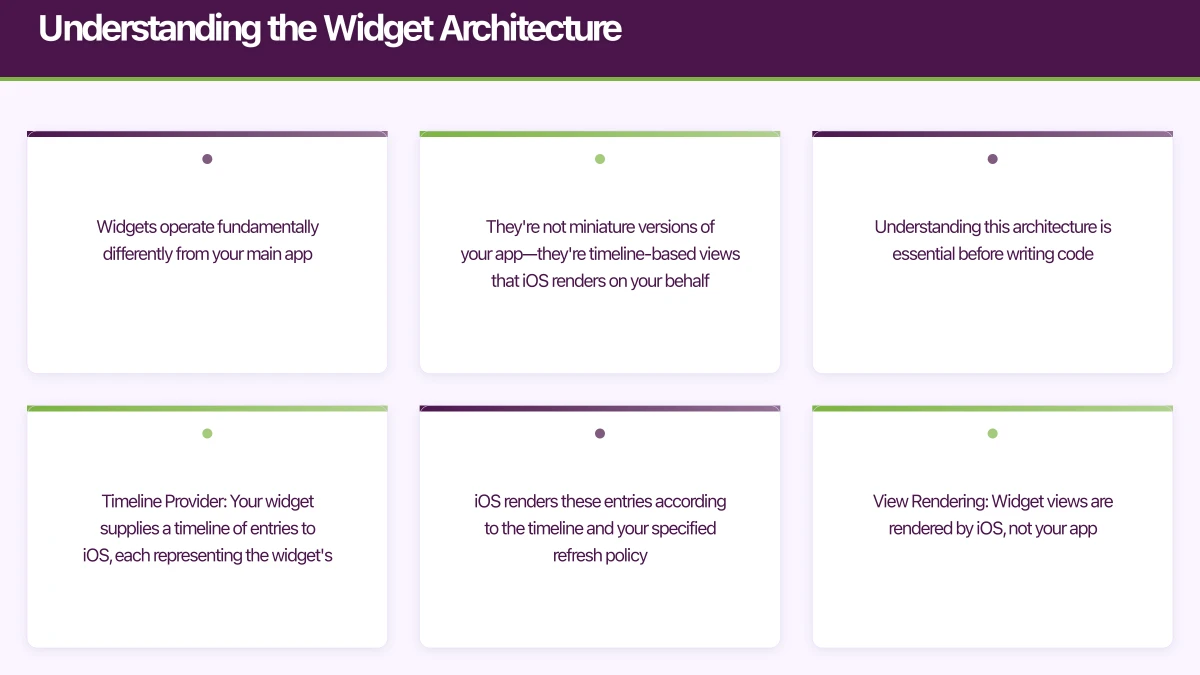
Widgets operate fundamentally differently from your main app. They’re not miniature versions of your app—they’re timeline-based views that iOS renders on your behalf. Understanding this architecture is essential before writing code.
Timeline Provider: Your widget supplies a timeline of entries to iOS, each representing the widget’s state at a specific time. iOS renders these entries according to the timeline and your specified refresh policy.
View Rendering: Widget views are rendered by iOS, not your app. This happens even when your app isn’t running. The implication: widgets must be self-contained SwiftUI views that don’t depend on app state.
App Intents: Interactive widgets use App Intents to perform actions. When a user taps a button in your widget, iOS invokes the corresponding intent, which can update your app’s state and trigger a widget refresh.
// Basic widget structure
struct MyWidget: Widget {
    let kind: String = "MyWidget"

    var body: some WidgetConfiguration {
        StaticConfiguration(kind: kind, provider: MyTimelineProvider()) { entry in
            MyWidgetEntryView(entry: entry)
                .containerBackground(.fill.tertiary, for: .widget)
        }
        .configurationDisplayName("My Widget")
        .description("Shows important information at a glance.")
        .supportedFamilies([.systemSmall, .systemMedium, .systemLarge])
    }
}

// Timeline entry - represents widget state at a point in time
struct MyWidgetEntry: TimelineEntry {
    let date: Date
    let data: WidgetData
    let configuration: ConfigurationAppIntent
}

// Timeline provider - supplies entries to iOS
struct MyTimelineProvider: AppIntentTimelineProvider {
    func placeholder(in context: Context) -> MyWidgetEntry {
        MyWidgetEntry(date: .now, data: .placeholder, configuration: ConfigurationAppIntent())
    }

    func snapshot(for configuration: ConfigurationAppIntent, in context: Context) async -> MyWidgetEntry {
        // Return representative data for widget gallery
        MyWidgetEntry(date: .now, data: await fetchData(), configuration: configuration)
    }

    func timeline(for configuration: ConfigurationAppIntent, in context: Context) async -> Timeline<MyWidgetEntry> {
        let currentData = await fetchData()
        let entry = MyWidgetEntry(date: .now, data: currentData, configuration: configuration)

        // Refresh every 30 minutes
        let nextUpdate = Calendar.current.date(byAdding: .minute, value: 30, to: .now)!
        return Timeline(entries: [entry], policy: .after(nextUpdate))
    }
}
Building Inte
 ractive Widgets
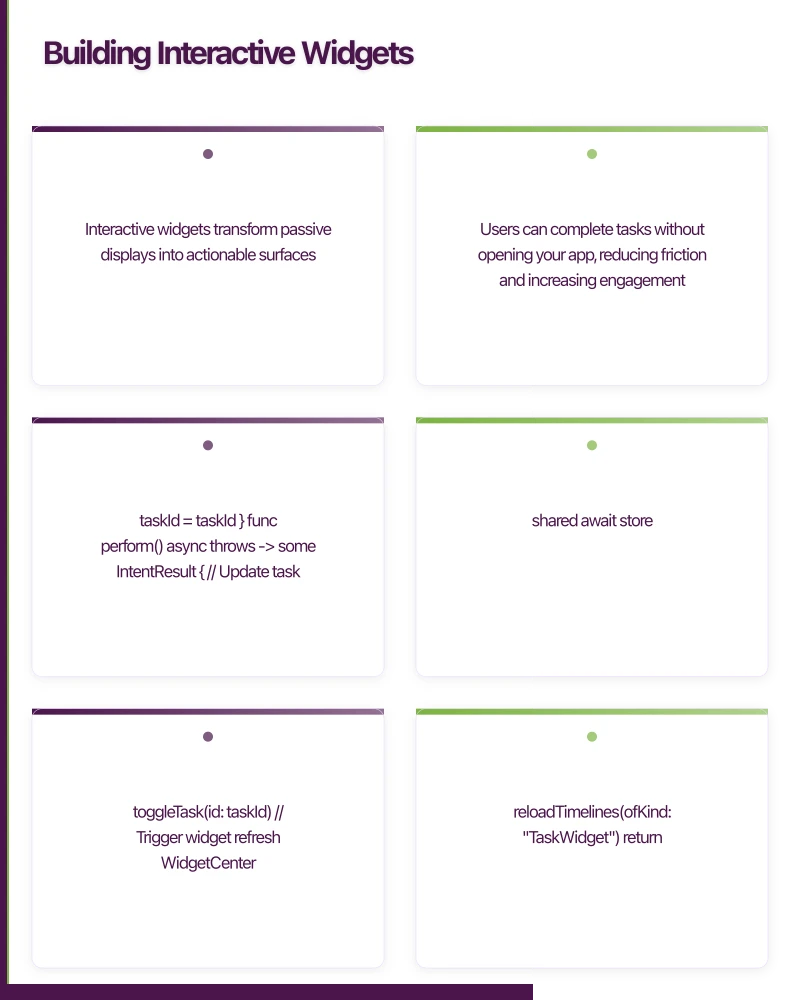
Interactive widgets transform passive displays into actionable surfaces. Users can complete tasks without opening your app, reducing friction and increasing engagement.
Button Actions with App Intents
import AppIntents
import WidgetKit

// Define an intent for the widget action
struct ToggleTaskIntent: AppIntent {
    static var title: LocalizedStringResource = "Toggle Task"
    static var description = IntentDescription("Marks a task as complete or incomplete")

    @Parameter(title: "Task ID")
    var taskId: String

    init() {}

    init(taskId: String) {
        self.taskId = taskId
    }

    func perform() async throws -> some IntentResult {
        // Update task in your data store
        let store = TaskStore.shared
        await store.toggleTask(id: taskId)

        // Trigger widget refresh
        WidgetCenter.shared.reloadTimelines(ofKind: "TaskWidget")

        return .result()
    }
}

// Widget view with interactive button
struct TaskWidgetView: View {
    let entry: TaskEntry

    var body: some View {
        VStack(alignment: .leading, spacing: 12) {
            Text("Today's Tasks")
                .font(.headline)

            ForEach(entry.tasks.prefix(3)) { task in
                HStack {
                    Button(intent: ToggleTaskIntent(taskId: task.id)) {
                        Image(systemName: task.isComplete ? "checkmark.circle.fill" : "circle")
                            .foregroundStyle(task.isComplete ? .green : .secondary)
                    }
                    .buttonStyle(.plain)

                    Text(task.title)
                        .strikethrough(task.isComplete)
                        .foregroundStyle(task.isComplete ? .secondary : .primary)

                    Spacer()
                }
            }
        }
        .padding()
    }
}
Toggle Interactions
Toggles are perfect for quick state changes like enabling Do Not Disturb mode, starting a timer, or toggling app features.
struct QuickSettingsWidget: View {
    let entry: SettingsEntry

    var body: some View {
        HStack(spacing: 16) {
            ToggleButton(
                isOn: entry.notificationsEnabled,
                icon: "bell.fill",
                label: "Alerts",
                intent: ToggleNotificationsIntent()
            )

            ToggleButton(
                isOn: entry.darkModeEnabled,
                icon: "moon.fill",
                label: "Dark",
                intent: ToggleDarkModeIntent()
            )

            ToggleButton(
                isOn: entry.syncEnabled,
                icon: "arrow.triangle.2.circlepath",
                label: "Sync",
                intent: ToggleSyncIntent()
            )
        }
        .padding()
    }
}

struct ToggleButton: View {
    let isOn: Bool
    let icon: String
    let label: String
    let intent: any AppIntent

    var body: some View {
        Button(intent: intent) {
            VStack(spacing: 8) {
                Image(systemName: icon)
                    .font(.title2)
                    .foregroundStyle(isOn ? .white : .secondary)
                    .frame(width: 44, height: 44)
                    .background(isOn ? Color.blue : Color.gray.opacity(0.2))
                    .clipShape(Circle())

                Text(label)
                    .font(.caption2)
                    .foregroundStyle(.secondary)
            }
        }
        .buttonStyle(.plain)
    }
}
Live Activities: Re
 al-Time Updates
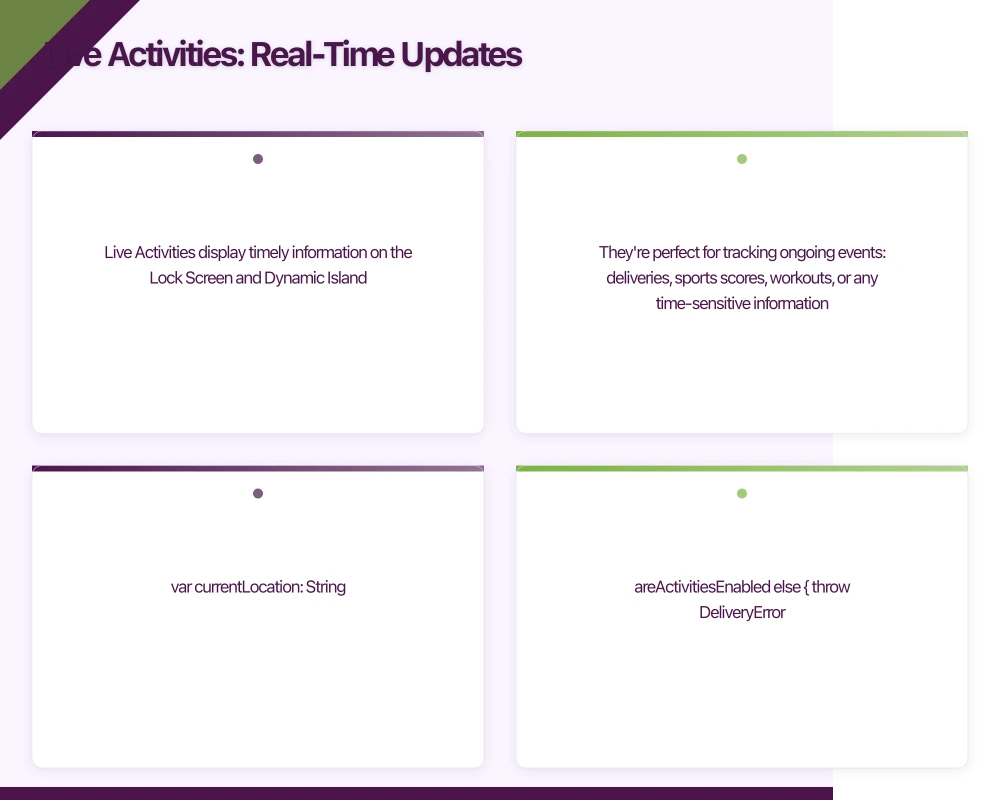
Live Activities display timely information on the Lock Screen and Dynamic Island. They’re perfect for tracking ongoing events: deliveries, sports scores, workouts, or any time-sensitive information.
import ActivityKit

// Define the activity attributes (static and dynamic content)
struct DeliveryActivityAttributes: ActivityAttributes {
    // Static content - doesn't change during the activity
    struct ContentState: Codable, Hashable {
        var status: DeliveryStatus
        var estimatedArrival: Date
        var driverName: String?
        var currentLocation: String?
    }

    // Static attributes
    let orderNumber: String
    let restaurantName: String
}

enum DeliveryStatus: String, Codable {
    case preparing
    case pickedUp
    case enRoute
    case arriving
    case delivered
}

// Starting a Live Activity
func startDeliveryTracking(order: Order) async throws {
    guard ActivityAuthorizationInfo().areActivitiesEnabled else {
        throw DeliveryError.activitiesDisabled
    }

    let attributes = DeliveryActivityAttributes(
        orderNumber: order.id,
        restaurantName: order.restaurantName
    )

    let initialState = DeliveryActivityAttributes.ContentState(
        status: .preparing,
        estimatedArrival: order.estimatedArrival,
        driverName: nil,
        currentLocation: order.restaurantName
    )

    let activity = try Activity.request(
        attributes: attributes,
        content: .init(state: initialState, staleDate: nil),
        pushType: .token // Enable push updates
    )

    // Store the activity ID for updates
    UserDefaults.standard.set(activity.id, forKey: "currentDeliveryActivity")

    // Get the push token for server-side updates
    for await token in activity.pushTokenUpdates {
        let tokenString = token.map { String(format: "%02x", $0) }.joined()
        await sendTokenToServer(activityId: activity.id, pushToken: tokenString)
    }
}

// Live Activity UI
struct DeliveryActivityView: View {
    let context: ActivityViewContext<DeliveryActivityAttributes>

    var body: some View {
        VStack(alignment: .leading, spacing: 8) {
            HStack {
                Text(context.attributes.restaurantName)
                    .font(.headline)
                Spacer()
                Text(context.state.estimatedArrival, style: .time)
                    .font(.caption)
                    .foregroundStyle(.secondary)
            }

            HStack(spacing: 4) {
                ForEach(DeliveryStatus.allCases, id: \.self) { status in
                    Circle()
                        .fill(statusColor(for: status))
                        .frame(width: 8, height: 8)
                }
            }

            if let location = context.state.currentLocation {
                Text(location)
                    .font(.caption)
                    .foregroundStyle(.secondary)
            }
        }
        .padding()
    }

    func statusColor(for status: DeliveryStatus) -> Color {
        let currentIndex = DeliveryStatus.allCases.firstIndex(of: context.state.status) ?? 0
        let statusIndex = DeliveryStatus.allCases.firstIndex(of: status) ?? 0

        if statusIndex <= currentIndex {
            return .green
        } else {
            return .gray.opacity(0.3)
        }
    }
}
Sharing Data Between
App and Widget
Widgets run in a separate process from your main app. Sharing data requires App Groups—a shared container that both your app and widget extension can access.
Setting Up App Groups
- In Xcode, select your main app target
- Go to Signing & Capabilities
- Add “App Groups” capability
- Create a group identifier (e.g.,
group.com.yourcompany.yourapp) - Repeat for your widget extension target, selecting the same group
Data Sharing Patterns
// Shared data model
struct WidgetData: Codable {
    let tasks: [Task]
    let lastUpdated: Date
    let syncStatus: SyncStatus
}

// App Group container manager
class SharedDataManager {
    static let shared = SharedDataManager()

    private let suiteName = "group.com.yourcompany.yourapp"
    private let dataKey = "widgetData"

    private var userDefaults: UserDefaults? {
        UserDefaults(suiteName: suiteName)
    }

    // Call from main app when data changes
    func updateWidgetData(_ data: WidgetData) {
        guard let defaults = userDefaults else { return }

        do {
            let encoded = try JSONEncoder().encode(data)
            defaults.set(encoded, forKey: dataKey)

            // Trigger widget refresh
            WidgetCenter.shared.reloadAllTimelines()
        } catch {
            print("Failed to encode widget data: \(error)")
        }
    }

    // Call from widget to read data
    func getWidgetData() -> WidgetData? {
        guard let defaults = userDefaults,
              let data = defaults.data(forKey: dataKey) else {
            return nil
        }

        return try? JSONDecoder().decode(WidgetData.self, from: data)
    }
}

// For larger datasets, use a shared Core Data store
class SharedCoreDataStack {
    static let shared = SharedCoreDataStack()

    lazy var persistentContainer: NSPersistentContainer = {
        let container = NSPersistentContainer(name: "YourModel")

        // Use App Group directory for the store
        let storeURL = FileManager.default
            .containerURL(forSecurityApplicationGroupIdentifier: "group.com.yourcompany.yourapp")!
            .appendingPathComponent("YourModel.sqlite")

        let description = NSPersistentStoreDescription(url: storeURL)
        container.persistentStoreDescriptions = [description]

        container.loadPersistentStores { _, error in
            if let error = error {
                fatalError("Failed to load Core Data stack: \(error)")
            }
        }

        return container
    }()
}
Widget Design Best Practices
Widgets occupy valuable home screen real estate. Users will remove widgets that don’t provide clear value or look out of place.
Size-Appropriate Content
Each widget size serves a different purpose. Design content specifically for each size rather than simply scaling the same layout.
struct AdaptiveWidgetView: View {
    @Environment(\.widgetFamily) var family
    let entry: DataEntry

    var body: some View {
        switch family {
        case .systemSmall:
            SmallWidgetView(entry: entry)
        case .systemMedium:
            MediumWidgetView(entry: entry)
        case .systemLarge:
            LargeWidgetView(entry: entry)
        case .accessoryCircular:
            CircularAccessoryView(entry: entry)
        case .accessoryRectangular:
            RectangularAccessoryView(entry: entry)
        case .accessoryInline:
            InlineAccessoryView(entry: entry)
        @unknown default:
            SmallWidgetView(entry: entry)
        }
    }
}

// Small: Single piece of key information
struct SmallWidgetView: View {
    let entry: DataEntry

    var body: some View {
        VStack {
            Text(entry.primaryMetric)
                .font(.system(size: 36, weight: .bold, design: .rounded))

            Text(entry.metricLabel)
                .font(.caption)
                .foregroundStyle(.secondary)
        }
    }
}

// Medium: Key information plus context
struct MediumWidgetView: View {
    let entry: DataEntry

    var body: some View {
        HStack {
            SmallWidgetView(entry: entry)

            Divider()

            VStack(alignment: .leading, spacing: 4) {
                ForEach(entry.recentItems.prefix(3)) { item in
                    HStack {
                        Circle()
                            .fill(item.color)
                            .frame(width: 8, height: 8)
                        Text(item.title)
                            .font(.caption)
                            .lineLimit(1)
                    }
                }
            }
            .frame(maxWidth: .infinity, alignment: .leading)
        }
        .padding()
    }
}
Placeholder and Redacted States
Provide meaningful placeholders that show the widget’s structure before data loads.
struct MyWidgetEntry: TimelineEntry {
    let date: Date
    let data: WidgetData?
    let isPlaceholder: Bool

    static var placeholder: MyWidgetEntry {
        MyWidgetEntry(date: .now, data: nil, isPlaceholder: true)
    }
}

struct WidgetContentView: View {
    let entry: MyWidgetEntry

    var body: some View {
        if entry.isPlaceholder {
            PlaceholderContent()
                .redacted(reason: .placeholder)
        } else if let data = entry.data {
            ActualContent(data: data)
        } else {
            EmptyStateView()
        }
    }
}

struct PlaceholderContent: View {
    var body: some View {
        VStack(alignment: .leading, spacing: 8) {
            Text("Widget Title")
                .font(.headline)

            Text("Some descriptive content here")
                .font(.caption)

            HStack {
                Text("42")
                    .font(.title)
                Text("items")
                    .font(.caption)
            }
        }
        .padding()
    }
}
Performance and Battery Considerations
Widgets have strict performance budgets. iOS limits widget refresh frequency and will deprioritize poorly performing widgets.
Timeline Refresh Budgets: iOS allows approximately 40-70 timeline refreshes per day, depending on how users interact with the widget. Request refreshes strategically.
Background Fetch: For widgets needing network data, leverage the main app’s background fetch capability rather than fetching from the widget extension directly.
// In your main app's scene delegate or app delegate
func application(_ application: UIApplication,
                 performFetchWithCompletionHandler completionHandler: @escaping (UIBackgroundFetchResult) -> Void) {
    Task {
        do {
            let freshData = try await fetchLatestData()
            SharedDataManager.shared.updateWidgetData(freshData)
            completionHandler(.newData)
        } catch {
            completionHandler(.failed)
        }
    }
}
Conclusion
Widgets and Live Activities represent a significant opportunity for Australian app developers to increase engagement and visibility. The key is treating widgets as a first-class feature rather than an afterthought.
Start with a clear use case—what information is genuinely useful at a glance? Build the simplest version that delivers that value, then iterate based on user feedback. Pay attention to performance budgets and design for each widget size intentionally.
With iOS 18’s interactivity features now widely available, widgets can do more than ever. The apps that master this surface will have a meaningful advantage in both user engagement and App Store visibility.
Building an iOS app that needs widget support? The Awesome Apps team specializes in native iOS development for Australian startups. Contact us to discuss your project.
An app is only as reliable as its backend. Cloud Geeks manages cloud hosting and security for mobile-first Australian businesses.
Awesome Apps operates under the Ganda Tech Services umbrella, delivering end-to-end technology solutions for Australian businesses.
Talk to a Sydney app developer — free.
30 minutes. We'll tell you what your app needs, how long it takes, and what it costs. Real answers, no sales pitch.
Book Free App Strategy Call →Free · 30 minutes · No obligation