Jetpack Compose has fundamentally changed how we build Android UIs. After shipping production apps with Compose over the past two years, the framework has matured into a robust, developer-friendly alternative to XML layouts. With Compose 1.6 now stable and Material Design 3 fully supported, there’s never been a better time to adopt declarative UI development for Android.
The shift from imperative XML layouts to declarative Compose code isn’t just a syntax change—it’s a complete rethinking of UI architecture. Teams migrating to Compose are reporting 30-40% less UI code, faster feature development, and significantly fewer UI-related bugs. For Australian app startups building their next product, understanding Compose is becoming essential.
Why Jetpack Compose in 2024
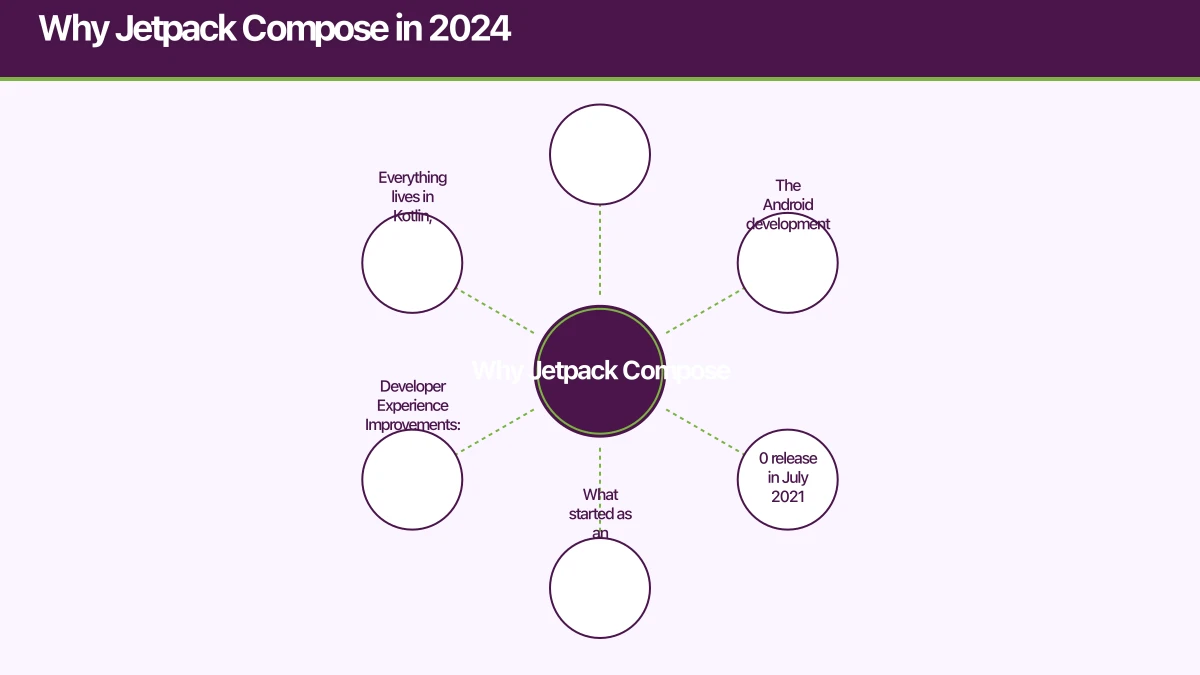
The Android development landscape has evolved rapidly since Compose’s stable 1.0 release in July 2021. What started as an experimental framework is now Google’s recommended approach for new Android projects.
Developer Experience Improvements: Compose eliminates the context-switching between XML layouts and Kotlin code. Everything lives in Kotlin, with full IDE support, type safety, and refactoring capabilities. Live Preview in Android Studio has matured to the point where you rarely need to run the full app to see UI changes.
Performance Parity: Early concerns about Compose performance have been addressed. The Compose compiler generates efficient code that matches or exceeds XML layout performance in most scenarios. Apps like Google Play Store, Gmail, and Google Maps are progressively adopting Compose in production.
Ecosystem Maturity: The third-party library ecosystem has caught up. Major libraries like Coil (image loading), Accompanist (Google’s companion library), and Voyager (navigation) provide Compose-first solutions. The community has established clear patterns for state management, navigation, and architecture.
Material Design 3 Support: With androidx.compose.material3 now stable, implementing Material You theming is straightforward. Dynamic color theming, which adapts to user wallpapers on Android 12+, works out of the box.
State Management: The Compos
e Way
State management is where Compose truly shines. The framework’s reactive model makes UI state explicit and predictable.
Understanding State Hoisting
State hoisting—moving state up the composable tree—is the fundamental pattern in Compose. Instead of managing state within UI components, you hoist state to the appropriate level and pass down state values with event callbacks.
// Stateless composable - fully reusable and testable
@Composable
fun SearchBar(
    query: String,
    onQueryChange: (String) -> Unit,
    modifier: Modifier = Modifier
) {
    OutlinedTextField(
        value = query,
        onValueChange = onQueryChange,
        placeholder = { Text("Search apps...") },
        leadingIcon = { Icon(Icons.Default.Search, contentDescription = null) },
        modifier = modifier.fillMaxWidth()
    )
}

// Stateful parent composable
@Composable
fun SearchScreen() {
    var searchQuery by remember { mutableStateOf("") }

    Column {
        SearchBar(
            query = searchQuery,
            onQueryChange = { searchQuery = it }
        )
        SearchResults(query = searchQuery)
    }
}
This pattern creates a unidirectional data flow: state flows down, events flow up. The SearchBar composable is stateless, making it easy to test and reuse across different screens.
ViewModel Integration
For screen-level state, integrate ViewModels using androidx.lifecycle.viewmodel.compose:
class HomeViewModel : ViewModel() {
    private val _uiState = MutableStateFlow(HomeUiState())
    val uiState: StateFlow<HomeUiState> = _uiState.asStateFlow()

    fun loadApps() {
        viewModelScope.launch {
            _uiState.update { it.copy(isLoading = true) }
            try {
                val apps = repository.getApps()
                _uiState.update { it.copy(apps = apps, isLoading = false) }
            } catch (e: Exception) {
                _uiState.update { it.copy(error = e.message, isLoading = false) }
            }
        }
    }
}

data class HomeUiState(
    val apps: List<App> = emptyList(),
    val isLoading: Boolean = false,
    val error: String? = null
)

@Composable
fun HomeScreen(
    viewModel: HomeViewModel = viewModel()
) {
    val uiState by viewModel.uiState.collectAsStateWithLifecycle()

    when {
        uiState.isLoading -> LoadingIndicator()
        uiState.error != null -> ErrorMessage(uiState.error!!)
        else -> AppGrid(apps = uiState.apps)
    }
}
The collectAsStateWithLifecycle() function (from androidx.lifecycle.lifecycle-runtime-compose) ensures state collection respects the Android lifecycle, preventing unnecessary work when the app is backgrounded.
Derived State
Use derivedStateOf when you need computed values that should only recalculate when dependencies change:
@Composable
fun FilteredAppList(apps: List<App>, category: String) {
    val filteredApps by remember(apps, category) {
        derivedStateOf {
            apps.filter { it.category == category }
                .sortedBy { it.name }
        }
    }

    LazyColumn {
        items(filteredApps) { app ->
            AppListItem(app)
        }
    }
}
This ensures the filtering and sorting only happens when apps or category changes, not on every recomposition.
Navigat
ion Architecture
Compose Navigation has evolved significantly. While the official androidx.navigation.compose library is the standard choice, understanding its patterns is crucial for building scalable apps.
Type-Safe Navigation
Define navigation routes using sealed classes for type safety:
sealed class Screen(val route: String) {
    object Home : Screen("home")
    object AppDetail : Screen("app/{appId}") {
        fun createRoute(appId: String) = "app/$appId"
    }
    object Settings : Screen("settings")
}

@Composable
fun AppNavigation() {
    val navController = rememberNavController()

    NavHost(
        navController = navController,
        startDestination = Screen.Home.route
    ) {
        composable(Screen.Home.route) {
            HomeScreen(
                onAppClick = { appId ->
                    navController.navigate(Screen.AppDetail.createRoute(appId))
                }
            )
        }

        composable(
            route = Screen.AppDetail.route,
            arguments = listOf(navArgument("appId") { type = NavType.StringType })
        ) { backStackEntry ->
            val appId = backStackEntry.arguments?.getString("appId") ?: return@composable
            AppDetailScreen(
                appId = appId,
                onBackClick = { navController.popBackStack() }
            )
        }

        composable(Screen.Settings.route) {
            SettingsScreen()
        }
    }
}
Passing Complex Data
For complex objects, avoid passing serialized data through navigation arguments. Instead, share ViewModels or use a shared data layer:
// Shared ViewModel approach
@Composable
fun AppNavigation() {
    val navController = rememberNavController()
    val appDetailViewModel: AppDetailViewModel = viewModel()

    NavHost(navController = navController, startDestination = Screen.Home.route) {
        composable(Screen.Home.route) {
            HomeScreen(
                onAppClick = { app ->
                    appDetailViewModel.setApp(app)
                    navController.navigate(Screen.AppDetail.route)
                }
            )
        }

        composable(Screen.AppDetail.route) {
            AppDetailScreen(viewModel = appDetailViewModel)
        }
    }
}
For Australian fintech apps where complex transaction objects need to be passed between screens, this pattern prevents serialization overhead and data loss.
Theming and Material Des
ign 3
Material Design 3 brings dynamic theming and modern design patterns. Implementing a cohesive theme system in Compose is straightforward.
Setting Up Material 3 Theme
import androidx.compose.material3.*
import androidx.compose.runtime.Composable
import androidx.compose.ui.graphics.Color

// Define your brand colors
private val LightColorScheme = lightColorScheme(
    primary = Color(0xFF6750A4),
    onPrimary = Color.White,
    primaryContainer = Color(0xFFEADDFF),
    onPrimaryContainer = Color(0xFF21005D),
    secondary = Color(0xFF625B71),
    onSecondary = Color.White,
    // ... complete color palette
)

private val DarkColorScheme = darkColorScheme(
    primary = Color(0xFFD0BCFF),
    onPrimary = Color(0xFF381E72),
    primaryContainer = Color(0xFF4F378B),
    onPrimaryContainer = Color(0xFFEADDFF),
    secondary = Color(0xFFCCC2DC),
    onSecondary = Color(0xFF332D41),
    // ... complete color palette
)

@Composable
fun EAwesomeTheme(
    darkTheme: Boolean = isSystemInDarkTheme(),
    // Dynamic color available on Android 12+
    dynamicColor: Boolean = true,
    content: @Composable () -> Unit
) {
    val colorScheme = when {
        dynamicColor && Build.VERSION.SDK_INT >= Build.VERSION_CODES.S -> {
            val context = LocalContext.current
            if (darkTheme) dynamicDarkColorScheme(context)
            else dynamicLightColorScheme(context)
        }
        darkTheme -> DarkColorScheme
        else -> LightColorScheme
    }

    MaterialTheme(
        colorScheme = colorScheme,
        typography = Typography,
        content = content
    )
}
Typography System
Define a consistent typography scale:
val Typography = Typography(
    displayLarge = TextStyle(
        fontFamily = FontFamily.SansSerif,
        fontWeight = FontWeight.Normal,
        fontSize = 57.sp,
        lineHeight = 64.sp,
        letterSpacing = (-0.25).sp,
    ),
    headlineMedium = TextStyle(
        fontFamily = FontFamily.SansSerif,
        fontWeight = FontWeight.Normal,
        fontSize = 28.sp,
        lineHeight = 36.sp,
    ),
    bodyLarge = TextStyle(
        fontFamily = FontFamily.SansSerif,
        fontWeight = FontWeight.Normal,
        fontSize = 16.sp,
        lineHeight = 24.sp,
        letterSpacing = 0.5.sp,
    ),
    // ... remaining type scale
)

// Usage in composables
@Composable
fun AppHeader(title: String) {
    Text(
        text = title,
        style = MaterialTheme.typography.headlineMedium,
        color = MaterialTheme.colorScheme.onSurface
    )
}
Performance Optimization
Compose’s reactive model is efficient by default, but understanding performance patterns helps avoid common pitfalls.
Avoid Unnecessary Recomposition
Use remember with keys and derivedStateOf to prevent excessive recompositions:
@Composable
fun ExpensiveList(items: List<Item>, filter: String) {
    // Bad: Recreates filtered list on every recomposition
    val filtered = items.filter { it.name.contains(filter) }

    // Good: Only recomputes when items or filter changes
    val filtered by remember(items, filter) {
        derivedStateOf {
            items.filter { it.name.contains(filter) }
        }
    }

    LazyColumn {
        items(filtered, key = { it.id }) { item ->
            ItemRow(item)
        }
    }
}
Lazy Layouts Optimization
Always provide keys for LazyColumn and LazyRow items to enable efficient recomposition and animations:
@Composable
fun AppGrid(apps: List<App>) {
    LazyVerticalGrid(
        columns = GridCells.Adaptive(minSize = 128.dp),
        contentPadding = PaddingValues(16.dp),
        horizontalArrangement = Arrangement.spacedBy(16.dp),
        verticalArrangement = Arrangement.spacedBy(16.dp)
    ) {
        items(
            items = apps,
            key = { app -> app.id } // Critical for performance
        ) { app ->
            AppCard(app)
        }
    }
}
Stability and Immutability
Compose’s compiler optimizes stable, immutable data classes. Use @Immutable and @Stable annotations for classes that don’t follow the typical data class pattern:
@Immutable
data class AppState(
    val id: String,
    val name: String,
    val downloads: Int,
    val rating: Float
)

@Stable
class ImageLoader {
    // Mutable but appears stable to Compose
    private var cache = mutableMapOf<String, Bitmap>()

    fun load(url: String): Bitmap? = cache[url]
}
Migrating from XML Layouts
For existing apps, incremental migration is the pragmatic approach. You can mix Compose and View-based UI within the same app.
Compose in View-Based Screens
Add Compose to existing Activities or Fragments using ComposeView:
class MainActivity : AppCompatActivity() {
    override fun onCreate(savedInstanceState: Bundle?) {
        super.onCreate(savedInstanceState)
        setContentView(R.layout.activity_main)

        findViewById<ComposeView>(R.id.compose_view).apply {
            setContent {
                EAwesomeTheme {
                    ModernFeatureSection()
                }
            }
        }
    }
}
Views in Compose
Use AndroidView to embed existing View components in Compose:
@Composable
fun LegacyMapView(
    modifier: Modifier = Modifier,
    onMapReady: (GoogleMap) -> Unit
) {
    AndroidView(
        factory = { context ->
            MapView(context).apply {
                onCreate(null)
                getMapAsync(onMapReady)
            }
        },
        modifier = modifier,
        update = { mapView ->
            // Update map when composable recomposes
        }
    )
}
For Australian apps using map features (property, delivery, transport apps), this pattern lets you integrate Google Maps while building new UI in Compose.
Migration Strategy
A practical migration approach for production apps:
- Start with new features: Build all new screens in Compose
- Convert leaf screens: Migrate simple, isolated screens with minimal dependencies
- Tackle complex screens: Once comfortable, migrate screens with complex state
- Leave critical paths last: Keep revenue-critical flows stable until confident
We’ve successfully used this approach on apps with 100k+ Australian users, maintaining stability while modernizing the codebase over 3-6 months.
Real-World Implementation Tips
After shipping multiple Compose apps, here are patterns that work in production.
Preview-Driven Development
Use @Preview extensively for faster iteration:
@Preview(name = "Light Mode", showBackground = true)
@Preview(name = "Dark Mode", uiMode = Configuration.UI_MODE_NIGHT_YES, showBackground = true)
@Preview(name = "Large Font", fontScale = 1.5f, showBackground = true)
@Composable
fun AppCardPreview() {
    EAwesomeTheme {
        AppCard(
            app = App(
                id = "1",
                name = "Sample App",
                description = "A sample application for preview",
                rating = 4.5f,
                downloads = 10000
            )
        )
    }
}
Define multiple previews covering light/dark themes, different font scales, and various data states. This catches UI issues before QA.
Error States and Loading
Create reusable components for common UI states:
@Composable
fun <T> AsyncContent(
    state: AsyncState<T>,
    onRetry: () -> Unit = {},
    content: @Composable (T) -> Unit
) {
    when (state) {
        is AsyncState.Loading -> {
            Box(modifier = Modifier.fillMaxSize(), contentAlignment = Alignment.Center) {
                CircularProgressIndicator()
            }
        }
        is AsyncState.Error -> {
            ErrorView(
                message = state.message,
                onRetry = onRetry
            )
        }
        is AsyncState.Success -> {
            content(state.data)
        }
    }
}

sealed class AsyncState<out T> {
    object Loading : AsyncState<Nothing>()
    data class Success<T>(val data: T) : AsyncState<T>()
    data class Error(val message: String) : AsyncState<Nothing>()
}
This pattern standardizes error and loading states across your app, critical for fintech and health apps where clear feedback is essential.
Testing Compose UI
Compose UI testing is more intuitive than Espresso for View-based tests:
class HomeScreenTest {
    @get:Rule
    val composeTestRule = createComposeRule()

    @Test
    fun displaysAppList() {
        val apps = listOf(
            App(id = "1", name = "App 1", rating = 4.5f),
            App(id = "2", name = "App 2", rating = 4.0f)
        )

        composeTestRule.setContent {
            EAwesomeTheme {
                AppList(apps = apps)
            }
        }

        composeTestRule
            .onNodeWithText("App 1")
            .assertIsDisplayed()

        composeTestRule
            .onNodeWithText("App 2")
            .performClick()
    }
}
The semantics-based testing API is more resilient to UI changes than view ID-based tests.
Looking Ahead
Jetpack Compose is evolving rapidly. The upcoming features we’re watching include:
- Compose for Wear OS: Already stable, bringing declarative UI to wearables
- Compose for TV: Making Android TV app development more approachable
- Compose Multiplatform: JetBrains’ Kotlin Multiplatform Compose is maturing, potentially enabling shared UI code between Android and iOS
The Android team is actively improving tooling, with Layout Inspector gaining better Compose support and Android Studio previews becoming more sophisticated. Performance optimizations continue with each release.
For Australian app startups, the cost-benefit analysis is clear: initial learning curve balanced against faster feature development, reduced UI bugs, and better developer experience. Teams that adopted Compose early are now seeing productivity gains and easier maintenance.
Key Takeaways
Jetpack Compose in 2024 is production-ready and increasingly the default choice for Android development:
- State management through hoisting and ViewModels creates predictable, testable UIs
- Navigation with type-safe routes and proper argument handling scales to complex apps
- Material Design 3 theming with dynamic color provides modern, accessible designs
- Performance is on par with Views when following best practices
- Migration can be incremental, allowing existing apps to adopt Compose progressively
The declarative paradigm shift requires rethinking UI development, but the investment pays dividends in code quality and development velocity. Whether building a new app or modernizing an existing one, Compose is the path forward for Android UI development.
For teams shipping production apps to Australian users, the maturity of Compose in 2024 makes it a sound technical choice. The ecosystem, tooling, and community support are all in place to build sophisticated, performant mobile experiences with significantly less boilerplate than XML-based approaches.
An app is part of a bigger picture. Ash Ganda explores how businesses can build cohesive digital strategies that connect mobile, web, and cloud.
Part of the Ganda Tech Services family, Awesome Apps delivers specialist mobile app development for Australian small and medium businesses.
Talk to a Sydney app developer — free.
30 minutes. We'll tell you what your app needs, how long it takes, and what it costs. Real answers, no sales pitch.
Book Free App Strategy Call →Free · 30 minutes · No obligation