React Native Expo vs Bare Workflow: When to Choose What
The most common question from teams starting a React Native project in 2023 is not “React Native or Flutter?” — it is “Expo or bare?” Expo has evolved dramatically from its early days as a limited sandbox, and with EAS (Expo Application Services) now handling builds and submissions, the decision is more nuanced than ever.
Having shipped apps using both approaches, I want to cut through the marketing and give you a practical framework for making this decision. The answer is not always the same, and the wrong choice costs real time and money.
Understanding the Options
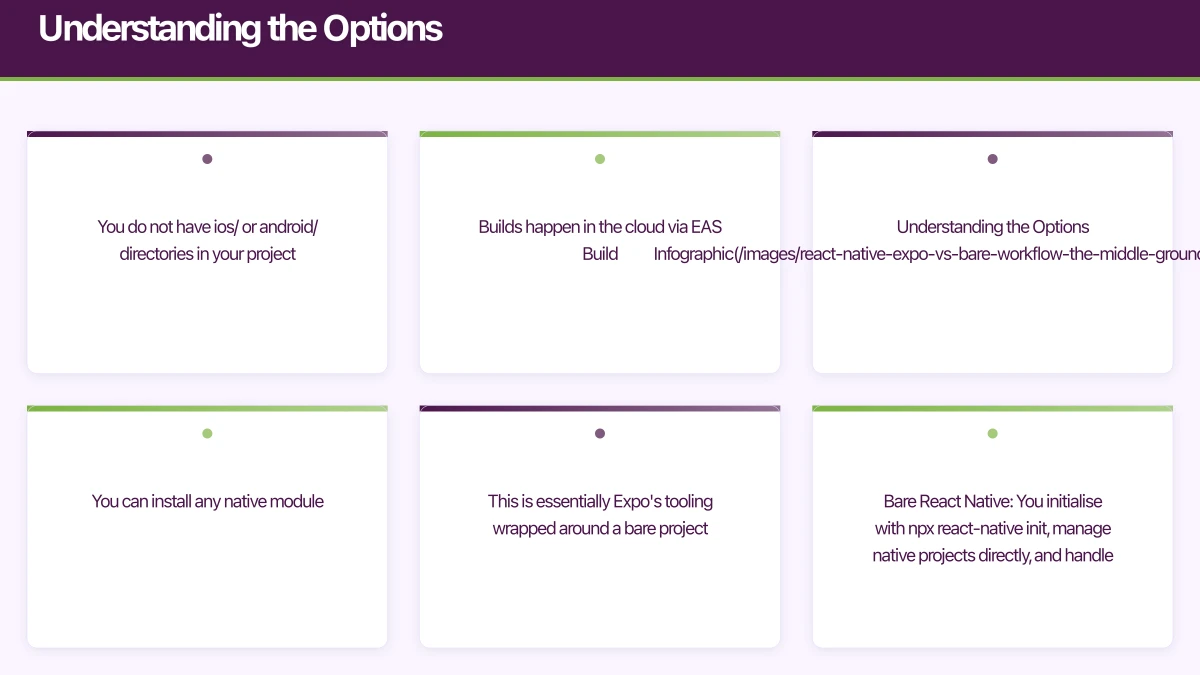
Let me clarify the terminology, because it has shifted:
Expo Managed Workflow (now just called “Expo”): You write JavaScript/TypeScript, use Expo SDK libraries, and Expo handles native project configuration through a app.json or app.config.js file. You do not have ios/ or android/ directories in your project. Builds happen in the cloud via EAS Build.
Expo with Development Builds (the middle ground): You use Expo tooling and many Expo SDK libraries, but you also have access to native project files. You can install any native module. This is essentially Expo’s tooling wrapped around a bare project.
Bare React Native: You initialise with npx react-native init, manage native projects directly, and handle builds locally or through your own CI/CD. No Expo tooling involved.
The key insight: Expo is no longer all-or-nothing. The introduction of Config Plugins and Development Builds means you can use Expo tooling while still accessing native code. This middle ground has changed the calculation significantly.
When Expo Managed Workflow Wins
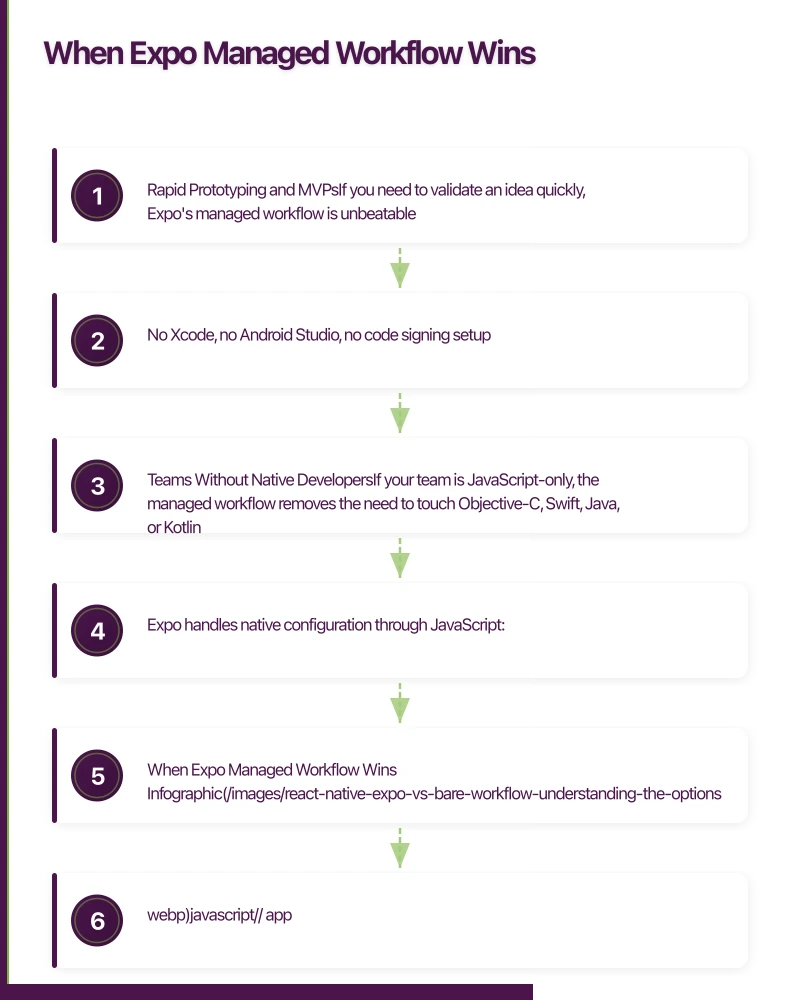
Rapid Prototyping and MVPs
If you need to validate an idea quickly, Expo’s managed workflow is unbeatable. You can go from npx create-expo-app to a working app on both platforms in hours, not days:
npx create-expo-app MyApp
cd MyApp
npx expo start
Scan the QR code with Expo Go on your phone and you are running your app. No Xcode, no Android Studio, no code signing setup.
Teams Without Native Developers
If your team is JavaScript-only, the managed workflow removes the need to touch Objective-C, Swift, Java, or Kotlin. Expo handles native configuration through JavaScript:
// app.config.js
export default {
  expo: {
    name: "MyApp",
    slug: "myapp",
    version: "1.0.0",
    orientation: "portrait",
    icon: "./assets/icon.png",
    splash: {
      image: "./assets/splash.png",
      resizeMode: "contain",
      backgroundColor: "#ffffff"
    },
    ios: {
      supportsTablet: true,
      bundleIdentifier: "com.au.mycompany.myapp",
      infoPlist: {
        NSCameraUsageDescription: "We need camera access to scan barcodes"
      }
    },
    android: {
      adaptiveIcon: {
        foregroundImage: "./assets/adaptive-icon.png",
        backgroundColor: "#ffffff"
      },
      package: "com.au.mycompany.myapp",
      permissions: ["CAMERA"]
    },
    plugins: [
      "expo-camera",
      ["expo-image-picker", { photosPermission: "Allow access to select photos" }]
    ]
  }
};
Over-the-Air Updates
Expo’s EAS Update enables pushing JavaScript bundle updates to users without going through App Store review:
eas update --branch production --message "Fix checkout flow"Users receive the update on next app launch. This is incredibly valuable for fixing bugs quickly and for apps where deployment speed matters.
EAS Build and Submit
Cloud builds eliminate the need for macOS to build iOS apps. Your Android developer can trigger an iOS build from a Linux machine:
eas build --platform ios --profile production
eas submit --platform ios
The entire build, sign, and submit process is automated. No local Xcode installation required for CI/CD.
When Bare Work
flow Wins
Custom Native Modules
If your app requires native functionality that no Expo module or Config Plugin covers, bare workflow gives you direct access:
// ios/MyApp/CustomBluetooth.swift
@objc(CustomBluetooth)
class CustomBluetooth: NSObject {
    @objc
    func connectToDevice(_ deviceId: String,
                         resolver resolve: @escaping RCTPromiseResolveBlock,
                         rejecter reject: @escaping RCTPromiseRejectBlock) {
        // Direct access to CoreBluetooth APIs
        centralManager.connect(peripheral)
        resolve(true)
    }
}
While Expo’s Config Plugins can handle many native customisations, some scenarios — custom Bluetooth protocols, specialised hardware integration, complex native UI components — genuinely require direct native project access.
Performance-Critical Applications
Apps that push the limits of mobile hardware — real-time audio/video processing, 3D rendering, complex animations — benefit from bare workflow’s direct access to native performance tools and optimisation strategies.
Enterprise Requirements
Some enterprise environments have strict requirements around build infrastructure, code signing, and dependency management that are easier to satisfy with full control over the native projects.
Existing Native Codebase
If you are adding React Native to an existing native iOS or Android app (a “brownfield” integration), bare workflow is the natural choice. You need direct access to native project files to configure the integration.
The Middle Ground: Ex
po Dev Builds
This is where the decision gets interesting. Expo Development Builds let you use Expo tooling (fast refresh, EAS Build, OTA updates) while also installing any native module:
# Install a native module not in Expo SDK
npx expo install react-native-ble-plx

# Create a Config Plugin if needed for native configuration
# Or simply run prebuild to generate native projects
npx expo prebuild
The npx expo prebuild command generates ios/ and android/ directories from your app.config.js. You can then customise these native projects while still using Expo’s build and update tools.
Config Plugins
Config Plugins are the mechanism that makes Dev Builds powerful. They modify native project files programmatically:
// plugins/withCustomScheme.js
const { withAndroidManifest, withInfoPlist } = require('@expo/config-plugins');

function withCustomScheme(config, scheme) {
  config = withInfoPlist(config, (config) => {
    config.modResults.CFBundleURLTypes = [
      ...(config.modResults.CFBundleURLTypes || []),
      {
        CFBundleURLSchemes: [scheme],
      },
    ];
    return config;
  });

  config = withAndroidManifest(config, (config) => {
    const mainActivity = config.modResults.manifest.application[0].activity[0];
    mainActivity['intent-filter'].push({
      action: [{ $: { 'android:name': 'android.intent.action.VIEW' } }],
      category: [
        { $: { 'android:name': 'android.intent.category.DEFAULT' } },
        { $: { 'android:name': 'android.intent.category.BROWSABLE' } },
      ],
      data: [{ $: { 'android:scheme': scheme } }],
    });
    return config;
  });

  return config;
}

module.exports = withCustomScheme;
Decision Framework
Use this practical checklist:
Start with Expo Managed if:
- You are building an MVP or prototype
- Your team is JavaScript-only
- Your app uses standard features (camera, location, notifications, payments)
- OTA updates are valuable for your use case
- You want cloud builds without macOS infrastructure
Use Expo with Dev Builds if:
- You need native modules beyond Expo SDK
- You want Expo tooling (EAS Build, EAS Update) with full native access
- Your team has some native development capability
- You want the flexibility to eject completely if needed later
Go bare if:
- You are integrating React Native into an existing native app
- You need extremely fine-grained native control
- Your enterprise requires specific build infrastructure
- Your team is experienced with native iOS and Android development
Migration Paths
Expo Managed to Dev Builds
This is straightforward:
npx expo prebuildYour project now has native directories. Install any native modules you need and continue using Expo tooling.
Expo to Bare
Run npx expo prebuild --clean, then manage native projects directly. You lose EAS Build and OTA updates but gain complete control.
Bare to Expo Dev Builds
This is harder. You need to:
- Add Expo SDK to your existing project
- Create an
app.config.jsthat describes your native configuration - Replace manual native configuration with Config Plugins where possible
- Test thoroughly, as native project files will be regenerated by prebuild
Cost Comparison
Expo (EAS Free Tier):
- 30 builds per month
- 1,000 OTA update users
- Suitable for solo developers and small teams
Expo (EAS Production):
- $99/month per developer
- Priority builds, more updates
- Suitable for professional teams
Bare Workflow:
- No Expo costs
- Need macOS hardware or CI service for iOS builds
- GitHub Actions or Bitrise: $50-200/month for mobile CI
- More DevOps overhead
For most Australian startups, EAS provides better value than managing your own build infrastructure. The time saved on CI/CD setup alone justifies the subscription.
Practical Recommendation for 2023
Start with Expo. Seriously. React Native development with Expo has narrowed the gap with bare workflow dramatically—Config Plugins and Dev Builds now provide native code access without sacrificing Expo’s 30-50% faster development velocity. With Dev Builds and Config Plugins, you can access native code without abandoning Expo’s tooling advantages.
The only exception is brownfield integration into existing native apps. For everything else, Expo gets you shipping faster, and if you outgrow it, the migration path to bare is well-documented.
For more React Native development insights, explore our React Native performance optimization guide and React Native vs Flutter comparison.
Frequently Asked Questions
When should I use Expo managed workflow vs bare React Native?
Use Expo managed workflow for MVPs, prototypes, JavaScript-only teams, apps using standard features (camera, location, notifications), when OTA updates are valuable, and when you want cloud builds without macOS infrastructure. Use bare React Native for integrating into existing native apps, extremely fine-grained native control requirements, specific enterprise build infrastructure needs, or when your team has extensive native iOS and Android development experience.
Can I add native modules to Expo managed workflow?
Yes, with Expo Development Builds you can install any native module while still using Expo tooling. Run npx expo install [package-name] to add native modules, then npx expo prebuild to generate iOS and Android directories. Config Plugins modify native project files programmatically, enabling native customizations without manual editing. This middle-ground approach provides 80% of native flexibility with 90% of Expo’s productivity benefits.
What are the costs of using Expo vs bare React Native development?
Expo offers a free tier with 30 builds/month and 1,000 OTA update users suitable for solo developers. The Production tier costs $99/month per developer with priority builds and more updates. Bare React Native has no Expo costs but requires macOS hardware or CI services for iOS builds (GitHub Actions or Bitrise: $50-200/month), plus additional DevOps overhead. For most Australian startups, EAS provides better value than managing build infrastructure.
How do I migrate from Expo to bare React Native workflow?
Migrating from Expo to bare involves running npx expo prebuild --clean to generate native directories, then managing native projects directly without Expo tooling. You lose EAS Build and OTA updates but gain complete control. For reverse migration (bare to Expo), add Expo SDK to your existing project, create an app.config.js describing native configuration, replace manual native setup with Config Plugins where possible, and test thoroughly as prebuild will regenerate native files.
What’s the difference between Expo Go and Expo Development Builds?
Expo Go is the sandbox app for testing React Native development with Expo SDK libraries only—no custom native modules allowed. Development Builds create custom development clients including your app’s specific native modules and dependencies, requiring EAS Build to generate. Dev Builds provide the flexibility of bare workflow with Expo’s developer experience, while Expo Go offers instant testing without builds but limited to Expo SDK.
A dedicated website amplifies your app’s reach. Cosmos Web Tech builds SEO-optimised sites that turn Google searches into app installs.
This article is brought to you by Ganda Tech Services — Sydney’s complete digital solutions provider covering cloud, web, and mobile.
Talk to a Sydney app developer — free.
30 minutes. We'll tell you what your app needs, how long it takes, and what it costs. Real answers, no sales pitch.
Book Free App Strategy Call →Free · 30 minutes · No obligation