Performance is where React Native apps either shine or fall flat. With the New Architecture now stable and Hermes delivering significant improvements, React Native can absolutely hit 60fps consistently—but only if you understand where performance problems come from and how to diagnose them.
After profiling hundreds of React Native apps, we’ve found the same patterns emerge repeatedly. This guide covers the profiling tools and optimization techniques that actually matter, focusing on the problems we encounter most often in production apps.
Understanding React Native Performance
React Native runs JavaScript on a separate thread from the UI. This architecture enables cross-platform development but creates performance challenges when the threads need to communicate intensively.
JS Thread: Runs your React components, business logic, and event handlers. Bottlenecks here cause delayed interactions and laggy animations.
UI Thread (Main Thread): Renders native views and handles touch events. Overloading this thread causes dropped frames and unresponsive touch.
Bridge/JSI: Facilitates communication between threads. With the New Architecture, JSI (JavaScript Interface) provides synchronous access, but excessive communication still has costs.
The goal: keep both threads running smoothly with minimal cross-thread communication during animations and interactions.
Setting Up
Profiling Tools
Flipper for Development Profiling
Flipper remains the primary development tool for React Native profiling. The React Native plugin suite provides CPU profiling, network inspection, and layout debugging.
# Ensure Flipper is installed
brew install --cask flipper

# Enable Flipper in your React Native app (React Native 0.74+)
# It's enabled by default, but verify in your metro config
Key Flipper plugins for performance:
- React DevTools: Component tree inspection and render timing
- Hermes Debugger: CPU profiling and memory analysis
- Network: API call timing and payload sizes
- Layout: View hierarchy inspection
Hermes Profiler
Hermes includes a sampling profiler that shows where your JavaScript spends time. This is invaluable for identifying slow functions.
// Enable Hermes profiling programmatically
import { HermesInternal } from 'react-native/Libraries/Utilities/HermesInternal';

// Start profiling
HermesInternal?.enableSamplingProfiler?.();

// ... perform the slow operation ...

// Stop and save profile
const profilePath = await HermesInternal?.disableSamplingProfiler?.();
console.log('Profile saved to:', profilePath);

// Open the profile in Chrome DevTools:
// chrome://tracing and load the profile file
React DevTools Profiler
The React DevTools Profiler shows exactly which components render, how long they take, and why they re-rendered.
// Wrap sections you want to profile with Profiler
import { Profiler, ProfilerOnRenderCallback } from 'react';

const onRenderCallback: ProfilerOnRenderCallback = (
  id,
  phase,
  actualDuration,
  baseDuration,
  startTime,
  commitTime
) => {
  console.log({
    id,
    phase, // "mount" or "update"
    actualDuration, // Time spent rendering
    baseDuration, // Time for full subtree without memoization
    startTime,
    commitTime
  });
};

function App() {
  return (
    <Profiler id="FeedList" onRender={onRenderCallback}>
      <FeedList />
    </Profiler>
  );
}
Common Performance Pr
 oblems and Solutions
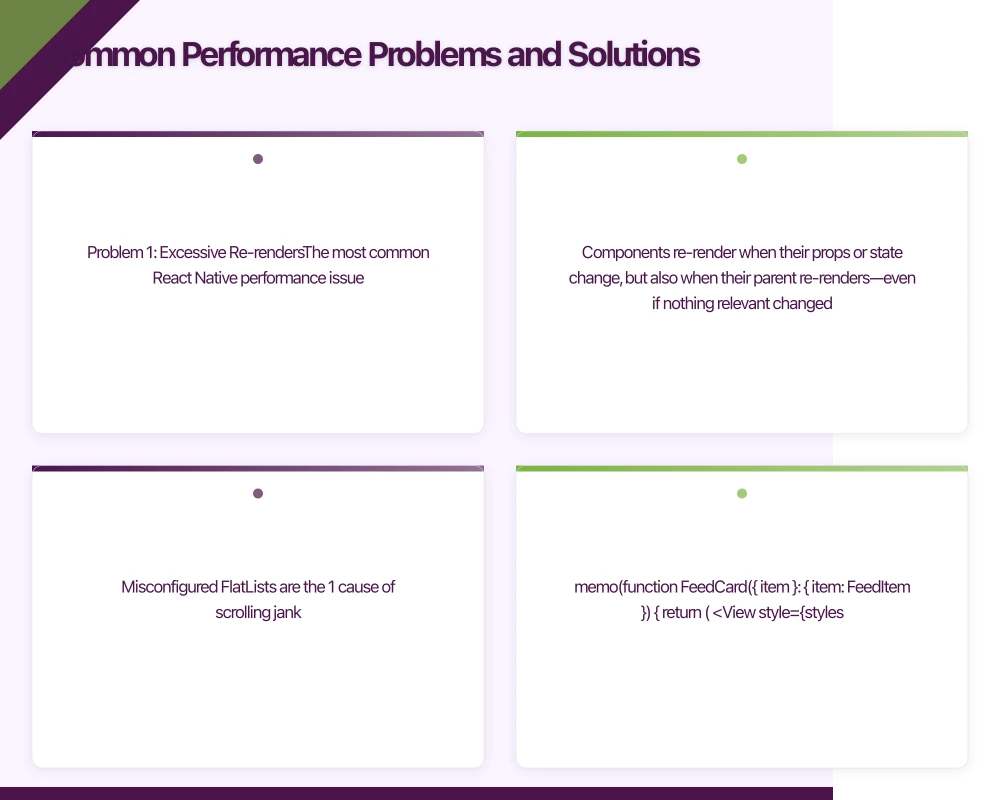
Problem 1: Excessive Re-renders
The most common React Native performance issue. Components re-render when their props or state change, but also when their parent re-renders—even if nothing relevant changed.
// Bad: Child re-renders on every parent render
function ParentComponent() {
  const [count, setCount] = useState(0);

  return (
    <View>
      <Text>{count}</Text>
      <Button onPress={() => setCount(c => c + 1)} title="Increment" />
      {/* ExpensiveChild re-renders on every count change */}
      <ExpensiveChild data={items} />
    </View>
  );
}

// Good: Memoize components with stable props
const ExpensiveChild = React.memo(function ExpensiveChild({ data }: Props) {
  // Only re-renders when `data` actually changes
  return (
    <FlatList
      data={data}
      renderItem={renderItem}
      keyExtractor={keyExtractor}
    />
  );
});

// Also memoize callbacks passed as props
function ParentComponent() {
  const [count, setCount] = useState(0);

  const handleItemPress = useCallback((id: string) => {
    navigation.navigate('Detail', { id });
  }, [navigation]);

  return (
    <View>
      <Text>{count}</Text>
      <Button onPress={() => setCount(c => c + 1)} title="Increment" />
      <ExpensiveChild data={items} onItemPress={handleItemPress} />
    </View>
  );
}
Problem 2: Heavy JavaScript on the JS Thread
Long-running JavaScript blocks the JS thread, causing delayed responses to user interactions.
// Bad: Synchronous heavy computation
function SearchResults({ query }: { query: string }) {
  // This runs on every render, blocking the JS thread
  const filteredResults = items.filter(item =>
    complexSearchAlgorithm(item, query)
  );

  return <FlatList data={filteredResults} renderItem={renderItem} />;
}

// Good: Memoize expensive computations
function SearchResults({ query }: { query: string }) {
  const filteredResults = useMemo(() => {
    return items.filter(item => complexSearchAlgorithm(item, query));
  }, [items, query]); // Only recomputes when items or query change

  return <FlatList data={filteredResults} renderItem={renderItem} />;
}

// Better: Debounce and offload to a worker for very heavy operations
function SearchResults({ query }: { query: string }) {
  const [results, setResults] = useState<Item[]>([]);
  const [isSearching, setIsSearching] = useState(false);

  useEffect(() => {
    const timeoutId = setTimeout(async () => {
      setIsSearching(true);

      // Offload to worker thread or native module for very heavy operations
      const filtered = await searchWorker.search(items, query);

      setResults(filtered);
      setIsSearching(false);
    }, 300); // Debounce

    return () => clearTimeout(timeoutId);
  }, [query, items]);

  return (
    <>
      {isSearching && <ActivityIndicator />}
      <FlatList data={results} renderItem={renderItem} />
    </>
  );
}
Problem 3: FlatList Performance
FlatList is highly optimized but requires proper configuration. Misconfigured FlatLists are the #1 cause of scrolling jank.
// Optimized FlatList configuration
function OptimizedFeedList({ items }: { items: FeedItem[] }) {
  // Memoize renderItem to prevent recreation on every render
  const renderItem = useCallback(({ item }: { item: FeedItem }) => (
    <FeedCard item={item} />
  ), []);

  // Stable key extractor
  const keyExtractor = useCallback((item: FeedItem) => item.id, []);

  // Memoize getItemLayout if items have fixed height
  const getItemLayout = useCallback((
    data: ArrayLike<FeedItem> | null | undefined,
    index: number
  ) => ({
    length: ITEM_HEIGHT,
    offset: ITEM_HEIGHT * index,
    index,
  }), []);

  return (
    <FlatList
      data={items}
      renderItem={renderItem}
      keyExtractor={keyExtractor}
      getItemLayout={getItemLayout}

      // Performance optimizations
      removeClippedSubviews={true} // Android: unmount off-screen items
      maxToRenderPerBatch={10} // Items rendered per batch
      updateCellsBatchingPeriod={50} // Time between batch renders
      windowSize={5} // Render 5 screens of content
      initialNumToRender={10} // Initial items to render

      // Prevent re-renders during scroll
      scrollEventThrottle={16} // 60fps scroll events
    />
  );
}

// Memoize list items
const FeedCard = React.memo(function FeedCard({ item }: { item: FeedItem }) {
  return (
    <View style={styles.card}>
      <Image
        source={{ uri: item.imageUrl }}
        style={styles.image}
        // Use FastImage for better image performance
      />
      <Text style={styles.title}>{item.title}</Text>
    </View>
  );
});
Problem 4: Image Loading Performance
Images are often the biggest performance drain. Unoptimized images cause memory pressure and slow scrolling.
// Use FastImage for optimized image loading
import FastImage from 'react-native-fast-image';

function OptimizedImage({ uri, style }: ImageProps) {
  return (
    <FastImage
      source={{
        uri,
        priority: FastImage.priority.normal,
        cache: FastImage.cacheControl.immutable,
      }}
      style={style}
      resizeMode={FastImage.resizeMode.cover}
    />
  );
}

// Implement progressive loading for large images
function ProgressiveImage({ thumbnailUri, fullUri, style }: Props) {
  const [isLoaded, setIsLoaded] = useState(false);

  return (
    <View style={style}>
      {/* Blurred thumbnail shows immediately */}
      <FastImage
        source={{ uri: thumbnailUri }}
        style={[StyleSheet.absoluteFill, { opacity: isLoaded ? 0 : 1 }]}
        blurRadius={10}
      />

      {/* Full image loads behind */}
      <FastImage
        source={{ uri: fullUri }}
        style={[StyleSheet.absoluteFill, { opacity: isLoaded ? 1 : 0 }]}
        onLoad={() => setIsLoaded(true)}
      />
    </View>
  );
}
Problem 5: Animation Performance
Animations must run on the UI thread to hit 60fps. Using the JS thread for animations causes jank.
import Animated, {
  useSharedValue,
  useAnimatedStyle,
  withSpring,
  withTiming,
  runOnJS,
} from 'react-native-reanimated';

function SmoothAnimatedCard({ onComplete }: Props) {
  const scale = useSharedValue(1);
  const opacity = useSharedValue(1);

  // Animated styles run on the UI thread
  const animatedStyle = useAnimatedStyle(() => ({
    transform: [{ scale: scale.value }],
    opacity: opacity.value,
  }));

  const handlePress = () => {
    // Animations run on UI thread
    scale.value = withSpring(0.95, { damping: 15 }, (finished) => {
      if (finished) {
        scale.value = withSpring(1);
      }
    });
  };

  const handleDismiss = () => {
    opacity.value = withTiming(0, { duration: 200 }, (finished) => {
      if (finished) {
        // Only call JS function after animation completes
        runOnJS(onComplete)();
      }
    });
  };

  return (
    <Animated.View style={[styles.card, animatedStyle]}>
      <Pressable onPress={handlePress} onLongPress={handleDismiss}>
        {/* Content */}
      </Pressable>
    </Animated.View>
  );
}

// Use layout animations for list changes
import { LayoutAnimation, UIManager, Platform } from 'react-native';

// Enable on Android
if (Platform.OS === 'android') {
  UIManager.setLayoutAnimationEnabledExperimental?.(true);
}

function AnimatedList({ items }: { items: Item[] }) {
  const [data, setData] = useState(items);

  const removeItem = (id: string) => {
    // Configure animation before state change
    LayoutAnimation.configureNext(LayoutAnimation.Presets.easeInEaseOut);
    setData(current => current.filter(item => item.id !== id));
  };

  return (
    <FlatList
      data={data}
      renderItem={({ item }) => (
        <ListItem item={item} onRemove={() => removeItem(item.id)} />
      )}
    />
  );
}
Production Pe
rformance Monitoring
Development profiling catches issues early, but production monitoring catches issues that only appear at scale.
// Track key performance metrics
import analytics from '@react-native-firebase/analytics';

class PerformanceMonitor {
  private screenStartTimes = new Map<string, number>();

  // Track screen load times
  markScreenStart(screenName: string) {
    this.screenStartTimes.set(screenName, performance.now());
  }

  markScreenLoaded(screenName: string) {
    const startTime = this.screenStartTimes.get(screenName);
    if (startTime) {
      const loadTime = performance.now() - startTime;
      this.screenStartTimes.delete(screenName);

      analytics().logEvent('screen_performance', {
        screen_name: screenName,
        load_time_ms: Math.round(loadTime),
      });

      // Alert on slow screens
      if (loadTime > 1000) {
        console.warn(`Slow screen load: ${screenName} took ${loadTime}ms`);
      }
    }
  }

  // Track JS thread blocking
  measureJSThreadHealth() {
    let lastTime = performance.now();
    let maxBlockTime = 0;

    const check = () => {
      const now = performance.now();
      const blockTime = now - lastTime - 16; // Expected 16ms frame

      if (blockTime > 0) {
        maxBlockTime = Math.max(maxBlockTime, blockTime);
      }

      lastTime = now;
      requestAnimationFrame(check);
    };

    requestAnimationFrame(check);

    // Report periodically
    setInterval(() => {
      if (maxBlockTime > 100) {
        analytics().logEvent('js_thread_blocked', {
          max_block_time_ms: Math.round(maxBlockTime),
        });
      }
      maxBlockTime = 0;
    }, 60000); // Every minute
  }

  // Track memory usage on Android
  async trackMemory() {
    if (Platform.OS === 'android') {
      const { used, total } = await NativeModules.MemoryModule.getMemoryInfo();
      const usagePercent = (used / total) * 100;

      if (usagePercent > 80) {
        analytics().logEvent('high_memory_usage', {
          used_mb: Math.round(used / 1024 / 1024),
          total_mb: Math.round(total / 1024 / 1024),
          usage_percent: Math.round(usagePercent),
        });
      }
    }
  }
}

export const performanceMonitor = new PerformanceMonitor();
Performance Checklist
Before shipping, verify these optimizations:
Component Optimization:
- Heavy components wrapped with
React.memo - Callbacks memoized with
useCallback - Expensive computations memoized with
useMemo - No inline object/array creation in render
List Optimization:
- FlatList using
keyExtractor -
getItemLayoutprovided for fixed-height items -
renderItemmemoized - List items are
React.memocomponents -
removeClippedSubviewsenabled on Android
Image Optimization:
- Using FastImage or similar optimized library
- Images sized appropriately for display size
- Progressive loading for large images
- Caching strategy configured
Animation Optimization:
- Animations using Reanimated (UI thread)
- No JS thread work during animations
- Layout animations configured for list changes
Conclusion
React Native performance optimization is systematic, not magical. Profile first to identify actual bottlenecks—don’t optimize based on assumptions. The tools available today (Hermes profiler, React DevTools, Flipper) make it straightforward to identify where time is being spent.
The patterns that solve most performance issues: memoize components and callbacks, configure FlatList properly, use FastImage, and run animations on the UI thread with Reanimated. Get these right, and your React Native app will feel as smooth as a native app.
Monitor performance in production. Development testing on high-end devices doesn’t reveal the issues that appear on older Android phones with limited memory. Set up analytics to track screen load times and JS thread health, and you’ll catch regressions before users complain.
Building a React Native app that needs to perform well on all devices? The Awesome Apps team has optimized performance for apps serving millions of users. Contact us to discuss your project.
For insights on building a technology strategy where mobile, web, and cloud work together, visit Ash Ganda’s blog.
Awesome Apps operates under the Ganda Tech Services umbrella, delivering end-to-end technology solutions for Australian businesses.
Talk to a Sydney app developer — free.
30 minutes. We'll tell you what your app needs, how long it takes, and what it costs. Real answers, no sales pitch.
Book Free App Strategy Call →Free · 30 minutes · No obligation