SwiftUI Advanced Layouts and Custom Components
SwiftUI has matured considerably since its introduction, and with SwiftUI 3.0 available in iOS 15, the framework now handles most layout scenarios that previously required UIKit. For teams building production iOS apps in 2022, understanding advanced SwiftUI layout techniques is essential.
This guide goes beyond the basics to cover custom layouts, geometry-aware components, preference keys, and animation patterns that produce polished, professional interfaces.
Custom View Modifiers
View modifiers are the building blocks of reusable SwiftUI styling. Create custom modifiers to enforce consistency across your app:
struct CardModifier: ViewModifier {
    let cornerRadius: CGFloat
    let shadowRadius: CGFloat

    init(cornerRadius: CGFloat = 12, shadowRadius: CGFloat = 4) {
        self.cornerRadius = cornerRadius
        self.shadowRadius = shadowRadius
    }

    func body(content: Content) -> some View {
        content
            .padding()
            .background(Color(.systemBackground))
            .cornerRadius(cornerRadius)
            .shadow(
                color: Color.black.opacity(0.1),
                radius: shadowRadius,
                x: 0, y: 2
            )
    }
}

extension View {
    func cardStyle(
        cornerRadius: CGFloat = 12,
        shadowRadius: CGFloat = 4
    ) -> some View {
        modifier(CardModifier(
            cornerRadius: cornerRadius,
            shadowRadius: shadowRadius
        ))
    }
}

// Usage
Text("Hello World")
    .cardStyle()

VStack {
    // Content
}
.cardStyle(cornerRadius: 16, shadowRadius: 8)
Conditional Modifiers
Apply modifiers conditionally without breaking the view builder type system:
extension View {
    @ViewBuilder
    func `if`<Content: View>(
        _ condition: Bool,
        transform: (Self) -> Content
    ) -> some View {
        if condition {
            transform(self)
        } else {
            self
        }
    }
}

// Usage
Text("Selectable Item")
    .if(isSelected) { view in
        view
            .foregroundColor(.blue)
            .fontWeight(.bold)
    }
GeometryReader Patterns
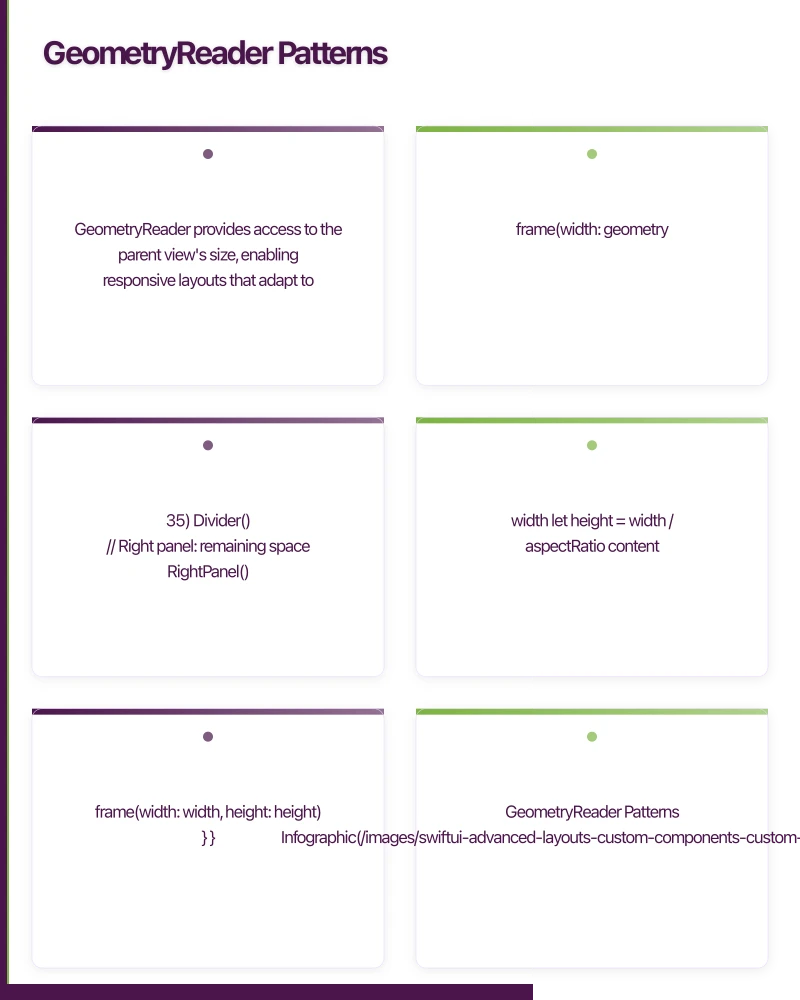
GeometryReader provides access to the parent view’s size, enabling responsive layouts that adapt to available space.
Proportional Layouts
struct ProportionalLayout: View {
    var body: some View {
        GeometryReader { geometry in
            HStack(spacing: 0) {
                // Left panel: 35% of width
                LeftPanel()
                    .frame(width: geometry.size.width * 0.35)

                Divider()

                // Right panel: remaining space
                RightPanel()
                    .frame(maxWidth: .infinity)
            }
        }
    }
}
Aspect Ratio Containers
struct AspectRatioContainer: View {
    let aspectRatio: CGFloat

    var body: some View {
        GeometryReader { geometry in
            let width = geometry.size.width
            let height = width / aspectRatio

            content
                .frame(width: width, height: height)
        }
    }

    @ViewBuilder var content: some View {
        // Your content here
        RoundedRectangle(cornerRadius: 12)
            .fill(Color.blue.opacity(0.2))
    }
}
Scrollable Header with Parallax
A common pattern for profile screens and detail views:
struct ParallaxHeaderView: View {
    let headerHeight: CGFloat = 300

    var body: some View {
        ScrollView {
            GeometryReader { geometry in
                let offset = geometry.frame(in: .global).minY
                let isScrolledDown = offset > 0

                Image("header-background")
                    .resizable()
                    .aspectRatio(contentMode: .fill)
                    .frame(
                        width: geometry.size.width,
                        height: isScrolledDown
                            ? headerHeight + offset
                            : headerHeight
                    )
                    .offset(y: isScrolledDown ? -offset : 0)
                    .clipped()
            }
            .frame(height: headerHeight)

            // Content below header
            VStack(spacing: 16) {
                ForEach(0..less than 20) { index in
                    Text("Row \(index)")
                        .padding()
                        .frame(maxWidth: .infinity)
                        .cardStyle()
                }
            }
            .padding()
        }
        .edgesIgnoringSafeArea(.top)
    }
}
Preference Keys
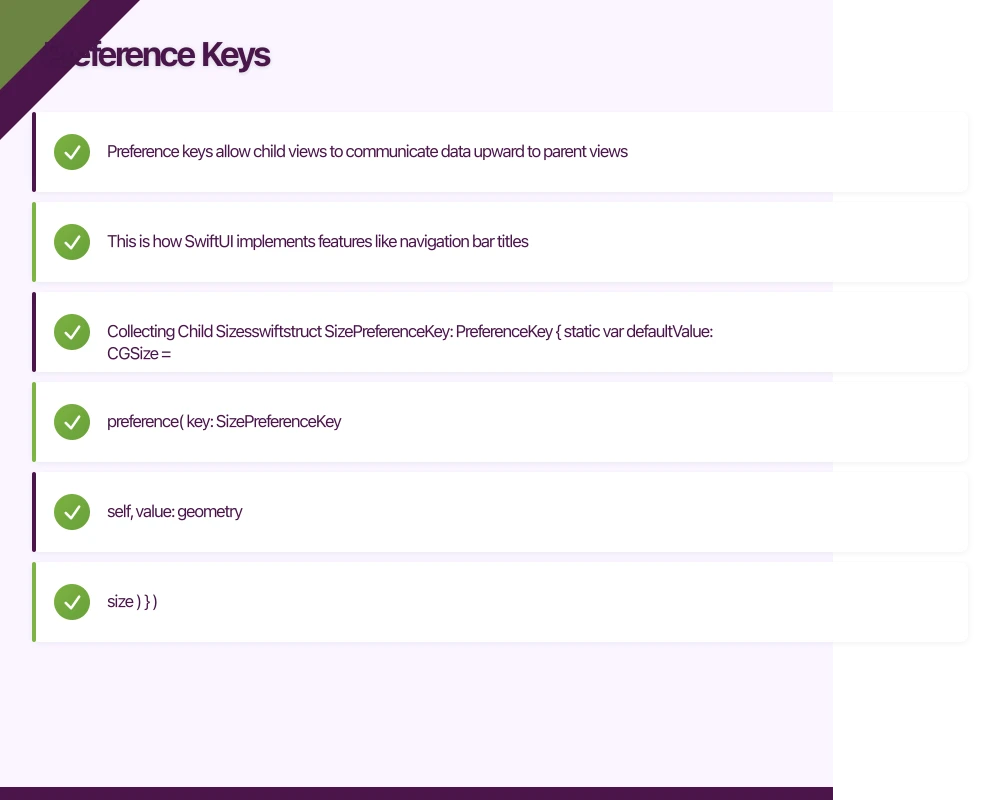
Preference keys allow child views to communicate data upward to parent views. This is how SwiftUI implements features like navigation bar titles.
Collecting Child Sizes
struct SizePreferenceKey: PreferenceKey {
    static var defaultValue: CGSize = .zero

    static func reduce(value: inout CGSize, nextValue: () -> CGSize) {
        value = nextValue()
    }
}

extension View {
    func readSize(onChange: @escaping (CGSize) -> Void) -> some View {
        background(
            GeometryReader { geometry in
                Color.clear
                    .preference(
                        key: SizePreferenceKey.self,
                        value: geometry.size
                    )
            }
        )
        .onPreferenceChange(SizePreferenceKey.self, perform: onChange)
    }
}

// Usage: measure a child view's size
struct DynamicContainer: View {
    @State private var childSize: CGSize = .zero

    var body: some View {
        VStack {
            ChildView()
                .readSize { size in
                    childSize = size
                }

            Text("Child is \(Int(childSize.width))x\(Int(childSize.height))")
                .font(.caption)
        }
    }
}
Building a Custom Tab Bar
Using preferences to build a tab bar where the indicator slides to the selected tab:
struct TabBarPreferenceKey: PreferenceKey {
    static var defaultValue: [TabBarItem] = []

    static func reduce(value: inout [TabBarItem], nextValue: () -> [TabBarItem]) {
        value.append(contentsOf: nextValue())
    }
}

struct TabBarItem: Equatable {
    let tag: Int
    let frame: CGRect
}

struct SlidingTabBar: View {
    let tabs: [String]
    @Binding var selectedTab: Int

    var body: some View {
        HStack(spacing: 0) {
            ForEach(tabs.indices, id: \.self) { index in
                Text(tabs[index])
                    .font(.subheadline)
                    .fontWeight(selectedTab == index ? .semibold : .regular)
                    .foregroundColor(
                        selectedTab == index ? .primary : .secondary
                    )
                    .frame(maxWidth: .infinity)
                    .padding(.vertical, 12)
                    .background(
                        GeometryReader { geometry in
                            Color.clear
                                .preference(
                                    key: TabBarPreferenceKey.self,
                                    value: [
                                        TabBarItem(
                                            tag: index,
                                            frame: geometry.frame(in: .named("tabBar"))
                                        )
                                    ]
                                )
                        }
                    )
                    .onTapGesture {
                        withAnimation(.easeInOut(duration: 0.25)) {
                            selectedTab = index
                        }
                    }
            }
        }
        .coordinateSpace(name: "tabBar")
        .overlayPreferenceValue(TabBarPreferenceKey.self) { prefs in
            if let selected = prefs.first(where: { $0.tag == selectedTab }) {
                Rectangle()
                    .fill(Color.accentColor)
                    .frame(
                        width: selected.frame.width,
                        height: 2
                    )
                    .position(
                        x: selected.frame.midX,
                        y: selected.frame.maxY
                    )
            }
        }
    }
}
Custom Shape and Drawing
R
eusable Custom Shapes
struct RoundedCornerShape: Shape {
    var radius: CGFloat
    var corners: UIRectCorner

    func path(in rect: CGRect) -> Path {
        let path = UIBezierPath(
            roundedRect: rect,
            byRoundingCorners: corners,
            cornerRadii: CGSize(width: radius, height: radius)
        )
        return Path(path.cgPath)
    }
}

extension View {
    func cornerRadius(_ radius: CGFloat, corners: UIRectCorner) -> some View {
        clipShape(RoundedCornerShape(radius: radius, corners: corners))
    }
}

// Usage: round only top corners
Image("banner")
    .cornerRadius(16, corners: [.topLeft, .topRight])
Progress Ring
A custom progress indicator:
struct ProgressRing: View {
    let progress: Double
    let lineWidth: CGFloat
    let colour: Color

    init(progress: Double, lineWidth: CGFloat = 8, colour: Color = .blue) {
        self.progress = progress
        self.lineWidth = lineWidth
        self.colour = colour
    }

    var body: some View {
        ZStack {
            // Background ring
            Circle()
                .stroke(colour.opacity(0.2), lineWidth: lineWidth)

            // Progress ring
            Circle()
                .trim(from: 0, to: progress)
                .stroke(
                    colour,
                    style: StrokeStyle(
                        lineWidth: lineWidth,
                        lineCap: .round
                    )
                )
                .rotationEffect(.degrees(-90))
                .animation(.easeInOut(duration: 0.5), value: progress)
        }
    }
}

// Usage
ProgressRing(progress: 0.75)
    .frame(width: 100, height: 100)
    .overlay(
        Text("75%")
            .font(.headline)
    )
Animation Techniques
Spring Animations
Spring animations feel more natural than linear easing:
struct AnimatedCard: View {
    @State private var isExpanded = false

    var body: some View {
        VStack(spacing: 12) {
            HStack {
                Text("Order Details")
                    .font(.headline)
                Spacer()
                Image(systemName: "chevron.right")
                    .rotationEffect(.degrees(isExpanded ? 90 : 0))
            }

            if isExpanded {
                VStack(alignment: .leading, spacing: 8) {
                    Text("Order #12345")
                    Text("Status: Processing")
                    Text("Total: $49.99")
                }
                .transition(.opacity.combined(with: .move(edge: .top)))
            }
        }
        .padding()
        .cardStyle()
        .onTapGesture {
            withAnimation(.spring(response: 0.35, dampingFraction: 0.7)) {
                isExpanded.toggle()
            }
        }
    }
}
Matched Geometry Effect
Create smooth hero transitions between views:
struct ItemListView: View {
    @Namespace private var animation
    @State private var selectedItem: Item?

    var body: some View {
        ZStack {
            // List view
            if selectedItem == nil {
                ScrollView {
                    LazyVGrid(
                        columns: [GridItem(.adaptive(minimum: 150))],
                        spacing: 16
                    ) {
                        ForEach(items) { item in
                            ItemCard(item: item)
                                .matchedGeometryEffect(
                                    id: item.id,
                                    in: animation
                                )
                                .onTapGesture {
                                    withAnimation(.spring()) {
                                        selectedItem = item
                                    }
                                }
                        }
                    }
                    .padding()
                }
            }

            // Detail view
            if let item = selectedItem {
                ItemDetailView(item: item)
                    .matchedGeometryEffect(
                        id: item.id,
                        in: animation
                    )
                    .onTapGesture {
                        withAnimation(.spring()) {
                            selectedItem = nil
                        }
                    }
            }
        }
    }
}
Staggered Animations
Animate list items appearing with a stagger:
struct StaggeredList: View {
    let items: [String]
    @State private var appeared = Set<Int>()

    var body: some View {
        VStack(spacing: 12) {
            ForEach(items.indices, id: \.self) { index in
                Text(items[index])
                    .padding()
                    .frame(maxWidth: .infinity, alignment: .leading)
                    .cardStyle()
                    .opacity(appeared.contains(index) ? 1 : 0)
                    .offset(y: appeared.contains(index) ? 0 : 20)
                    .onAppear {
                        withAnimation(
                            .easeOut(duration: 0.4)
                            .delay(Double(index) * 0.05)
                        ) {
                            appeared.insert(index)
                        }
                    }
            }
        }
        .padding()
    }
}
Building Reusable Components
Generic List Row
struct ListRow<Leading: View, Trailing: View>: View {
    let title: String
    let subtitle: String?
    let leading: Leading
    let trailing: Trailing

    init(
        title: String,
        subtitle: String? = nil,
        @ViewBuilder leading: () -> Leading,
        @ViewBuilder trailing: () -> Trailing
    ) {
        self.title = title
        self.subtitle = subtitle
        self.leading = leading()
        self.trailing = trailing()
    }

    var body: some View {
        HStack(spacing: 12) {
            leading
                .frame(width: 40, height: 40)

            VStack(alignment: .leading, spacing: 2) {
                Text(title)
                    .font(.body)
                if let subtitle = subtitle {
                    Text(subtitle)
                        .font(.caption)
                        .foregroundColor(.secondary)
                }
            }

            Spacer()

            trailing
        }
        .padding(.vertical, 8)
    }
}

// Usage
ListRow(
    title: "John Smith",
    subtitle: "Last seen 5 min ago"
) {
    AsyncImage(url: avatarURL) { image in
        image.resizable().clipShape(Circle())
    } placeholder: {
        Circle().fill(Color.gray.opacity(0.3))
    }
} trailing: {
    Image(systemName: "chevron.right")
        .foregroundColor(.secondary)
}
Performance Considerations
Avoid Unnecessary GeometryReaders
GeometryReader changes the layout behaviour of its children and triggers additional layout passes. Use it sparingly and only when you genuinely need size or position information.
Use drawingGroup for Complex Graphics
For views with many layers or complex drawing:
ComplexGraphView()
    .drawingGroup() // Renders into a Metal texture
Lazy Stacks for Long Lists
Always use LazyVStack and LazyHStack inside ScrollViews for lists:
ScrollView {
    LazyVStack(spacing: 12) {
        ForEach(items) { item in
            ItemRow(item: item)
        }
    }
}
Conclusion
SwiftUI’s layout system is powerful enough for production applications when you understand the advanced techniques. Custom view modifiers ensure consistency, GeometryReader enables responsive layouts, preference keys unlock child-to-parent communication, and the animation system produces polished interactions.
The key is knowing when to reach for each tool. Start with the simplest approach and only add complexity when the design demands it. A well-structured SwiftUI codebase with reusable components dramatically accelerates feature development.
For help building sophisticated iOS interfaces with SwiftUI, contact eawesome. We build polished SwiftUI applications for Australian businesses.
App store listings drive installs, but a great website drives trust. Cosmos Web Tech creates conversion-optimised websites that complement your mobile app.
Awesome Apps operates under the Ganda Tech Services umbrella, delivering end-to-end technology solutions for Australian businesses.
Talk to a Sydney app developer — free.
30 minutes. We'll tell you what your app needs, how long it takes, and what it costs. Real answers, no sales pitch.
Book Free App Strategy Call →Free · 30 minutes · No obligation