Apple Sign-In vs Google OAuth: Complete Mobile Authentication Guide 2025
If your app has a login screen, you’ve probably asked: should we implement Apple Sign-In, Google Sign-In, or both? Since Apple mandated Sign in with Apple in 2020 for App Store apps offering any social login, this decision affects over 1.5 million iOS apps globally.
Having implemented both authentication systems across dozens of mobile apps, I can tell you they’re not interchangeable. They solve authentication differently, handle user data differently, and create fundamentally different user experiences. Apple prioritizes privacy with email relay and minimal data sharing, while Google provides rich profile data for personalization.
Let’s break down what actually matters for your mobile app in 2025, including implementation code, privacy considerations, and backend integration strategies.
The Quick Answer
If you’re in a hurry: implement both. Apple Sign-In is required if you’re on iOS and offer any social login. Google Sign-In is expected by Android users and has excellent cross-platform support. Most apps need both.
But the implementation details? Those are where the interesting decisions live.
Apple Sign-In: Privacy-First Authentication
Appl
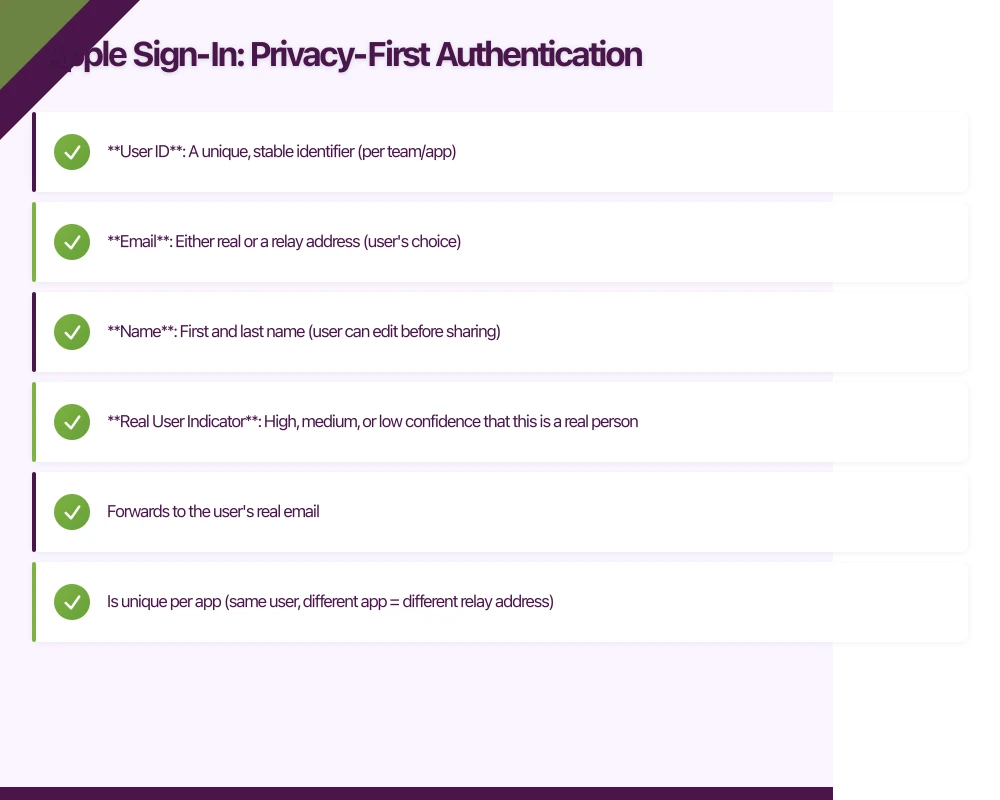 e’s approach prioritizes user privacy to an almost aggressive degree. Users can hide their real email behind a relay address, and Apple provides minimal information to developers.
What You Get from Apple
When a user authenticates with Apple Sign-In, you receive:
- User ID: A unique, stable identifier (per team/app)
- Email: Either real or a relay address (user’s choice)
- Name: First and last name (user can edit before sharing)
- Real User Indicator: High, medium, or low confidence that this is a real person
That’s it. No profile photo. No phone number. No birthday. Just the basics.
Implementation on iOS (Swift)
import AuthenticationServices

class LoginViewController: UIViewController {

    @IBAction func handleAppleSignIn(_ sender: UIButton) {
        let request = ASAuthorizationAppleIDProvider().createRequest()
        request.requestedScopes = [.fullName, .email]

        let controller = ASAuthorizationController(authorizationRequests: [request])
        controller.delegate = self
        controller.presentationContextProvider = self
        controller.performRequests()
    }
}

extension LoginViewController: ASAuthorizationControllerDelegate {

    func authorizationController(
        controller: ASAuthorizationController,
        didCompleteWithAuthorization authorization: ASAuthorization
    ) {
        guard let credential = authorization.credential as? ASAuthorizationAppleIDCredential else {
            return
        }

        // The identity token is a JWT you'll validate on your server
        let identityToken = credential.identityToken
        let authorizationCode = credential.authorizationCode
        let userID = credential.user

        // IMPORTANT: fullName and email are only provided on FIRST sign-in
        // Store them immediately or you lose them forever
        let fullName = credential.fullName
        let email = credential.email

        // Send to your backend
        authenticateWithBackend(
            identityToken: identityToken,
            userID: userID,
            fullName: fullName,
            email: email
        )
    }

    func authorizationController(
        controller: ASAuthorizationController,
        didCompleteWithError error: Error
    ) {
        // Handle errors: cancelled, failed, invalidResponse, notHandled, unknown
        let authError = error as? ASAuthorizationError
        print("Apple Sign-In failed: \(authError?.code ?? .unknown)")
    }
}
The Email Relay Gotcha
When users choose “Hide My Email,” Apple creates a random address like [email protected]. This relay address:
- Forwards to the user’s real email
- Is unique per app (same user, different app = different relay address)
- Continues working as long as the user’s Apple account is active
For your app, this means:
// DON'T do this - it breaks for relay emails
func sendMarketingEmail(to email: String) {
    if email.contains("privaterelay.appleid.com") {
        // Still works! Apple forwards it
    }
}

// But DO store both user ID and email
// The user ID is your reliable identifier
// The email is for communication, not identification
Google OAuth: Rich User Data
Goog
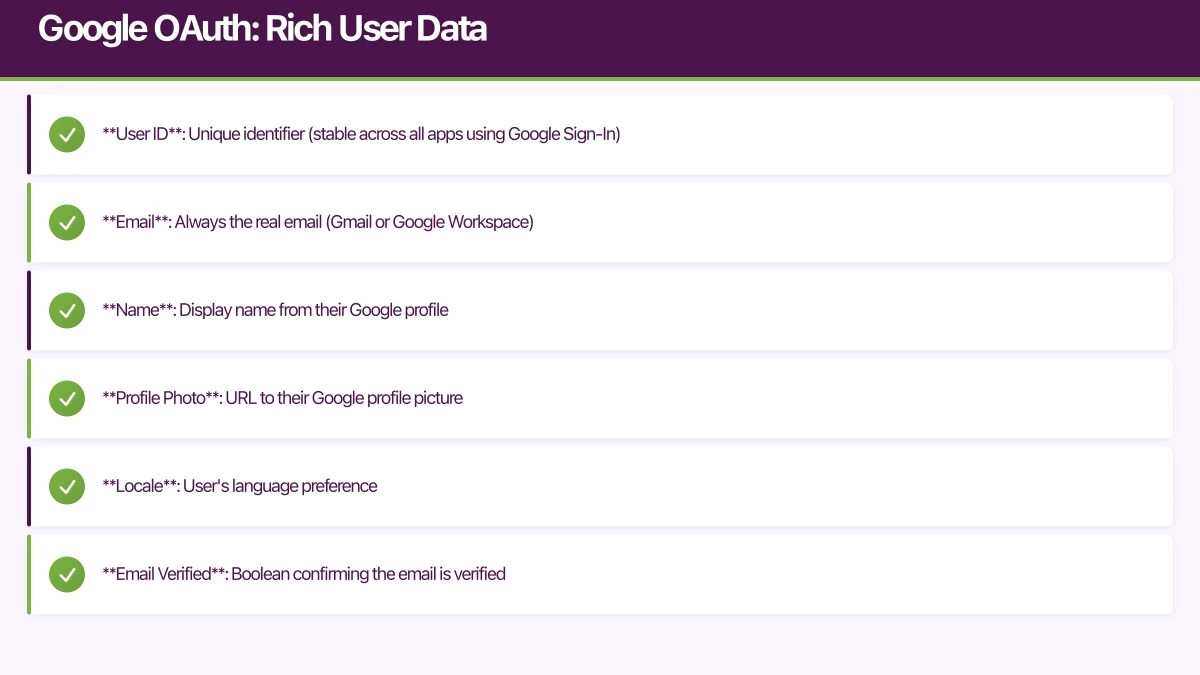 le takes a different approach. Users expect Google to share their profile information, and Google delivers.
What You Get from Google
A Google OAuth sign-in provides:
- User ID: Unique identifier (stable across all apps using Google Sign-In)
- Email: Always the real email (Gmail or Google Workspace)
- Name: Display name from their Google profile
- Profile Photo: URL to their Google profile picture
- Locale: User’s language preference
- Email Verified: Boolean confirming the email is verified
Implementation on Android (Kotlin)
Google updated their Android SDK in 2024. Here’s the current approach using Credential Manager:
import androidx.credentials.CredentialManager
import androidx.credentials.GetCredentialRequest
import com.google.android.libraries.identity.googleid.GetGoogleIdOption
import com.google.android.libraries.identity.googleid.GoogleIdTokenCredential

class LoginActivity : AppCompatActivity() {

    private lateinit var credentialManager: CredentialManager

    override fun onCreate(savedInstanceState: Bundle?) {
        super.onCreate(savedInstanceState)
        credentialManager = CredentialManager.create(this)
    }

    private suspend fun signInWithGoogle() {
        val googleIdOption = GetGoogleIdOption.Builder()
            .setFilterByAuthorizedAccounts(false)
            .setServerClientId(BuildConfig.GOOGLE_WEB_CLIENT_ID)
            .setAutoSelectEnabled(true)
            .setNonce(generateNonce()) // Prevent replay attacks
            .build()

        val request = GetCredentialRequest.Builder()
            .addCredentialOption(googleIdOption)
            .build()

        try {
            val result = credentialManager.getCredential(
                request = request,
                context = this
            )

            val credential = result.credential
            val googleIdTokenCredential = GoogleIdTokenCredential
                .createFrom(credential.data)

            val idToken = googleIdTokenCredential.idToken

            // Send idToken to your backend for verification
            authenticateWithBackend(idToken)

        } catch (e: GetCredentialException) {
            handleSignInError(e)
        }
    }

    private fun generateNonce(): String {
        val bytes = ByteArray(32)
        SecureRandom().nextBytes(bytes)
        return Base64.encodeToString(bytes, Base64.URL_SAFE or Base64.NO_WRAP)
    }
}
Implementation on iOS (Swift with Google Sign-In SDK)
import GoogleSignIn

class LoginViewController: UIViewController {

    @IBAction func handleGoogleSignIn(_ sender: UIButton) {
        GIDSignIn.sharedInstance.signIn(
            withPresenting: self
        ) { [weak self] result, error in
            guard error == nil else {
                print("Google Sign-In error: \(error!.localizedDescription)")
                return
            }

            guard let user = result?.user,
                  let idToken = user.idToken?.tokenString else {
                return
            }

            // You get rich profile data
            let profile = user.profile
            let email = profile?.email
            let name = profile?.name
            let profileImageURL = profile?.imageURL(withDimension: 200)

            // Send to backend
            self?.authenticateWithBackend(
                idToken: idToken,
                email: email,
                name: name
            )
        }
    }
}
Backend Token Verification
Both providers send JWTs that you must verify server-side. Never trust client-side authentication alone.
Verifying Apple Identity Tokens (Node.js)
import jwt from 'jsonwebtoken';
import jwksClient from 'jwks-rsa';

const appleJwksClient = jwksClient({
  jwksUri: 'https://appleid.apple.com/auth/keys',
  cache: true,
  cacheMaxAge: 86400000, // 24 hours
});

async function verifyAppleToken(identityToken) {
  const decoded = jwt.decode(identityToken, { complete: true });

  if (!decoded || decoded.header.alg !== 'RS256') {
    throw new Error('Invalid token format');
  }

  const key = await appleJwksClient.getSigningKey(decoded.header.kid);
  const publicKey = key.getPublicKey();

  const verified = jwt.verify(identityToken, publicKey, {
    algorithms: ['RS256'],
    issuer: 'https://appleid.apple.com',
    audience: 'com.yourapp.bundleid', // Your app's bundle ID
  });

  return {
    userId: verified.sub,
    email: verified.email,
    emailVerified: verified.email_verified === 'true',
    isPrivateEmail: verified.is_private_email === 'true',
  };
}
Verifying Google ID Tokens (Node.js)
import { OAuth2Client } from 'google-auth-library';

const googleClient = new OAuth2Client(process.env.GOOGLE_CLIENT_ID);

async function verifyGoogleToken(idToken) {
  const ticket = await googleClient.verifyIdToken({
    idToken: idToken,
    audience: process.env.GOOGLE_CLIENT_ID,
  });

  const payload = ticket.getPayload();

  // Verify the token is recent
  const now = Math.floor(Date.now() / 1000);
  if (payload.exp < now) {
    throw new Error('Token expired');
  }

  return {
    userId: payload.sub,
    email: payload.email,
    emailVerified: payload.email_verified,
    name: payload.name,
    picture: payload.picture,
    locale: payload.locale,
  };
}
Handling Account Linking
Users might sign in with Apple on their iPhone, then Google on their Android tablet. You need a strategy for this.
Option 1: Email-Based Linking
async function findOrCreateUser(provider, profileData) {
  // First, check if we have this provider ID
  let user = await User.findOne({
    [`auth.${provider}.id`]: profileData.userId
  });

  if (user) {
    return user;
  }

  // Check if email exists (and isn't a relay address)
  if (profileData.email && !profileData.email.includes('privaterelay')) {
    user = await User.findOne({ email: profileData.email });

    if (user) {
      // Link this provider to existing account
      user.auth[provider] = {
        id: profileData.userId,
        email: profileData.email
      };
      await user.save();
      return user;
    }
  }

  // Create new user
  return await User.create({
    email: profileData.email,
    name: profileData.name,
    auth: {
      [provider]: {
        id: profileData.userId,
        email: profileData.email
      }
    }
  });
}
Option 2: Explicit Linking Flow
Prompt users to link accounts explicitly in your app settings:
// In your profile/settings screen
func linkAdditionalAccount() {
    let alert = UIAlertController(
        title: "Link Account",
        message: "Link another sign-in method to your account",
        preferredStyle: .actionSheet
    )

    if !hasAppleLinked {
        alert.addAction(UIAlertAction(title: "Apple", style: .default) { _ in
            self.startAppleLinking()
        })
    }

    if !hasGoogleLinked {
        alert.addAction(UIAlertAction(title: "Google", style: .default) { _ in
            self.startGoogleLinking()
        })
    }

    present(alert, animated: true)
}
User Experience Considerations
Button Placement
Apple has strict guidelines for their button. Google has preferences. Here’s what works:
// Good: Both buttons equally prominent
VStack(spacing: 12) {
    SignInWithAppleButton(.signIn) { request in
        request.requestedScopes = [.fullName, .email]
    } onCompletion: { result in
        handleAppleSignIn(result)
    }
    .frame(height: 50)

    GoogleSignInButton {
        handleGoogleSignIn()
    }
    .frame(height: 50)
}

// Bad: Making one option smaller or less visible
Handle the “One-Time Data” Problem
Apple only provides name and email on first sign-in. If you miss it, it’s gone:
func handleAppleCredential(_ credential: ASAuthorizationAppleIDCredential) {
    // Check if we already have this user
    if let existingUser = UserDefaults.standard.string(forKey: credential.user) {
        // Returning user - we don't get name/email again
        // Use stored data
        proceedWithLogin(userId: credential.user)
    } else {
        // New user - capture everything NOW
        let userData = [
            "userId": credential.user,
            "email": credential.email ?? "",
            "firstName": credential.fullName?.givenName ?? "",
            "lastName": credential.fullName?.familyName ?? ""
        ]

        // Store locally AND send to server immediately
        UserDefaults.standard.set(credential.user, forKey: credential.user)
        sendToServer(userData)
    }
}
Privacy and Compliance
GDPR Considerations
Both providers handle GDPR consent themselves during their sign-in flows. But you still need to:
- Include both providers in your privacy policy
- Provide account deletion that removes their data from your systems
- Allow users to unlink providers without deleting their account
Apple’s Additional Requirements
Apple requires you to support account deletion via their REST API when users delete their Apple ID:
// Server-side endpoint for Apple's account deletion webhook
app.post('/webhooks/apple-account-deletion', async (req, res) => {
  const { events } = req.body;

  for (const event of events) {
    if (event.type === 'consent-revoked' || event.type === 'account-delete') {
      const appleUserId = event.sub;

      // Find and delete user data
      await User.deleteOne({ 'auth.apple.id': appleUserId });

      // Also delete any associated data
      await UserContent.deleteMany({ userId: appleUserId });
    }
  }

  res.sendStatus(200);
});
Common Pitfalls
1. Forgetting to handle cancelled sign-in
Users tap the sign-in button, see the prompt, and tap away. Don’t show an error for this:
func authorizationController(controller: ASAuthorizationController,
                            didCompleteWithError error: Error) {
    if let authError = error as? ASAuthorizationError,
       authError.code == .canceled {
        // User cancelled - do nothing, no error message
        return
    }
    // Show error for actual failures
    showError(error)
}
2. Using deprecated Google Sign-In methods
The Google Sign-In SDK for Android changed significantly. If you’re still using GoogleSignInClient directly, migrate to Credential Manager.
3. Not handling token refresh
Both tokens expire. Plan for this:
// Store token expiry and check before API calls
async function getValidToken(user) {
  if (user.tokenExpiry < Date.now()) {
    return await refreshToken(user);
  }
  return user.accessToken;
}
Frequently Asked Questions: Apple Sign-In vs Google OAuth
Is Apple Sign-In required for iOS apps?
Yes, if your app offers any third-party social login (Facebook, Google, etc.), Apple requires you to also offer Sign in with Apple as of iOS 13 (2020). This is a mandatory App Store Review Guideline 4.8 requirement. Apps without it will be rejected during review.
What data does Apple Sign-In provide to developers?
Apple Sign-In provides minimal data: user ID, email (real or relay), and name (user can edit before sharing). Unlike Google, you don’t receive profile photos, phone numbers, or birthdays. The email and name are only provided on first sign-in—if you miss capturing them, they’re lost.
How does Apple’s email relay work?
When users choose “Hide My Email,” Apple creates a random relay address like [email protected] that forwards to their real email. This relay address is unique per app and continues working as long as the user’s Apple account is active. You can still send emails to relay addresses normally.
Can I use Apple Sign-In on Android apps?
Yes. Apple provides REST APIs and JavaScript SDKs that work on Android and web platforms. However, most Android-first apps stick with Google Sign-In as the primary method, as Android users expect Google authentication.
Should I link Apple and Google accounts for the same user?
Yes, account linking improves user experience. If a user signs in with Apple on iPhone and Google on Android tablet, linking accounts via email matching allows them to access the same data across devices. Implement both automatic email-based linking and explicit “Link Account” flows in settings.
How do I verify tokens from Apple and Google on my backend?
Always verify authentication tokens server-side—never trust client-side validation. For Apple: fetch public keys from appleid.apple.com/auth/keys and verify JWT signatures. For Google: use the official google-auth-library to verify ID tokens. Both methods validate token authenticity, expiration, and audience.
What’s the conversion rate difference between Apple and Google Sign-In?
Apple Sign-In typically has 10-15% higher conversion rates on iOS due to biometric authentication (Face ID/Touch ID) removing password friction. Google Sign-In conversion depends on whether users are already signed into Google on their device. Both significantly outperform traditional email/password registration (which has 30-40% drop-off rates).
Key Takeaways: Choosing Mobile Authentication
In 2025, implement both Apple Sign-In and Google OAuth for maximum user reach. Apple Sign-In is mandatory for iOS apps with social login, while Google Sign-In is the expected standard for Android users.
“Apple Sign-In provides 10-15% higher conversion rates on iOS due to biometric authentication, but Google OAuth offers richer profile data for personalization—most successful apps implement both to serve users across platforms.”
Implementation Priorities:
- iOS apps: Implement Apple Sign-In first (App Store requirement), add Google second
- Android apps: Implement Google Sign-In first (user expectation), add Apple if serving cross-platform users
- Cross-platform: Implement both from day one with server-side account linking
- Backend: Always verify tokens server-side using official libraries—never trust client validation
The implementation isn’t difficult once you understand the quirks: Apple’s one-time data delivery, Google’s Credential Manager migration, and the critical importance of server-side token verification.
Start with the platform your users care about most, get it working end-to-end with proper backend verification, then add the second provider. Your users will appreciate having authentication options, and you’ll have a more accessible, secure app.
Last updated: January 2025 Code examples current for iOS 17+ / Android 14+ / Google Credential Manager API
A dedicated website amplifies your app’s reach. Cosmos Web Tech builds SEO-optimised sites that turn Google searches into app installs.
This article is brought to you by Ganda Tech Services — Sydney’s complete digital solutions provider covering cloud, web, and mobile.
Talk to a Sydney app developer — free.
30 minutes. We'll tell you what your app needs, how long it takes, and what it costs. Real answers, no sales pitch.
Book Free App Strategy Call →Free · 30 minutes · No obligation