Building Wearable Companion Apps for Apple Watch and Wear OS
Smartwatches are no longer novelties strapped to early adopters’ wrists. Apple Watch dominates with over 50% global market share, and Google’s Wear OS has gained ground significantly since Samsung adopted it for the Galaxy Watch series. For app developers, wearable companion apps represent a genuine opportunity to extend your mobile app’s value to users’ wrists.
But wearable development is a different discipline from phone development. Screens are tiny, interactions are measured in seconds, battery constraints are severe, and the connectivity model between watch and phone introduces complexity that catches many teams off guard. This guide covers the practical realities of building companion apps for both platforms.
Designing for the Wrist
Before writing any code, internalise this principle: a wearable app is not a shrunken phone app. The interaction model is fundamentally different.
Glanceable information. Users look at their watch for 2-5 seconds. Your app needs to deliver value in that window. Show the most important information immediately, with no scrolling required for the primary use case.
Quick actions. Wearable interactions should complete in under 10 seconds. If an action takes longer, it belongs on the phone. Common wearable actions: start/stop a timer, confirm a notification, check a status, log a quick data point.
Complications and tiles. The most valuable real estate on a watch is the watch face. Both Apple Watch complications and Wear OS tiles let your app display data without launching the full app.
Information Hierarchy
Design your screens with this priority:
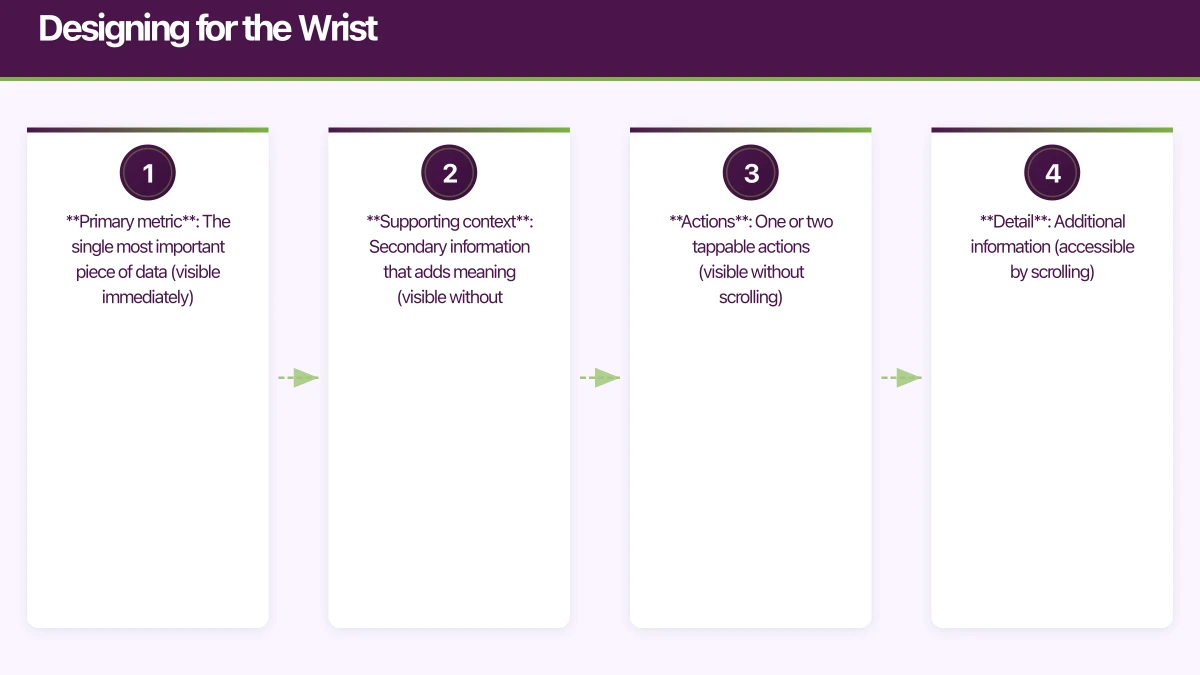
- Primary metric: The single most important piece of data (visible immediately)
- Supporting context: Secondary information that adds meaning (visible without scrolling)
- Actions: One or two tappable actions (visible without scrolling)
- Detail: Additional information (accessible by scrolling)
Apple Watch Development with watchOS
 9
9
watchOS 9 provides a mature development environment built on SwiftUI. Apple has fully embraced SwiftUI for watchOS, and the framework handles the tiny screen remarkably well.
Project Setup
In Xcode, add a watchOS target to your existing iOS project. Choose “Watch App” and select “Watch App with Companion iOS App” to create the paired architecture.
Your project structure will include:
MyApp/
  MyApp/           # iOS app
  MyAppWatch/      # watchOS app
    MyAppWatchApp.swift
    ContentView.swift
    ComplicationController.swift
  Shared/          # Shared models and logic
Building the Watch Interface
SwiftUI on watchOS supports most of the same views as iOS, with automatic adaptation for the smaller screen:
struct WorkoutView: View {
    @StateObject private var workoutManager = WorkoutManager()

    var body: some View {
        TabView {
            // Main metrics
            VStack {
                Text(workoutManager.elapsedTime.formatted())
                    .font(.system(.title, design: .monospaced))
                    .foregroundColor(.yellow)

                HStack {
                    MetricView(
                        label: "BPM",
                        value: "\(workoutManager.heartRate)"
                    )
                    MetricView(
                        label: "CAL",
                        value: "\(workoutManager.calories)"
                    )
                }
            }

            // Controls
            VStack {
                Button(action: workoutManager.togglePause) {
                    Image(systemName: workoutManager.isPaused
                        ? "play.fill" : "pause.fill")
                }
                .tint(workoutManager.isPaused ? .green : .yellow)

                Button(role: .destructive, action: workoutManager.end) {
                    Text("End")
                }
            }
        }
        .tabViewStyle(.page)
    }
}
Complications
Complications are the most valuable feature of a watch app. They live on the watch face and update periodically:
struct ComplicationProvider: CLKComplicationDataSource {
    func getCurrentTimelineEntry(
        for complication: CLKComplication,
        withHandler handler: @escaping (CLKComplicationTimelineEntry?) -> Void
    ) {
        let template: CLKComplicationTemplate

        switch complication.family {
        case .graphicCircular:
            let gauge = CLKSimpleGaugeProvider(
                style: .fill,
                gaugeColor: .green,
                fillFraction: Float(stepsToday) / Float(stepGoal)
            )
            template = CLKComplicationTemplateGraphicCircularClosedGaugeText(
                gaugeProvider: gauge,
                centerTextProvider: CLKSimpleTextProvider(text: "\(stepsToday)")
            )

        case .graphicRectangular:
            template = CLKComplicationTemplateGraphicRectangularTextGauge(
                headerTextProvider: CLKSimpleTextProvider(text: "Steps"),
                body1TextProvider: CLKSimpleTextProvider(
                    text: "\(stepsToday) of \(stepGoal)"
                ),
                gaugeProvider: CLKSimpleGaugeProvider(
                    style: .fill,
                    gaugeColor: .green,
                    fillFraction: Float(stepsToday) / Float(stepGoal)
                )
            )

        default:
            handler(nil)
            return
        }

        let entry = CLKComplicationTimelineEntry(
            date: Date(),
            complicationTemplate: template
        )
        handler(entry)
    }
}
Phone-Watch Communication
WatchConnectivity is the framework for exchanging data between your iOS and watchOS apps:
class ConnectivityManager: NSObject, ObservableObject, WCSessionDelegate {
    static let shared = ConnectivityManager()
    @Published var receivedData: [String: Any] = [:]

    override init() {
        super.init()
        if WCSession.isSupported() {
            WCSession.default.delegate = self
            WCSession.default.activate()
        }
    }

    // Send data to the counterpart app
    func sendMessage(_ data: [String: Any]) {
        guard WCSession.default.isReachable else {
            // Use transferUserInfo for background delivery
            WCSession.default.transferUserInfo(data)
            return
        }
        WCSession.default.sendMessage(data, replyHandler: nil)
    }

    // Receive messages
    func session(
        _ session: WCSession,
        didReceiveMessage message: [String: Any]
    ) {
        DispatchQueue.main.async {
            self.receivedData = message
        }
    }
}
Choose the right communication method:
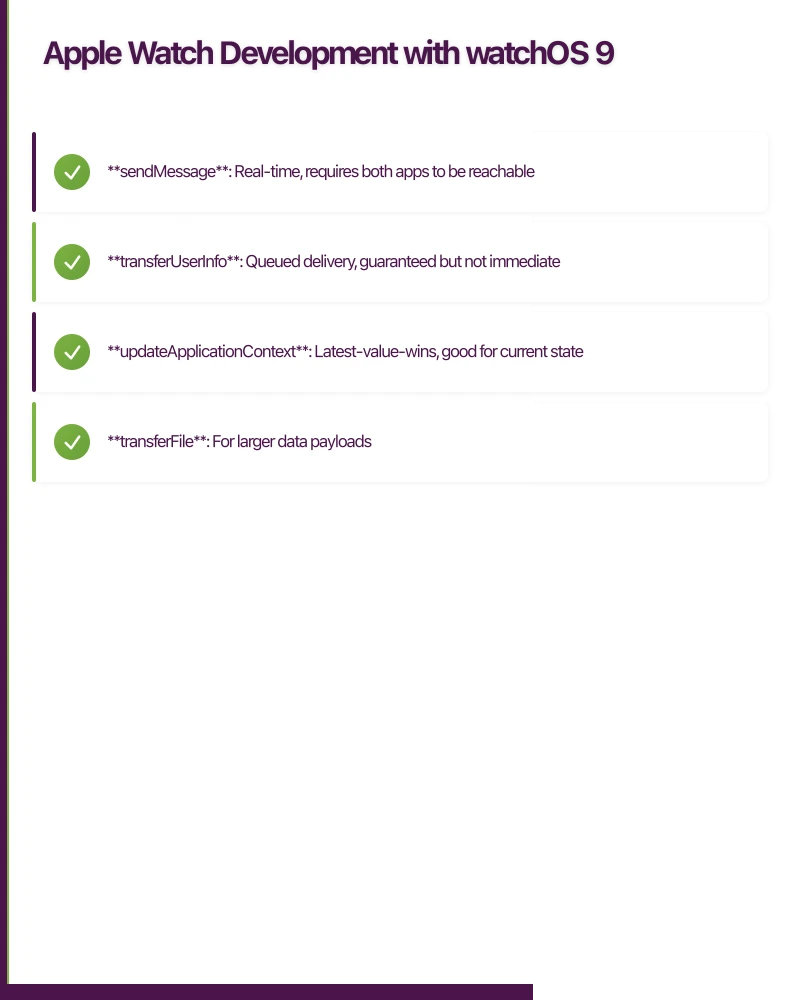
- sendMessage: Real-time, requires both apps to be reachable
- transferUserInfo: Queued delivery, guaranteed but not immediate
- updateApplicationContext: Latest-value-wins, good for current state
- transferFile: For larger data payloads
Wear OS Development
Wear OS development uses Jetpack Compose for Wear OS, which shares concepts with regular Compose but adapts to the circular, small-screen form factor.
Project Setup
Add a Wear OS module to your existing Android project:
// wear/build.gradle
dependencies {
    implementation "androidx.wear.compose:compose-material:1.1.2"
    implementation "androidx.wear.compose:compose-foundation:1.1.2"
    implementation "androidx.wear.compose:compose-navigation:1.1.2"
    implementation "androidx.wear:wear:1.3.0"
    implementation "androidx.wear.tiles:tiles:1.1.0"
    implementation "com.google.android.horologist:horologist-compose-layout:0.3.8"
}
Building with Compose for Wear OS
@Composable
fun WorkoutScreen(viewModel: WorkoutViewModel = viewModel()) {
    val state by viewModel.uiState.collectAsState()

    Scaffold(
        timeText = { TimeText() },
        vignette = { Vignette(vignettePosition = VignettePosition.TopAndBottom) }
    ) {
        ScalingLazyColumn(
            modifier = Modifier.fillMaxSize(),
            anchorType = ScalingLazyListAnchorType.ItemCenter
        ) {
            item {
                Text(
                    text = state.elapsedTime,
                    style = MaterialTheme.typography.display1,
                    color = MaterialTheme.colors.primary
                )
            }

            item {
                Row(
                    modifier = Modifier.fillMaxWidth(),
                    horizontalArrangement = Arrangement.SpaceEvenly
                ) {
                    MetricChip(label = "BPM", value = "${state.heartRate}")
                    MetricChip(label = "CAL", value = "${state.calories}")
                }
            }

            item {
                Row(
                    modifier = Modifier.fillMaxWidth(),
                    horizontalArrangement = Arrangement.SpaceEvenly
                ) {
                    Button(
                        onClick = { viewModel.togglePause() },
                        colors = ButtonDefaults.buttonColors(
                            backgroundColor = if (state.isPaused)
                                Color.Green else MaterialTheme.colors.surface
                        )
                    ) {
                        Icon(
                            imageVector = if (state.isPaused)
                                Icons.Default.PlayArrow else Icons.Default.Pause,
                            contentDescription = "Toggle pause"
                        )
                    }

                    Button(
                        onClick = { viewModel.endWorkout() },
                        colors = ButtonDefaults.buttonColors(
                            backgroundColor = MaterialTheme.colors.error
                        )
                    ) {
                        Icon(
                            imageVector = Icons.Default.Stop,
                            contentDescription = "End workout"
                        )
                    }
                }
            }
        }
    }
}
Tiles
Wear OS Tiles are the equivalent of Apple Watch complications — they appear in the tile carousel and provide glanceable information:
class StepsTileService : TileService() {
    override fun onTileRequest(requestParams: RequestBuilders.TileRequest) =
        Futures.immediateFuture(
            Tile.Builder()
                .setResourcesVersion("1")
                .setTimeline(
                    Timeline.Builder()
                        .addTimelineEntry(
                            TimelineEntry.Builder()
                                .setLayout(createLayout())
                                .build()
                        )
                        .build()
                )
                .build()
        )

    private fun createLayout(): LayoutElement {
        return Column.Builder()
            .addContent(
                Text.Builder()
                    .setText("Steps Today")
                    .setFontStyle(FontStyle.Builder()
                        .setSize(sp(14f))
                        .build())
                    .build()
            )
            .addContent(
                Text.Builder()
                    .setText(getStepCount().toString())
                    .setFontStyle(FontStyle.Builder()
                        .setSize(sp(32f))
                        .setWeight(FONT_WEIGHT_BOLD)
                        .build())
                    .build()
            )
            .build()
    }
}
Phone-Watch Communication on Wear OS
The Wearable Data Layer API handles communication between phone and watch:
class DataLayerManager(private val context: Context) {
    private val dataClient = Wearable.getDataClient(context)
    private val messageClient = Wearable.getMessageClient(context)

    // Send data via DataItem (synced)
    suspend fun sendWorkoutData(workout: WorkoutData) {
        val request = PutDataMapRequest.create("/workout/current").apply {
            dataMap.putString("status", workout.status)
            dataMap.putLong("duration", workout.duration)
            dataMap.putInt("heartRate", workout.heartRate)
            dataMap.putLong("timestamp", System.currentTimeMillis())
        }.asPutDataRequest()
            .setUrgent()

        dataClient.putDataItem(request).await()
    }

    // Send one-off message
    suspend fun sendCommand(command: String) {
        val nodes = Wearable.getNodeClient(context).connectedNodes.await()
        nodes.forEach { node ->
            messageClient.sendMessage(
                node.id, "/command", command.toByteArray()
            ).await()
        }
    }
}
Offline-First Architecture
B
 oth Apple Watch and Wear OS can operate independently from the paired phone. Design your watch app to function offline:
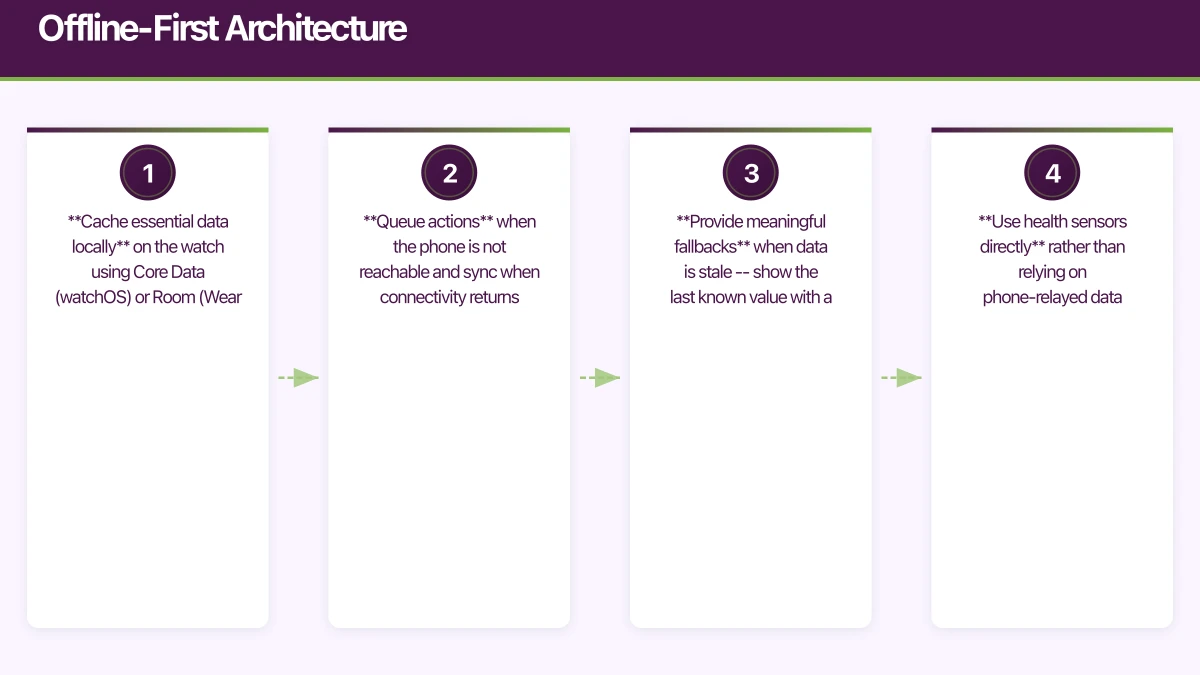
- Cache essential data locally on the watch using Core Data (watchOS) or Room (Wear OS)
- Queue actions when the phone is not reachable and sync when connectivity returns
- Provide meaningful fallbacks when data is stale — show the last known value with a timestamp
- Use health sensors directly rather than relying on phone-relayed data
Battery and Performance Considerations
Wearable batteries are small. Every computation counts:
- Minimise background processing. Use complications and tiles for periodic updates rather than running background tasks.
- Batch network requests. On Wear OS, use WorkManager for network operations that can be batched.
- Limit sensor polling frequency. Heart rate every 5 seconds is usually sufficient; every second drains the battery rapidly.
- Avoid animations unless they serve a clear functional purpose.
- Profile aggressively. Both Xcode Instruments and Android Studio Profiler support wearable targets.
Launch Checklist
Before shipping your wearable companion app:
- Test on physical hardware (simulators miss real-world performance and sensor behaviour)
- Verify offline functionality with phone out of Bluetooth range
- Test complication/tile updates over 24 hours for memory leaks
- Validate battery impact over a typical usage day
- Test with both cellular and Wi-Fi only watch models
- Ensure your app handles the watch app launching independently of the phone app
Wearable companion apps extend your product’s reach to the most personal device your users own. Build them thoughtfully, and you create engagement that no notification can match.
Building a wearable companion app? Our team at eawesome develops connected experiences across phones, watches, and beyond.
Need to set up CI/CD pipelines for your app builds? Cloud Geeks provides DevOps and cloud infrastructure services for development teams.
Ganda Tech Services brings together cloud infrastructure, web development, and mobile app expertise to help Australian businesses thrive in the digital economy.
Talk to a Sydney app developer — free.
30 minutes. We'll tell you what your app needs, how long it takes, and what it costs. Real answers, no sales pitch.
Book Free App Strategy Call →Free · 30 minutes · No obligation