Introduction
Mobile wallets have transformed payment expectations. Users who have set up Apple Pay or Google Pay expect to pay with a single tap or Face ID authentication. Asking them to type card numbers feels archaic.
For merchants, mobile wallets offer higher conversion rates and reduced fraud. The tokenization approach means you never handle actual card numbers, simplifying PCI compliance.
This guide covers implementing Apple Pay and Google Pay using Stripe as the payment processor. Stripe provides a unified API that works across both platforms, simplifying development significantly. We will walk through merchant setup, React Native integration, and handling common scenarios like subscriptions and refunds.
Understanding Mobile Payment Flows
tanding Mobile Payment Flows Infographic](/images/mobile-payment-integration-apple-pay-google-pay-understanding-mobile-payment-flows.webp)
Before implementing, understand how mobile payments work:
Token-Based Payments
When a user adds a card to Apple Pay or Google Pay, the wallet creates a device-specific token. This token can only be used by that device and is useless if intercepted.
User's Card -> Wallet (Apple/Google) -> Device Token
                                          v
Your App -> Payment Processor -> Network Token -> Card Network -> Bank
Payment Flow
- User initiates payment in your app
- Your app requests a payment token from the wallet
- User authenticates (Face ID, fingerprint, PIN)
- Wallet returns encrypted payment token
- Your app sends token to your server
- Server sends token to payment processor (Stripe)
- Processor decrypts and processes payment
- Result returned to app
Your server never sees the actual card number. You receive a confirmation that payment succeeded or failed.
Me
 rchant Setup
Apple Pay Setup
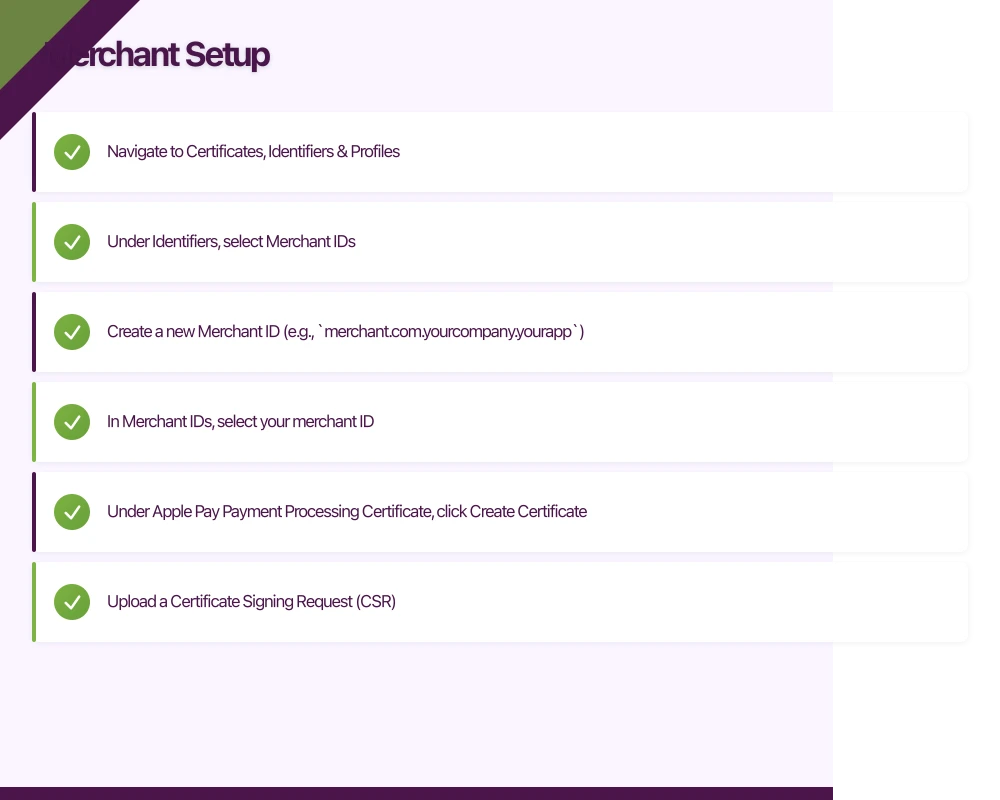
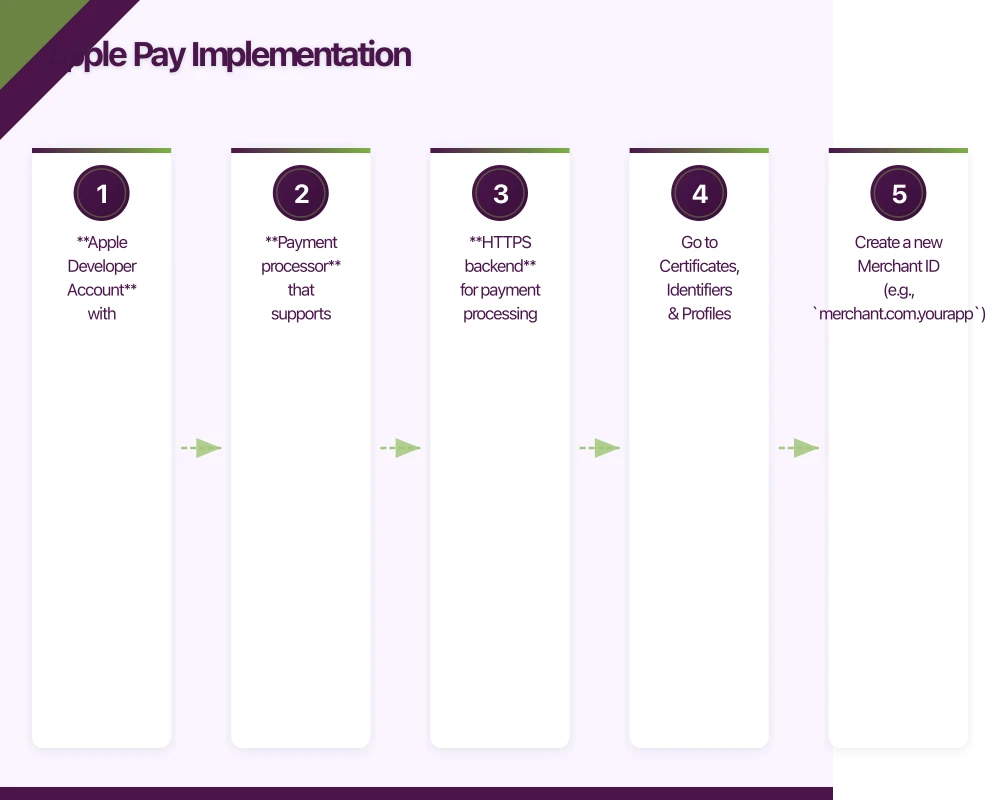
1. Apple Developer Account Configuration
In the Apple Developer portal:
- Navigate to Certificates, Identifiers & Profiles
- Under Identifiers, select Merchant IDs
- Create a new Merchant ID (e.g.,
merchant.com.yourcompany.yourapp)
2. Create Payment Processing Certificate
Apple Pay requires a certificate to encrypt payment data:
- In Merchant IDs, select your merchant ID
- Under Apple Pay Payment Processing Certificate, click Create Certificate
- Upload a Certificate Signing Request (CSR)
For Stripe, you skip this step since Stripe handles certificate management.
3. Enable Apple Pay in Xcode
In your Xcode project:
- Select your target
- Go to Signing & Capabilities
- Click + Capability and add Apple Pay
- Enable your Merchant ID
4. Stripe Dashboard Configuration
In Stripe Dashboard:
- Navigate to Settings > Payment Methods > Apple Pay
- Register your iOS app’s merchant ID
- Stripe generates and manages the certificate automatically
Google Pay Setup
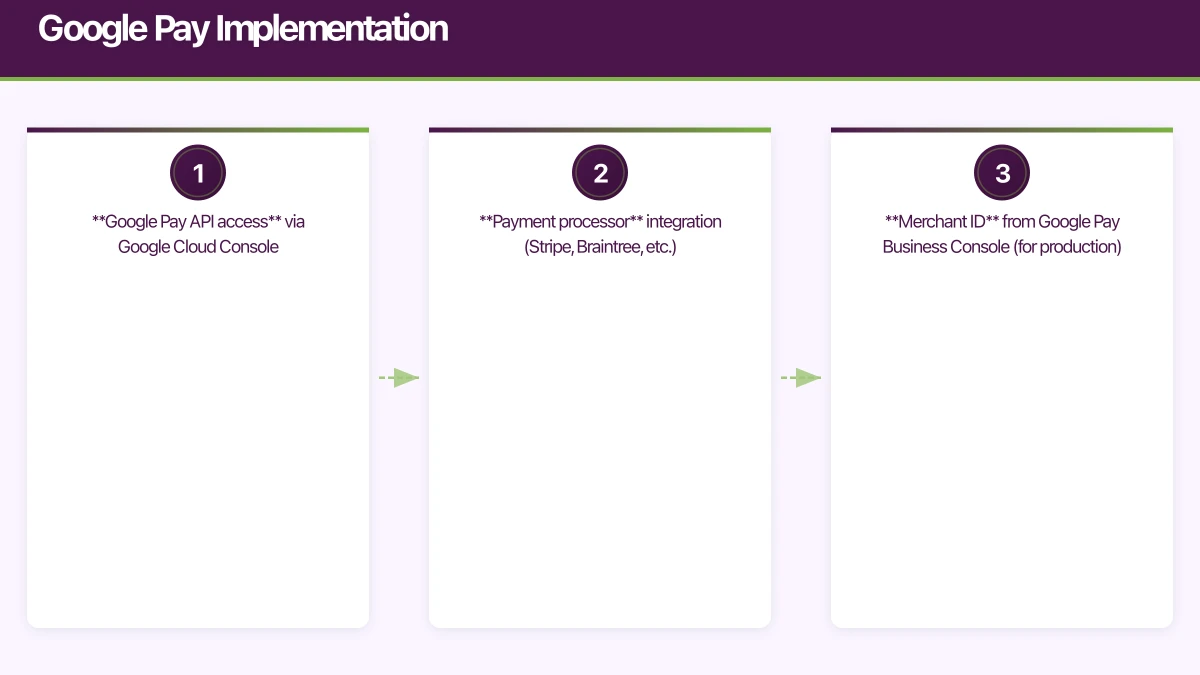
1. Google Pay API Console
Google Pay requires less configuration:
- No merchant ID registration needed for testing
- For production, register your app in the Google Pay Business Console
2. Stripe Dashboard Configuration
In Stripe Dashboard:
- Navigate to Settings > Payment Methods > Google Pay
- Enable Google Pay
- No additional configuration needed for basic integration
React Native Im
 Implementation Infographic](/images/mobile-payment-integration-apple-pay-google-pay-react-native-implementation.webp)
plementation
Implementation Infographic](/images/mobile-payment-integration-apple-pay-google-pay-react-native-implementation.webp)
plementation
Dependencies
npm install @stripe/stripe-react-native
cd ios && pod install
iOS Configuration
Add to ios/YourApp/Info.plist:
<key>CFBundleURLTypes</key>
<array>
  <dict>
    <key>CFBundleURLSchemes</key>
    <array>
      <string>yourapp</string>
    </array>
  </dict>
</array>
Android Configuration
Add to android/app/src/main/AndroidManifest.xml:
<application>
  <meta-data
    android:name="com.google.android.gms.wallet.api.enabled"
    android:value="true" />
</application>
Stripe Provider Setup
// App.tsx
import { StripeProvider } from '@stripe/stripe-react-native';

function App() {
  return (
    <StripeProvider
      publishableKey="pk_live_..."
      merchantIdentifier="merchant.com.yourcompany.yourapp"
      urlScheme="yourapp"
    >
      <NavigationContainer>
        <AppNavigator />
      </NavigationContainer>
    </StripeProvider>
  );
}
Check Platform Payment Availability
// hooks/usePaymentMethods.ts
import { useEffect, useState } from 'react';
import {
  isPlatformPaySupported,
  PlatformPay
} from '@stripe/stripe-react-native';
import { Platform } from 'react-native';

interface PaymentMethods {
  applePay: boolean;
  googlePay: boolean;
  loading: boolean;
}

export function usePaymentMethods(): PaymentMethods {
  const [applePay, setApplePay] = useState(false);
  const [googlePay, setGooglePay] = useState(false);
  const [loading, setLoading] = useState(true);

  useEffect(() => {
    async function checkAvailability() {
      try {
        if (Platform.OS === 'ios') {
          const isApplePaySupported = await isPlatformPaySupported();
          setApplePay(isApplePaySupported);
        } else {
          const isGooglePaySupported = await isPlatformPaySupported({
            googlePay: {
              testEnv: __DEV__,
              merchantCountryCode: 'AU',
              billingAddressConfig: {
                isRequired: true,
                format: 'FULL',
                isPhoneNumberRequired: false
              }
            }
          });
          setGooglePay(isGooglePaySupported);
        }
      } catch (error) {
        console.error('Error checking payment availability:', error);
      } finally {
        setLoading(false);
      }
    }

    checkAvailability();
  }, []);

  return { applePay, googlePay, loading };
}
Creating Payment Intents
Your server creates payment intents:
// server/routes/payments.ts
import Stripe from 'stripe';
import { Router } from 'express';

const stripe = new Stripe(process.env.STRIPE_SECRET_KEY!);
const router = Router();

router.post('/create-payment-intent', async (req, res) => {
  const { amount, currency = 'aud', customerId } = req.body;

  try {
    const paymentIntent = await stripe.paymentIntents.create({
      amount: Math.round(amount * 100), // Convert to cents
      currency,
      customer: customerId,
      automatic_payment_methods: {
        enabled: true
      },
      metadata: {
        orderId: req.body.orderId
      }
    });

    res.json({
      clientSecret: paymentIntent.client_secret,
      paymentIntentId: paymentIntent.id
    });
  } catch (error) {
    console.error('Error creating payment intent:', error);
    res.status(500).json({ error: 'Failed to create payment intent' });
  }
});

export default router;
Implementing Apple Pay Checkout
// screens/CheckoutScreen.tsx
import React, { useState } from 'react';
import {
  View,
  Text,
  TouchableOpacity,
  Alert,
  StyleSheet,
  ActivityIndicator
} from 'react-native';
import {
  usePlatformPay,
  PlatformPayButton,
  PlatformPay
} from '@stripe/stripe-react-native';
import { usePaymentMethods } from '../hooks/usePaymentMethods';

interface CheckoutProps {
  amount: number;
  currency: string;
  onSuccess: (paymentIntentId: string) => void;
  onError: (error: string) => void;
}

function CheckoutScreen({ amount, currency, onSuccess, onError }: CheckoutProps) {
  const [loading, setLoading] = useState(false);
  const { applePay, googlePay } = usePaymentMethods();
  const { confirmPlatformPayPayment } = usePlatformPay();

  const handlePlatformPay = async () => {
    setLoading(true);

    try {
      // 1. Create payment intent on server
      const response = await fetch('/api/create-payment-intent', {
        method: 'POST',
        headers: { 'Content-Type': 'application/json' },
        body: JSON.stringify({ amount, currency })
      });

      const { clientSecret, paymentIntentId } = await response.json();

      // 2. Configure payment request
      const { error } = await confirmPlatformPayPayment(clientSecret, {
        applePay: {
          cartItems: [
            {
              label: 'Total',
              amount: amount.toFixed(2),
              paymentType: PlatformPay.PaymentType.Immediate
            }
          ],
          merchantCountryCode: 'AU',
          currencyCode: currency.toUpperCase(),
          requiredShippingAddressFields: [
            PlatformPay.ContactField.EmailAddress,
            PlatformPay.ContactField.Name
          ],
          requiredBillingContactFields: [
            PlatformPay.ContactField.PostalAddress
          ]
        },
        googlePay: {
          merchantCountryCode: 'AU',
          currencyCode: currency.toUpperCase(),
          testEnv: __DEV__,
          merchantName: 'Your Company',
          billingAddressConfig: {
            isRequired: true,
            format: 'FULL'
          }
        }
      });

      if (error) {
        onError(error.message);
        return;
      }

      onSuccess(paymentIntentId);
    } catch (error) {
      onError('Payment failed. Please try again.');
    } finally {
      setLoading(false);
    }
  };

  const isPlatformPayAvailable = applePay || googlePay;

  return (
    <View style={styles.container}>
      <View style={styles.summaryContainer}>
        <Text style={styles.summaryTitle}>Order Summary</Text>
        <View style={styles.summaryRow}>
          <Text>Total</Text>
          <Text style={styles.amount}>
            {new Intl.NumberFormat('en-AU', {
              style: 'currency',
              currency
            }).format(amount)}
          </Text>
        </View>
      </View>

      {loading ? (
        <ActivityIndicator size="large" color="#007AFF" />
      ) : (
        <>
          {isPlatformPayAvailable && (
            <PlatformPayButton
              type={PlatformPay.ButtonType.Buy}
              appearance={PlatformPay.ButtonStyle.Black}
              onPress={handlePlatformPay}
              style={styles.platformPayButton}
            />
          )}

          <TouchableOpacity
            style={styles.cardButton}
            onPress={() => {/* Navigate to card payment screen */}}
          >
            <Text style={styles.cardButtonText}>Pay with Card</Text>
          </TouchableOpacity>
        </>
      )}
    </View>
  );
}

const styles = StyleSheet.create({
  container: {
    flex: 1,
    padding: 20
  },
  summaryContainer: {
    backgroundColor: '#f5f5f5',
    padding: 16,
    borderRadius: 12,
    marginBottom: 24
  },
  summaryTitle: {
    fontSize: 18,
    fontWeight: '600',
    marginBottom: 12
  },
  summaryRow: {
    flexDirection: 'row',
    justifyContent: 'space-between',
    alignItems: 'center'
  },
  amount: {
    fontSize: 24,
    fontWeight: '700'
  },
  platformPayButton: {
    height: 50,
    marginBottom: 16
  },
  cardButton: {
    height: 50,
    backgroundColor: '#333',
    borderRadius: 8,
    justifyContent: 'center',
    alignItems: 'center'
  },
  cardButtonText: {
    color: '#fff',
    fontSize: 16,
    fontWeight: '600'
  }
});

export default CheckoutScreen;
Handling Subscriptions
For recurring payments with mobile wallets:
// server/routes/subscriptions.ts
router.post('/create-subscription', async (req, res) => {
  const { customerId, priceId } = req.body;

  try {
    // Create setup intent for recurring payments
    const subscription = await stripe.subscriptions.create({
      customer: customerId,
      items: [{ price: priceId }],
      payment_behavior: 'default_incomplete',
      payment_settings: {
        save_default_payment_method: 'on_subscription'
      },
      expand: ['latest_invoice.payment_intent']
    });

    const invoice = subscription.latest_invoice as Stripe.Invoice;
    const paymentIntent = invoice.payment_intent as Stripe.PaymentIntent;

    res.json({
      subscriptionId: subscription.id,
      clientSecret: paymentIntent.client_secret
    });
  } catch (error) {
    res.status(500).json({ error: 'Failed to create subscription' });
  }
});
// screens/SubscriptionScreen.tsx
function SubscriptionScreen({ priceId, onSuccess }) {
const { confirmPlatformPayPayment } = usePlatformPay();
const handleSubscribe = async () => {
const response = await fetch('/api/create-subscription', {
method: 'POST',
headers: { 'Content-Type': 'application/json' },
body: JSON.stringify({
customerId: user.stripeCustomerId,
priceId
})
});
const { clientSecret, subscriptionId } = await response.json();
const { error } = await confirmPlatformPayPayment(clientSecret, {
applePay: {
cartItems: [
{
label: 'Premium Subscription',
amount: '9.99',
paymentType: PlatformPay.PaymentType.Recurring,
intervalUnit: PlatformPay.IntervalUnit.Month,
intervalCount: 1
}
],
merchantCountryCode: 'AU',
currencyCode: 'AUD'
},
googlePay: {
merchantCountryCode: 'AU',
currencyCode: 'AUD',
merchantName: 'Your Company'
}
});
if (!error) {
onSuccess(subscriptionId);
}
};
return (
<PlatformPayButton
type={PlatformPay.ButtonType.Subscribe}
onPress={handleSubscribe}
/>
);
}Webhook Handling
Handle payment events server-side:
// server/routes/webhooks.ts
import { Router } from 'express';
import Stripe from 'stripe';

const stripe = new Stripe(process.env.STRIPE_SECRET_KEY!);
const router = Router();

router.post(
  '/stripe-webhook',
  express.raw({ type: 'application/json' }),
  async (req, res) => {
    const sig = req.headers['stripe-signature']!;

    let event: Stripe.Event;

    try {
      event = stripe.webhooks.constructEvent(
        req.body,
        sig,
        process.env.STRIPE_WEBHOOK_SECRET!
      );
    } catch (err) {
      console.error('Webhook signature verification failed');
      return res.status(400).send(`Webhook Error: ${err.message}`);
    }

    switch (event.type) {
      case 'payment_intent.succeeded':
        const paymentIntent = event.data.object as Stripe.PaymentIntent;
        await handleSuccessfulPayment(paymentIntent);
        break;

      case 'payment_intent.payment_failed':
        const failedPayment = event.data.object as Stripe.PaymentIntent;
        await handleFailedPayment(failedPayment);
        break;

      case 'customer.subscription.created':
        const subscription = event.data.object as Stripe.Subscription;
        await handleNewSubscription(subscription);
        break;

      case 'customer.subscription.deleted':
        const canceledSub = event.data.object as Stripe.Subscription;
        await handleCanceledSubscription(canceledSub);
        break;

      case 'invoice.payment_failed':
        const invoice = event.data.object as Stripe.Invoice;
        await handleFailedInvoice(invoice);
        break;

      default:
        console.log(`Unhandled event type: ${event.type}`);
    }

    res.json({ received: true });
  }
);

async function handleSuccessfulPayment(paymentIntent: Stripe.PaymentIntent) {
  const orderId = paymentIntent.metadata.orderId;

  // Update order status
  await db.orders.update({
    where: { id: orderId },
    data: {
      status: 'paid',
      paidAt: new Date(),
      stripePaymentIntentId: paymentIntent.id
    }
  });

  // Send confirmation email
  await sendOrderConfirmationEmail(orderId);

  // Send push notification
  await sendPushNotification(paymentIntent.customer as string, {
    title: 'Payment Successful',
    body: 'Your order has been confirmed'
  });
}

export default router;
Error Handling
Handle common payment errors gracefully:
// utils/paymentErrors.ts
import { StripeError } from '@stripe/stripe-react-native';

export function getPaymentErrorMessage(error: StripeError<any>): string {
  switch (error.code) {
    case 'Canceled':
      return 'Payment was canceled';
    case 'Failed':
      return 'Payment failed. Please try again.';
    case 'authentication_required':
      return 'Additional authentication required';
    case 'card_declined':
      return 'Your card was declined';
    case 'expired_card':
      return 'Your card has expired';
    case 'insufficient_funds':
      return 'Insufficient funds';
    case 'processing_error':
      return 'Processing error. Please try again.';
    default:
      return 'An error occurred. Please try again.';
  }
}
// components/PaymentError.tsx
function PaymentError({ error, onRetry, onUseCard }) {
const message = getPaymentErrorMessage(error);
return (
<View style={styles.container}>
<Icon name="alert-circle" size={48} color="#FF3B30" />
<Text style={styles.message}>{message}</Text>
<TouchableOpacity style={styles.retryButton} onPress={onRetry}>
<Text style={styles.retryButtonText}>Try Again</Text>
</TouchableOpacity>
<TouchableOpacity style={styles.cardButton} onPress={onUseCard}>
<Text style={styles.cardButtonText}>Pay with Card Instead</Text>
</TouchableOpacity>
</View>
);
}Testing
Test Cards
Use Stripe’s test cards:
| Scenario | Card Number |
|---|---|
| Success | 4242 4242 4242 4242 |
| Requires authentication | 4000 0027 6000 3184 |
| Declined | 4000 0000 0000 0002 |
| Insufficient funds | 4000 0000 0000 9995 |
Testing Apple Pay
Apple Pay cannot be tested in the iOS Simulator. Use:
- Physical device with test cards in Apple Wallet
- Stripe’s test mode with test Merchant ID
Testing Google Pay
Google Pay works in the Android Emulator with test mode:
const { confirmPlatformPayPayment } = usePlatformPay();

await confirmPlatformPayPayment(clientSecret, {
  googlePay: {
    testEnv: true, // Enable test environment
    merchantCountryCode: 'AU',
    currencyCode: 'AUD'
  }
});
Integration Tests
// tests/payments.test.ts
describe('Payment Integration', () => {
  it('creates payment intent successfully', async () => {
    const response = await request(app)
      .post('/api/create-payment-intent')
      .send({
        amount: 99.99,
        currency: 'aud'
      });

    expect(response.status).toBe(200);
    expect(response.body.clientSecret).toBeDefined();
    expect(response.body.clientSecret).toMatch(/^pi_.*_secret_/);
  });

  it('handles webhook for successful payment', async () => {
    const paymentIntent = {
      id: 'pi_test_123',
      status: 'succeeded',
      metadata: { orderId: 'order_123' }
    };

    const response = await request(app)
      .post('/api/stripe-webhook')
      .set('stripe-signature', generateTestSignature(paymentIntent))
      .send(JSON.stringify({
        type: 'payment_intent.succeeded',
        data: { object: paymentIntent }
      }));

    expect(response.status).toBe(200);

    // Verify order was updated
    const order = await db.orders.findUnique({
      where: { id: 'order_123' }
    });
    expect(order.status).toBe('paid');
  });
});
Security Considerations
PCI Compliance
Using Stripe with Apple Pay and Google Pay keeps you largely out of PCI scope:
- You never handle card numbers
- Tokens are device-specific and one-time use
- All sensitive data is encrypted end-to-end
However, you still must:
- Use HTTPS for all API communication
- Secure your Stripe API keys
- Implement proper authentication
- Log payment events for auditing
Fraud Prevention
Stripe provides built-in fraud protection. Enable additional measures:
// Enhanced fraud protection
const paymentIntent = await stripe.paymentIntents.create({
  amount: 9999,
  currency: 'aud',
  metadata: {
    orderId: order.id,
    customerIp: req.ip,
    userAgent: req.headers['user-agent']
  },
  // Enable Radar for fraud detection
  statement_descriptor: 'YOURCOMPANY',
  statement_descriptor_suffix: order.id.slice(-8)
});
Rate Limiting
Protect your payment endpoints:
import rateLimit from 'express-rate-limit';

const paymentLimiter = rateLimit({
  windowMs: 15 * 60 * 1000, // 15 minutes
  max: 10, // 10 payment attempts per window
  message: 'Too many payment attempts. Please try again later.'
});

router.post('/create-payment-intent', paymentLimiter, async (req, res) => {
  // ...
});
Regional Considerations
Australia-Specific Requirements
For Australian merchants:
- ABN required for business accounts
- GST must be included in displayed prices
- ACCC consumer protection laws apply to refunds
// Display GST-inclusive prices
function formatAustralianPrice(amount: number): string {
  return new Intl.NumberFormat('en-AU', {
    style: 'currency',
    currency: 'AUD'
  }).format(amount);
}

// Calculate GST component
function calculateGST(totalAmount: number): number {
  return totalAmount / 11; // GST is 1/11th of GST-inclusive price
}
Multi-Currency Support
const paymentIntent = await stripe.paymentIntents.create({
  amount: Math.round(convertedAmount * 100),
  currency: customerCurrency,
  // Stripe handles conversion at current rates
});
Conclusion
Apple Pay and Google Pay integration dramatically improves checkout conversion. Users complete payments in seconds instead of minutes, and the tokenized approach reduces fraud while simplifying your compliance requirements.
Stripe’s unified SDK makes implementing both platforms straightforward. The same React Native code handles Apple Pay on iOS and Google Pay on Android. Server-side, a single PaymentIntent API works for all payment methods.
Start with one-time payments to understand the flow. Add subscription support once the basics work. Build in proper error handling and testing from the start - payment bugs are expensive in both money and trust.
The initial setup requires attention to detail, especially around certificates and merchant configuration. But once configured, mobile payments become the simplest and most reliable payment method in your app.
Implementing mobile payments for your app? Our team has integrated payment systems handling millions in transactions. Contact us to discuss your requirements.
App store listings drive installs, but a great website drives trust. Cosmos Web Tech creates conversion-optimised websites that complement your mobile app.
Part of the Ganda Tech Services family, Awesome Apps delivers specialist mobile app development for Australian small and medium businesses.
Talk to a Sydney app developer — free.
30 minutes. We'll tell you what your app needs, how long it takes, and what it costs. Real answers, no sales pitch.
Book Free App Strategy Call →Free · 30 minutes · No obligation