Implementing In-App Purchases for iOS and Android
In-app purchases (IAP) are the dominant monetisation model for mobile apps. Whether you are selling premium features, consumable items, or subscriptions, both Apple and Google provide robust billing APIs. However, implementing IAP correctly is more complex than most developers expect.
This guide walks through the complete implementation for both platforms, covering product configuration, purchase flows, receipt validation, and the gotchas that trip up first-time implementers.
IAP Product Types
Both platforms support similar product types:
Consumable: Can be purchased multiple times. Used up and repurchased (e.g., virtual currency, extra lives). Not restored on new devices.
Non-Consumable: Purchased once, available forever. Restored on new devices (e.g., premium feature unlock, ad removal). Apple requires a “Restore Purchases” button.
Auto-Renewable Subscription: Recurring charge at a set interval (weekly, monthly, yearly). Automatically renews until cancelled. The primary model for ongoing content or services.
Non-Renewing Subscription: Time-limited access that does not auto-renew. The user must manually repurchase. Less common and more complex to manage.
iOS: StoreKit Implementation
Configuring Products in App Store Connect
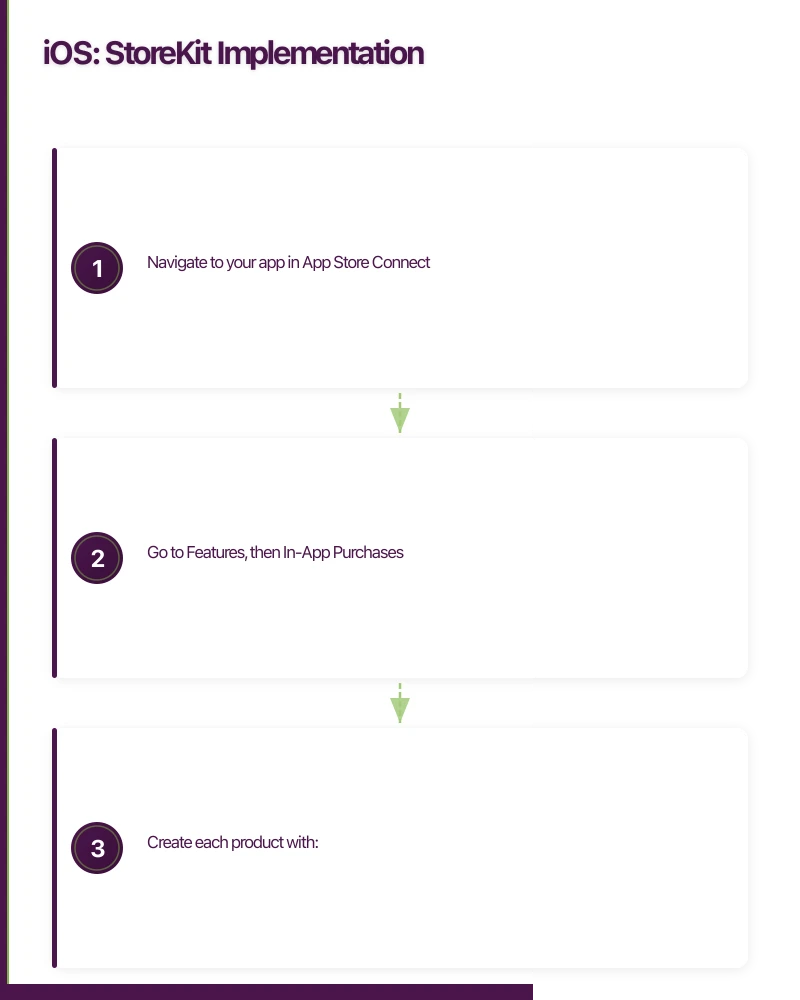
- Navigate to your app in App Store Connect
- Go to Features, then In-App Purchases
- Create each product with:
- A unique Product ID (e.g.,
au.com.yourapp.premium_monthly) - A display name and description
- A price tier (supports Australian Dollar tiers)
- For subscriptions: duration and subscription group
- A unique Product ID (e.g.,
Use reverse domain notation for product IDs. Once created, product IDs cannot be reused, even if deleted.
Fetching Products
import StoreKit

class StoreManager: NSObject, ObservableObject, SKProductsRequestDelegate {
    @Published var products: [SKProduct] = []
    @Published var purchaseState: PurchaseState = .idle

    private var productRequest: SKProductsRequest?

    func fetchProducts() {
        let productIDs: Set<String> = [
            "au.com.yourapp.premium_monthly",
            "au.com.yourapp.premium_yearly",
            "au.com.yourapp.remove_ads"
        ]

        productRequest = SKProductsRequest(productIdentifiers: productIDs)
        productRequest?.delegate = self
        productRequest?.start()
    }

    func productsRequest(
        _ request: SKProductsRequest,
        didReceive response: SKProductsResponse
    ) {
        DispatchQueue.main.async {
            self.products = response.products.sorted { $0.price.doubleValue < $1.price.doubleValue }
        }

        // Log invalid product IDs for debugging
        if !response.invalidProductIdentifiers.isEmpty {
            print("Invalid product IDs: \(response.invalidProductIdentifiers)")
        }
    }
}
Displaying Prices
Always use the product’s localised price, never hardcode prices:
extension SKProduct {
    var localizedPrice: String {
        let formatter = NumberFormatter()
        formatter.numberStyle = .currency
        formatter.locale = priceLocale
        return formatter.string(from: price) ?? "\(price)"
    }
}

// Usage in UI
Text(product.localizedPrice) // Displays "A$9.99" for Australian users
Making a Purchase
extension StoreManager: SKPaymentTransactionObserver {

    func purchase(product: SKProduct) {
        guard SKPaymentQueue.canMakePayments() else {
            purchaseState = .failed("Purchases are disabled on this device")
            return
        }

        let payment = SKPayment(product: product)
        SKPaymentQueue.default().add(payment)
        purchaseState = .purchasing
    }

    func paymentQueue(
        _ queue: SKPaymentQueue,
        updatedTransactions transactions: [SKPaymentTransaction]
    ) {
        for transaction in transactions {
            switch transaction.transactionState {
            case .purchased:
                handlePurchased(transaction)
            case .failed:
                handleFailed(transaction)
            case .restored:
                handleRestored(transaction)
            case .deferred:
                // Ask-to-Buy: waiting for parental approval
                purchaseState = .deferred
            case .purchasing:
                break
            @unknown default:
                break
            }
        }
    }

    private func handlePurchased(_ transaction: SKPaymentTransaction) {
        // Validate receipt server-side
        validateReceipt { success in
            if success {
                self.unlockContent(for: transaction.payment.productIdentifier)
                self.purchaseState = .purchased
            } else {
                self.purchaseState = .failed("Receipt validation failed")
            }
            SKPaymentQueue.default().finishTransaction(transaction)
        }
    }

    private func handleFailed(_ transaction: SKPaymentTransaction) {
        if let error = transaction.error as? SKError, error.code != .paymentCancelled {
            purchaseState = .failed(error.localizedDescription)
        } else {
            purchaseState = .idle
        }
        SKPaymentQueue.default().finishTransaction(transaction)
    }

    private func handleRestored(_ transaction: SKPaymentTransaction) {
        unlockContent(for: transaction.payment.productIdentifier)
        SKPaymentQueue.default().finishTransaction(transaction)
    }
}
Restoring Purchases
Apple requires all apps with non-consumable purchases or subscriptions to include a Restore Purchases mechanism:
func restorePurchases() {
    SKPaymentQueue.default().restoreCompletedTransactions()
}

func paymentQueueRestoreCompletedTransactionsFinished(_ queue: SKPaymentQueue) {
    if queue.transactions.isEmpty {
        purchaseState = .failed("No purchases to restore")
    } else {
        purchaseState = .restored
    }
}
Receipt Validation
Never validate receipts only on the device. Client-side validation can be bypassed. Always validate server-side.
private func validateReceipt(completion: @escaping (Bool) -> Void) {
    guard let receiptURL = Bundle.main.appStoreReceiptURL,
          let receiptData = try? Data(contentsOf: receiptURL)
    else {
        completion(false)
        return
    }

    let receiptString = receiptData.base64EncodedString()

    // Send to your server for validation
    var request = URLRequest(url: URL(string: "https://api.yourapp.com/validate-receipt")!)
    request.httpMethod = "POST"
    request.httpBody = try? JSONEncoder().encode(["receipt": receiptString])
    request.setValue("application/json", forHTTPHeaderField: "Content-Type")

    URLSession.shared.dataTask(with: request) { data, response, error in
        guard let data = data,
              let result = try? JSONDecoder().decode(ValidationResult.self, from: data)
        else {
            completion(false)
            return
        }
        completion(result.isValid)
    }.resume()
}
Your server validates with Apple:
// Node.js server-side receipt validation
const validateAppleReceipt = async (receiptData) => {
  // Try production first
  let response = await fetch('https://buy.itunes.apple.com/verifyReceipt', {
    method: 'POST',
    body: JSON.stringify({
      'receipt-data': receiptData,
      'password': process.env.APP_SHARED_SECRET,
    }),
  });

  let result = await response.json();

  // Status 21007 means sandbox receipt sent to production
  if (result.status === 21007) {
    response = await fetch('https://sandbox.itunes.apple.com/verifyReceipt', {
      method: 'POST',
      body: JSON.stringify({
        'receipt-data': receiptData,
        'password': process.env.APP_SHARED_SECRET,
      }),
    });
    result = await response.json();
  }

  return result.status === 0;
};
Android: Google Play Billing Librar
 y
y
Configuring Products in Google Play Console
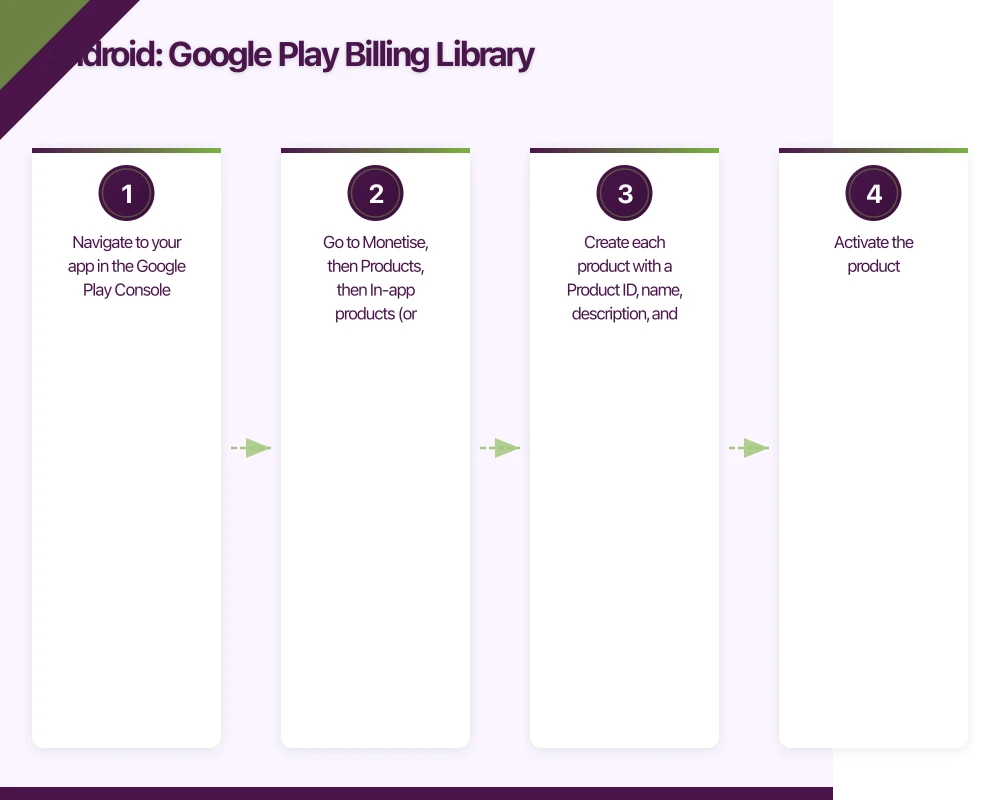
- Navigate to your app in the Google Play Console
- Go to Monetise, then Products, then In-app products (or Subscriptions)
- Create each product with a Product ID, name, description, and price
- Activate the product
Setting Up the Billing Client
// Add dependency
// implementation 'com.android.billingclient:billing-ktx:4.0.0'

class BillingManager(private val context: Context) : PurchasesUpdatedListener {
    private var billingClient: BillingClient = BillingClient.newBuilder(context)
        .setListener(this)
        .enablePendingPurchases()
        .build()

    private var productDetails: List<SkuDetails> = emptyList()

    fun startConnection() {
        billingClient.startConnection(object : BillingClientStateListener {
            override fun onBillingSetupFinished(billingResult: BillingResult) {
                if (billingResult.responseCode == BillingClient.BillingResponseCode.OK) {
                    queryProducts()
                }
            }

            override fun onBillingServiceDisconnected() {
                // Retry connection
                startConnection()
            }
        })
    }

    private fun queryProducts() {
        val params = SkuDetailsParams.newBuilder()
            .setSkusList(listOf(
                "premium_monthly",
                "premium_yearly",
                "remove_ads"
            ))
            .setType(BillingClient.SkuType.SUBS)
            .build()

        billingClient.querySkuDetailsAsync(params) { billingResult, skuDetailsList ->
            if (billingResult.responseCode == BillingClient.BillingResponseCode.OK) {
                productDetails = skuDetailsList ?: emptyList()
            }
        }
    }
}
Launching the Purchase Flow
fun purchaseProduct(activity: Activity, skuDetails: SkuDetails) {
    val flowParams = BillingFlowParams.newBuilder()
        .setSkuDetails(skuDetails)
        .build()

    billingClient.launchBillingFlow(activity, flowParams)
}

// Handle purchase result
override fun onPurchasesUpdated(
    billingResult: BillingResult,
    purchases: MutableList<Purchase>?
) {
    when (billingResult.responseCode) {
        BillingClient.BillingResponseCode.OK -> {
            purchases?.forEach { purchase ->
                handlePurchase(purchase)
            }
        }
        BillingClient.BillingResponseCode.USER_CANCELED -> {
            // User cancelled, do nothing
        }
        else -> {
            // Handle error
            Log.e("Billing", "Purchase failed: ${billingResult.debugMessage}")
        }
    }
}
Acknowledging and Verifying Purchases
Google requires purchases to be acknowledged within 3 days, or they are automatically refunded:
private fun handlePurchase(purchase: Purchase) {
    if (purchase.purchaseState == Purchase.PurchaseState.PURCHASED) {
        // Verify on your server first
        verifyPurchaseOnServer(purchase) { isValid ->
            if (isValid) {
                // Acknowledge the purchase
                if (!purchase.isAcknowledged) {
                    val params = AcknowledgePurchaseParams.newBuilder()
                        .setPurchaseToken(purchase.purchaseToken)
                        .build()

                    billingClient.acknowledgePurchase(params) { billingResult ->
                        if (billingResult.responseCode == BillingClient.BillingResponseCode.OK) {
                            unlockContent(purchase.skus.first())
                        }
                    }
                }
            }
        }
    }
}
Server-side verification with Google:
// Node.js: Verify Google Play purchase
const { google } = require('googleapis');

const verifyGooglePurchase = async (packageName, productId, purchaseToken) => {
  const auth = new google.auth.GoogleAuth({
    keyFile: 'service-account.json',
    scopes: ['https://www.googleapis.com/auth/androidpublisher'],
  });

  const androidPublisher = google.androidpublisher({ version: 'v3', auth });

  const response = await androidPublisher.purchases.products.get({
    packageName,
    productId,
    token: purchaseToken,
  });

  return response.data.purchaseState === 0; // 0 = purchased
};
Subscription Management
Subscription Status Checking
Check subscription status on app launch and periodically:
// iOS: Check subscription status from receipt
func checkSubscriptionStatus() {
    guard let receiptURL = Bundle.main.appStoreReceiptURL,
          let receiptData = try? Data(contentsOf: receiptURL)
    else {
        // No receipt: user has no purchases
        updateSubscriptionStatus(.inactive)
        return
    }

    // Send to server for validation and status check
    validateSubscription(receiptData: receiptData) { status in
        self.updateSubscriptionStatus(status)
    }
}
Handling Subscription Changes
Users can upgrade, downgrade, or cancel subscriptions. Handle these events:
Server-side notifications: Both Apple (App Store Server Notifications) and Google (Real-time Developer Notifications) can send webhook notifications when subscription events occur. Implement these for accurate, real-time status tracking.
// Express.js: Handle Apple subscription notification
app.post('/apple-webhook', (req, res) => {
  const notification = req.body;

  switch (notification.notification_type) {
    case 'INITIAL_BUY':
      activateSubscription(notification);
      break;
    case 'DID_RENEW':
      renewSubscription(notification);
      break;
    case 'CANCEL':
    case 'DID_FAIL_TO_RENEW':
      handleCancellation(notification);
      break;
    case 'DID_CHANGE_RENEWAL_STATUS':
      updateRenewalStatus(notification);
      break;
  }

  res.status(200).send();
});
Cross-Platform Considerations for React Native
For React Native apps, use react-native-iap to handle purchases on both platforms:
import * as IAP from 'react-native-iap';

const productIds = Platform.select({
  ios: ['au.com.yourapp.premium_monthly'],
  android: ['premium_monthly'],
});

// Initialise
await IAP.initConnection();

// Fetch products
const products = await IAP.getSubscriptions(productIds);

// Purchase
await IAP.requestSubscription(productIds[0]);

// Listen for purchase updates
const purchaseListener = IAP.purchaseUpdatedListener(async (purchase) => {
  const receipt = purchase.transactionReceipt;
  if (receipt) {
    // Validate server-side
    const isValid = await validateReceipt(receipt);
    if (isValid) {
      await IAP.finishTransaction(purchase);
      unlockPremium();
    }
  }
});

// Clean up
purchaseListener.remove();
await IAP.endConnection();
Common IAP Pitfalls
-
Not finishing transactions. Unfinished transactions cause the purchase dialog to reappear. Always call
finishTransaction. -
Hardcoding prices. Prices vary by region and can change. Always display the price from the product object.
-
Client-side only validation. Receipts validated only on the device can be forged. Always validate server-side.
-
Missing Restore Purchases. Apple will reject your app without it.
-
Not handling deferred purchases. The Ask to Buy feature (for family sharing) means a purchase might not complete immediately. Handle the deferred state.
-
Ignoring subscription state changes. Users cancel, payment methods fail, subscriptions expire. Keep subscription status accurate with server-side notifications.
-
Not testing with sandbox accounts. Both platforms provide sandbox environments. Test thoroughly before launch.
Testing IAP
iOS Sandbox Testing
Create sandbox tester accounts in App Store Connect. Sandbox purchases do not charge real money and can be configured to accelerate subscription renewal (monthly subscriptions renew every 5 minutes in sandbox).
Android Test Purchases
Add your Google account as a licence tester in the Google Play Console. Test purchases do not charge your card.
Always test these scenarios:
- Successful purchase
- Cancelled purchase
- Failed payment
- Restore purchases on a new device
- Subscription renewal
- Subscription cancellation
- Upgrade and downgrade between subscription tiers
In-app purchases are a critical revenue path for most mobile apps. Getting the implementation right requires attention to detail across both platforms. At eawesome, we have implemented IAP for numerous Australian apps and know the common pitfalls to avoid.
Need to set up CI/CD pipelines for your app builds? Cloud Geeks provides DevOps and cloud infrastructure services for development teams.
Ganda Tech Services brings together cloud infrastructure, web development, and mobile app expertise to help Australian businesses thrive in the digital economy.
Talk to a Sydney app developer — free.
30 minutes. We'll tell you what your app needs, how long it takes, and what it costs. Real answers, no sales pitch.
Book Free App Strategy Call →Free · 30 minutes · No obligation