Integrating Maps and Navigation in Mobile Applications
Maps are one of the most powerful features you can add to a mobile app. From ride-sharing and food delivery to real estate and fitness tracking, location-aware apps with visual maps consistently outperform their non-visual counterparts in engagement and retention.
This guide covers the practical implementation of maps and navigation across iOS and Android, comparing the major SDKs and providing production-ready code patterns.
Choosing a Maps SDK
Apple MapKit (iOS Only)
MapKit is Apple’s built-in mapping framework. It is free, requires no API key, and integrates seamlessly with the iOS ecosystem.
Best for: iOS-only apps, apps that want the most native feel, apps where cost matters (no per-request fees).
Google Maps SDK (iOS and Android)
Google Maps is the most feature-rich mapping platform. It provides superior satellite imagery, street view, and the most comprehensive points-of-interest database.
Best for: Cross-platform apps, apps needing detailed business data, delivery and logistics apps.
Pricing: Free tier covers most small apps. Costs apply above 28,000 map loads per month.
Mapbox (iOS and Android)
Mapbox offers highly customisable maps with full style control. It is popular for apps that need a distinctive visual identity.
Best for: Apps with custom map styling needs, outdoor and adventure apps, apps requiring offline maps.
iOS: MapKit Implementation
Basic Map View
import MapKit
import SwiftUI

struct MapView: View {
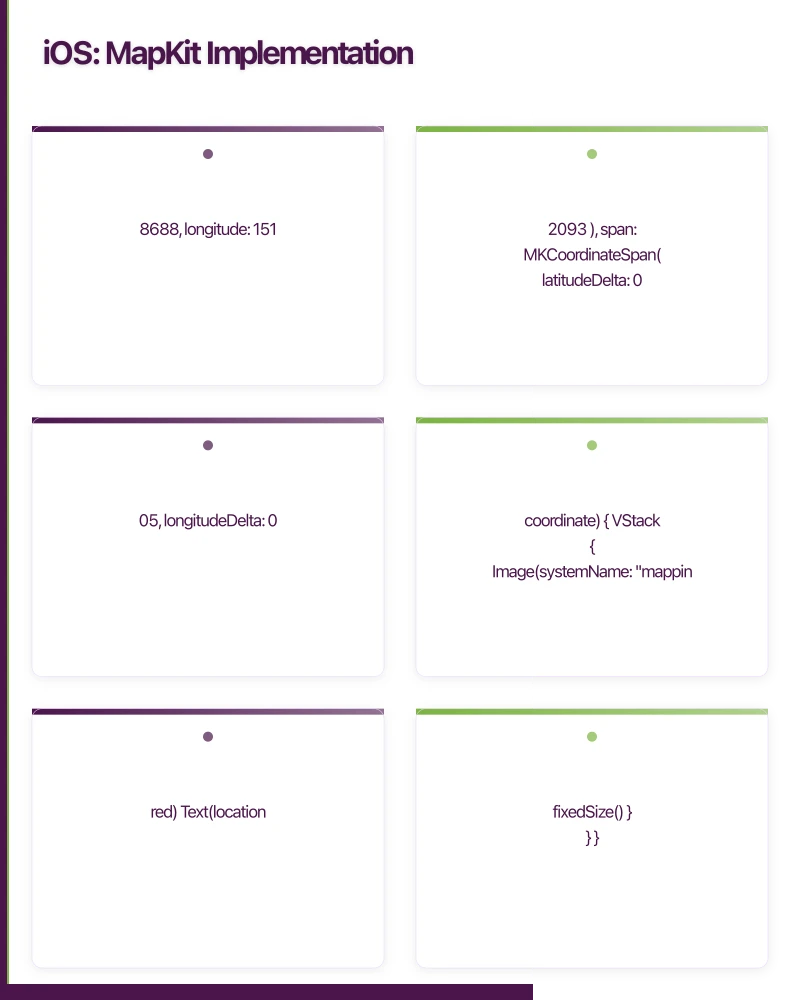
    @State private var region = MKCoordinateRegion(
        center: CLLocationCoordinate2D(
            latitude: -33.8688,
            longitude: 151.2093
        ),
        span: MKCoordinateSpan(
            latitudeDelta: 0.05,
            longitudeDelta: 0.05
        )
    )

    var body: some View {
        Map(coordinateRegion: $region, annotationItems: locations) { location in
            MapAnnotation(coordinate: location.coordinate) {
                VStack {
                    Image(systemName: "mappin.circle.fill")
                        .font(.title)
                        .foregroundColor(.red)
                    Text(location.name)
                        .font(.caption)
                        .fixedSize()
                }
            }
        }
        .edgesIgnoringSafeArea(.all)
    }
}
Custom Annotations with UIKit
For more control over map annotations, use the UIKit approach with MKMapView:
class MapViewController: UIViewController, MKMapViewDelegate {
    private let mapView = MKMapView()

    override func viewDidLoad() {
        super.viewDidLoad()
        mapView.delegate = self
        mapView.frame = view.bounds
        view.addSubview(mapView)

        addAnnotations()
        configureMapRegion()
    }

    private func addAnnotations() {
        let locations = [
            StoreAnnotation(
                title: "Sydney Store",
                subtitle: "Open until 6pm",
                coordinate: CLLocationCoordinate2D(
                    latitude: -33.8688,
                    longitude: 151.2093
                ),
                storeType: .flagship
            ),
            StoreAnnotation(
                title: "Melbourne Store",
                subtitle: "Open until 5:30pm",
                coordinate: CLLocationCoordinate2D(
                    latitude: -37.8136,
                    longitude: 144.9631
                ),
                storeType: .standard
            ),
        ]

        mapView.addAnnotations(locations)
    }

    func mapView(
        _ mapView: MKMapView,
        viewFor annotation: MKAnnotation
    ) -> MKAnnotationView? {
        guard let storeAnnotation = annotation as? StoreAnnotation
        else { return nil }

        let identifier = "StorePin"
        let view = mapView.dequeueReusableAnnotationView(
            withIdentifier: identifier
        ) as? MKMarkerAnnotationView
            ?? MKMarkerAnnotationView(
                annotation: annotation,
                reuseIdentifier: identifier
            )

        view.canShowCallout = true
        view.markerTintColor = storeAnnotation.storeType == .flagship
            ? .systemBlue : .systemGreen
        view.glyphImage = UIImage(systemName: "bag.fill")

        let detailButton = UIButton(type: .detailDisclosure)
        view.rightCalloutAccessoryView = detailButton

        return view
    }
}
Directions and Routes
func calculateRoute(
    from source: CLLocationCoordinate2D,
    to destination: CLLocationCoordinate2D
) {
    let request = MKDirections.Request()
    request.source = MKMapItem(
        placemark: MKPlacemark(coordinate: source)
    )
    request.destination = MKMapItem(
        placemark: MKPlacemark(coordinate: destination)
    )
    request.transportType = .automobile

    let directions = MKDirections(request: request)
    directions.calculate { [weak self] response, error in
        guard let route = response?.routes.first else { return }

        self?.mapView.addOverlay(route.polyline)

        // Zoom to show the entire route
        self?.mapView.setVisibleMapRect(
            route.polyline.boundingMapRect,
            edgePadding: UIEdgeInsets(
                top: 50, left: 50, bottom: 50, right: 50
            ),
            animated: true
        )

        // Display route information
        let distanceKm = route.distance / 1000
        let timeMinutes = route.expectedTravelTime / 60
        print("Distance: \(String(format: "%.1f", distanceKm)) km")
        print("Time: \(Int(timeMinutes)) minutes")
    }
}

// Render the route overlay
func mapView(
    _ mapView: MKMapView,
    rendererFor overlay: MKOverlay
) -> MKOverlayRenderer {
    if let polyline = overlay as? MKPolyline {
        let renderer = MKPolylineRenderer(polyline: polyline)
        renderer.strokeColor = .systemBlue
        renderer.lineWidth = 5
        return renderer
    }
    return MKOverlayRenderer(overlay: overlay)
}
Android: Google Maps Implementatio
n
Setup
Add the Maps SDK dependency and your API key:
// build.gradle
dependencies {
    implementation 'com.google.android.gms:play-services-maps:18.0.2'
}
{/* AndroidManifest.xml */}
<meta-data
android:name="com.google.android.geo.API_KEY"
android:value="${MAPS_API_KEY}" />Jetpack Compose Maps
@Composable
fun StoreMapScreen(stores: List<Store>) {
    val sydney = LatLng(-33.8688, 151.2093)
    val cameraPositionState = rememberCameraPositionState {
        position = CameraPosition.fromLatLngZoom(sydney, 12f)
    }

    GoogleMap(
        modifier = Modifier.fillMaxSize(),
        cameraPositionState = cameraPositionState,
        properties = MapProperties(
            isMyLocationEnabled = true,
            mapType = MapType.NORMAL,
        ),
        uiSettings = MapUiSettings(
            zoomControlsEnabled = true,
            myLocationButtonEnabled = true,
        ),
    ) {
        stores.forEach { store ->
            Marker(
                state = MarkerState(
                    position = LatLng(store.latitude, store.longitude)
                ),
                title = store.name,
                snippet = store.address,
                icon = BitmapDescriptorFactory.defaultMarker(
                    BitmapDescriptorFactory.HUE_BLUE
                ),
            )
        }
    }
}
Drawing Routes on Android
class RouteManager(private val context: Context) {

    suspend fun getDirections(
        origin: LatLng,
        destination: LatLng
    ): DirectionsResult? = withContext(Dispatchers.IO) {
        try {
            val geoApiContext = GeoApiContext.Builder()
                .apiKey(BuildConfig.MAPS_API_KEY)
                .build()

            DirectionsApi.newRequest(geoApiContext)
                .origin(
                    com.google.maps.model.LatLng(
                        origin.latitude, origin.longitude
                    )
                )
                .destination(
                    com.google.maps.model.LatLng(
                        destination.latitude, destination.longitude
                    )
                )
                .mode(TravelMode.DRIVING)
                .await()
        } catch (e: Exception) {
            null
        }
    }

    fun decodePolyline(encodedPath: String): List<LatLng> {
        val poly = PolyUtil.decode(encodedPath)
        return poly.map { LatLng(it.latitude, it.longitude) }
    }
}

// In Compose
@Composable
fun RouteMap(origin: LatLng, destination: LatLng, routePoints: List<LatLng>) {
    GoogleMap(
        modifier = Modifier.fillMaxSize(),
        cameraPositionState = rememberCameraPositionState(),
    ) {
        Marker(state = MarkerState(position = origin), title = "Start")
        Marker(state = MarkerState(position = destination), title = "End")

        Polyline(
            points = routePoints,
            color = Color.Blue,
            width = 8f,
        )
    }
}
Geoco
ding
Convert between addresses and coordinates:
iOS Geocoding
class GeocodingService {
    private let geocoder = CLGeocoder()

    func geocodeAddress(_ address: String) async throws -> CLLocationCoordinate2D {
        let placemarks = try await geocoder.geocodeAddressString(address)
        guard let location = placemarks.first?.location else {
            throw GeocodingError.notFound
        }
        return location.coordinate
    }

    func reverseGeocode(
        _ coordinate: CLLocationCoordinate2D
    ) async throws -> String {
        let location = CLLocation(
            latitude: coordinate.latitude,
            longitude: coordinate.longitude
        )
        let placemarks = try await geocoder.reverseGeocodeLocation(location)
        guard let placemark = placemarks.first else {
            throw GeocodingError.notFound
        }

        return [
            placemark.subThoroughfare,
            placemark.thoroughfare,
            placemark.locality,
            placemark.administrativeArea,
            placemark.postalCode,
        ]
        .compactMap { $0 }
        .joined(separator: " ")
    }
}
Clustering Markers
When displaying many markers, clustering prevents the map from becoming unreadable:
iOS Clustering
class ClusterAnnotationView: MKAnnotationView {
    override var annotation: MKAnnotation? {
        didSet { configure() }
    }

    private func configure() {
        guard let cluster = annotation as? MKClusterAnnotation else { return }

        let count = cluster.memberAnnotations.count
        displayPriority = .defaultHigh
        collisionMode = .circle

        let renderer = UIGraphicsImageRenderer(size: CGSize(width: 40, height: 40))
        image = renderer.image { context in
            UIColor.systemBlue.setFill()
            context.cgContext.fillEllipse(in: CGRect(x: 0, y: 0, width: 40, height: 40))

            let text = "\(count)" as NSString
            let attributes: [NSAttributedString.Key: Any] = [
                .foregroundColor: UIColor.white,
                .font: UIFont.boldSystemFont(ofSize: 14),
            ]
            let size = text.size(withAttributes: attributes)
            let rect = CGRect(
                x: 20 - size.width / 2,
                y: 20 - size.height / 2,
                width: size.width,
                height: size.height
            )
            text.draw(in: rect, withAttributes: attributes)
        }
    }
}
Offline Maps
For Australian apps serving users in remote areas, offline map support is valuable. Mapbox provides the best offline experience:
// Mapbox offline pack
func downloadOfflineRegion(
    bounds: CoordinateBounds,
    zoomRange: ClosedRange<Double>
) {
    let regionDefinition = MGLTilePyramidOfflineRegion(
        styleURL: styleURL,
        bounds: bounds,
        fromZoomLevel: zoomRange.lowerBound,
        toZoomLevel: zoomRange.upperBound
    )

    let context = "offline-region".data(using: .utf8)!

    MGLOfflineStorage.shared.addPack(
        for: regionDefinition,
        withContext: context
    ) { pack, error in
        if let pack = pack {
            pack.resume()
        }
    }
}
Performance Tips
- Limit visible markers: Display only markers visible in the current viewport
- Use clustering: Group nearby markers into clusters at lower zoom levels
- Lazy load details: Fetch marker details only when tapped
- Cache geocoding results: Geocoding API calls are expensive; cache the results
- Optimise tile loading: Use appropriate zoom level limits for your use case
Conclusion
Maps transform mobile apps from simple data displays into spatial experiences. Whether you choose MapKit, Google Maps, or Mapbox, the key is matching the SDK to your requirements: MapKit for iOS-native simplicity, Google Maps for cross-platform feature richness, and Mapbox for custom styling and offline support.
For Australian apps, consider offline map capabilities for regional and rural users, and test with Australian coordinates and address formats.
For help building map-powered mobile applications, contact eawesome. We integrate maps and navigation into mobile apps for Australian businesses across logistics, real estate, and consumer applications.
Drive more app downloads with a professional web presence. Cosmos Web Tech specialises in web design and SEO for Australian tech businesses.
Awesome Apps is the mobile development division of Ganda Tech Services, building iOS and Android apps for Australian businesses.
Talk to a Sydney app developer — free.
30 minutes. We'll tell you what your app needs, how long it takes, and what it costs. Real answers, no sales pitch.
Book Free App Strategy Call →Free · 30 minutes · No obligation