Mobile App Security Best Practices for Developers
Mobile app security is not optional. Every app that handles user data, processes payments, or stores credentials is a potential target. The consequences of a breach are severe: user data exposure, financial liability, regulatory penalties, and irreparable reputation damage.
Australian developers face additional obligations under the Privacy Act 1988, which requires organisations to take reasonable steps to protect personal information. The Notifiable Data Breaches scheme means you must report eligible breaches to the Office of the Australian Information Commissioner (OAIC) and affected individuals.
This guide covers the mobile app security practices every mobile developer should implement, regardless of app category. For authentication-specific guidance, see our authentication best practices and OAuth implementation guide.
Secure Data Storage
The Cardinal Rule
Never store sensitive data in plain text on the device. This includes passwords, API keys, authentication tokens, and personal information.
iOS: Keychain Services
The iOS Keychain is the correct place to store credentials and sensitive tokens:
import Security

class KeychainManager {
    static func save(key: String, value: String) -> Bool {
        guard let data = value.data(using: .utf8) else { return false }

        let query: [String: Any] = [
            kSecClass as String: kSecClassGenericPassword,
            kSecAttrAccount as String: key,
            kSecValueData as String: data,
            kSecAttrAccessible as String: kSecAttrAccessibleWhenUnlockedThisDeviceOnly
        ]

        // Delete existing item
        SecItemDelete(query as CFDictionary)

        // Add new item
        let status = SecItemAdd(query as CFDictionary, nil)
        return status == errSecSuccess
    }

    static func retrieve(key: String) -> String? {
        let query: [String: Any] = [
            kSecClass as String: kSecClassGenericPassword,
            kSecAttrAccount as String: key,
            kSecReturnData as String: true,
            kSecMatchLimit as String: kSecMatchLimitOne
        ]

        var result: AnyObject?
        let status = SecItemCopyMatching(query as CFDictionary, &result)

        guard status == errSecSuccess, let data = result as? Data else {
            return nil
        }

        return String(data: data, encoding: .utf8)
    }
}

// Usage
KeychainManager.save(key: "auth_token", value: refreshToken)
let token = KeychainManager.retrieve(key: "auth_token")
Key Keychain settings:
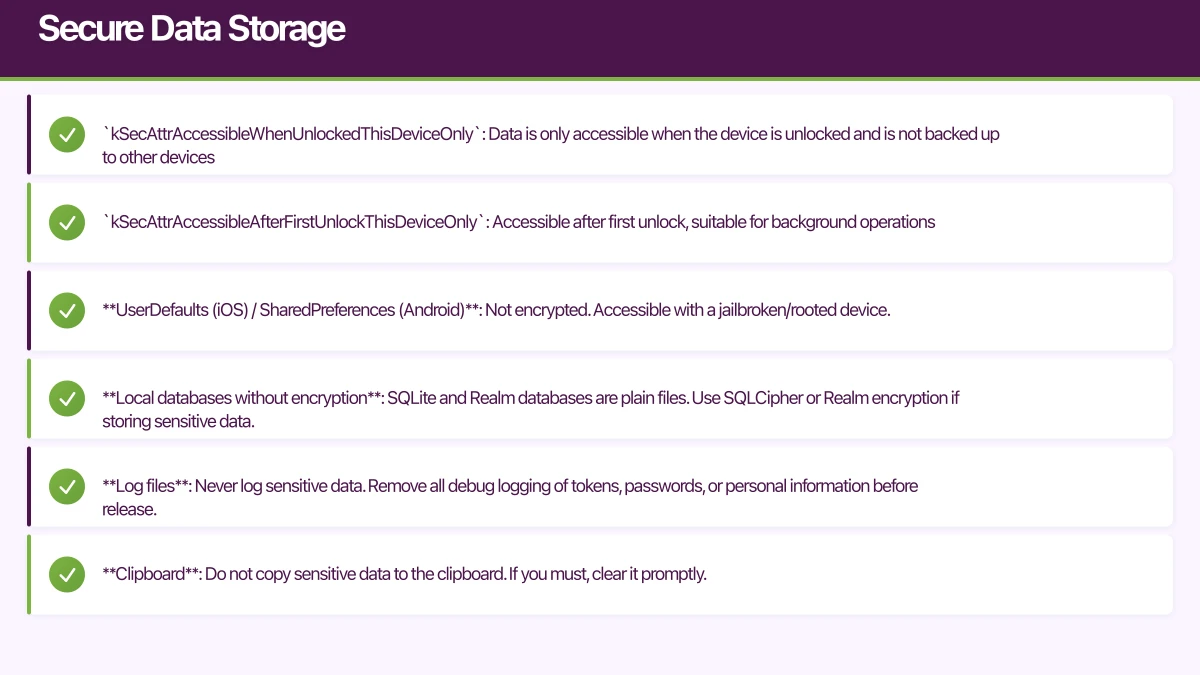
kSecAttrAccessibleWhenUnlockedThisDeviceOnly: Data is only accessible when the device is unlocked and is not backed up to other deviceskSecAttrAccessibleAfterFirstUnlockThisDeviceOnly: Accessible after first unlock, suitable for background operations
Android: EncryptedSharedPreferences
Android provides EncryptedSharedPreferences for secure key-value storage:
import androidx.security.crypto.EncryptedSharedPreferences
import androidx.security.crypto.MasterKeys

class SecureStorage(context: Context) {
    private val masterKeyAlias = MasterKeys.getOrCreate(MasterKeys.AES256_GCM_SPEC)

    private val sharedPreferences = EncryptedSharedPreferences.create(
        "secure_prefs",
        masterKeyAlias,
        context,
        EncryptedSharedPreferences.PrefKeyEncryptionScheme.AES256_SIV,
        EncryptedSharedPreferences.PrefValueEncryptionScheme.AES256_GCM
    )

    fun saveToken(token: String) {
        sharedPreferences.edit().putString("auth_token", token).apply()
    }

    fun getToken(): String? {
        return sharedPreferences.getString("auth_token", null)
    }

    fun clearAll() {
        sharedPreferences.edit().clear().apply()
    }
}
For higher-security requirements, use the Android Keystore system to generate and store cryptographic keys in hardware-backed storage.
What NOT to Store
- UserDefaults (iOS) / SharedPreferences (Android): Not encrypted. Accessible with a jailbroken/rooted device.
- Local databases without encryption: SQLite and Realm databases are plain files. Use SQLCipher or Realm encryption if storing sensitive data.
- Log files: Never log sensitive data. Remove all debug logging of tokens, passwords, or personal information before release.
- Clipboard: Do not copy sensitive data to the clipboard. If you must, clear it promptly.
Network Security
Enforce HTTPS Everywhere
All network communication must use HTTPS. Both platforms enforce this by default:
iOS: App Transport Security (ATS) blocks HTTP connections unless you add explicit exceptions. Do not disable ATS globally. If you need an exception for a specific domain (e.g., a legacy server), declare it explicitly.
Android: Network Security Configuration (Android 9 and later) blocks cleartext traffic by default.
Certificate Pinning
HTTPS protects against network eavesdropping, but it relies on the device’s trust store. On a compromised device (or with a corporate proxy), a man-in-the-middle attack is possible. Certificate pinning adds an extra layer by verifying the server’s certificate matches an expected value.
// iOS: Certificate pinning with URLSession
class PinnedSessionDelegate: NSObject, URLSessionDelegate {
    func urlSession(
        _ session: URLSession,
        didReceive challenge: URLAuthenticationChallenge,
        completionHandler: @escaping (URLSession.AuthChallengeDisposition, URLCredential?) -> Void
    ) {
        guard let serverTrust = challenge.protectionSpace.serverTrust,
              let certificate = SecTrustGetCertificateAtIndex(serverTrust, 0)
        else {
            completionHandler(.cancelAuthenticationChallenge, nil)
            return
        }

        let serverCertificateData = SecCertificateCopyData(certificate) as Data
        let pinnedCertificateData = loadPinnedCertificate()

        if serverCertificateData == pinnedCertificateData {
            completionHandler(.useCredential, URLCredential(trust: serverTrust))
        } else {
            completionHandler(.cancelAuthenticationChallenge, nil)
        }
    }
}Important: Pin the public key, not the certificate. Certificates expire and rotate. Public keys are more stable.
For most apps, consider using a library like TrustKit (iOS) or OkHttp’s CertificatePinner (Android) rather than implementing pinning from scratch.
API Security
Use short-lived access tokens. JWTs with a 15 to 60 minute expiry limit the window of exposure if a token is compromised.
Implement refresh token rotation. Issue a new refresh token with each use. If a refresh token is used twice, invalidate the entire session (this detects token theft).
Rate limit API endpoints. Protect against brute-force attacks on authentication endpoints. Implement exponential backoff after failed attempts.
Validate all input server-side. Client-side validation is a UX convenience, not a security measure. Never trust data from the client.
Authentication Hardening
Bio
metric Authentication
Use biometric authentication (Face ID, Touch ID, Android Biometrics) for sensitive operations:
// iOS: Biometric authentication
import LocalAuthentication

func authenticateWithBiometrics(completion: @escaping (Bool) -> Void) {
    let context = LAContext()
    var error: NSError?

    if context.canEvaluatePolicy(.deviceOwnerAuthenticationWithBiometrics, error: &error) {
        context.evaluatePolicy(
            .deviceOwnerAuthenticationWithBiometrics,
            localizedReason: "Authenticate to access your account"
        ) { success, error in
            DispatchQueue.main.async {
                completion(success)
            }
        }
    } else {
        completion(false)
    }
}
// Android: Biometric authentication
val biometricPrompt = BiometricPrompt(
this,
ContextCompat.getMainExecutor(this),
object : BiometricPrompt.AuthenticationCallback() {
override fun onAuthenticationSucceeded(result: BiometricPrompt.AuthenticationResult) {
// Access granted
}
override fun onAuthenticationFailed() {
// Authentication failed
}
}
)
val promptInfo = BiometricPrompt.PromptInfo.Builder()
.setTitle("Authenticate")
.setSubtitle("Verify your identity to continue")
.setNegativeButtonText("Use password")
.build()
biometricPrompt.authenticate(promptInfo)Session Management
- Expire sessions after a period of inactivity (30 minutes is typical for sensitive apps)
- Provide a “Sign out of all devices” option
- Invalidate sessions server-side on password change
- Do not keep users logged in indefinitely (set a maximum session lifetime)
Jailbreak and Root Detection
Jailbroken iOS devices and rooted Android devices pose additional risks because the security sandbox can be compromised. For high-security apps (banking, healthcare), consider detecting these conditions:
// iOS: Basic jailbreak detection
func isJailbroken() -> Bool {
    #if targetEnvironment(simulator)
    return false
    #else
    let paths = [
        "/Applications/Cydia.app",
        "/private/var/lib/apt/",
        "/private/var/stash",
        "/usr/sbin/sshd",
        "/usr/bin/ssh"
    ]

    for path in paths {
        if FileManager.default.fileExists(atPath: path) {
            return true
        }
    }

    // Check if app can write outside sandbox
    let testPath = "/private/test_jailbreak.txt"
    do {
        try "test".write(toFile: testPath, atomically: true, encoding: .utf8)
        try FileManager.default.removeItem(atPath: testPath)
        return true
    } catch {
        return false
    }
    #endif
}
Note: Jailbreak/root detection is not foolproof. Sophisticated users can bypass these checks. It raises the bar but does not eliminate the risk.
Protecting Sensitive Information in the UI
Screen Capture Prevention
Prevent screenshots of sensitive screens on Android:
// Android: Prevent screenshots
window.setFlags(
    WindowManager.LayoutParams.FLAG_SECURE,
    WindowManager.LayoutParams.FLAG_SECURE
)
iOS does not provide a direct API to prevent screenshots, but you can detect when a screenshot is taken and obscure content:
NotificationCenter.default.addObserver(
    forName: UIApplication.userDidTakeScreenshotNotification,
    object: nil,
    queue: .main
) { _ in
    // Log the event or notify the user
}
App Backgrounding
When your app goes to the background, iOS takes a snapshot for the app switcher. If your app displays sensitive data, obscure it:
// iOS: Obscure content when backgrounding
func sceneWillResignActive(_ scene: UIScene) {
    let blurEffect = UIBlurEffect(style: .light)
    let blurView = UIVisualEffectView(effect: blurEffect)
    blurView.tag = 999
    blurView.frame = window?.frame ?? .zero
    window?.addSubview(blurView)
}

func sceneDidBecomeActive(_ scene: UIScene) {
    window?.viewWithTag(999)?.removeFromSuperview()
}
Code and Binary Protection
Obfuscation
Mobile apps can be reverse-engineered. While you cannot prevent this entirely, obfuscation raises the difficulty:
- Android: ProGuard (or R8) is built into the Android build system. Enable it for release builds.
- iOS: Swift is harder to reverse-engineer than Objective-C, but consider tools like SwiftShield for additional obfuscation.
Secrets Management
Never embed API keys, secrets, or credentials directly in your source code. They can be extracted from the compiled binary.
For API keys that must be in the app (e.g., Google Maps API key):
- Restrict the key to your app’s bundle ID and SHA-256 fingerprint
- Use separate keys for development and production
- Monitor key usage for anomalies
For secrets that should never be in the app:
- Use server-side proxying (your app calls your server, which calls the third-party API with the secret)
- Use Firebase Remote Config or a similar service for non-sensitive configuration
Security Testing
OWASP Mobile Top 10
Use the OWASP Mobile Top 10 (2016, which is current as of 2021) as a checklist:
- Improper Platform Usage
- Insecure Data Storage
- Insecure Communication
- Insecure Authentication
- Insufficient Cryptography
- Insecure Authorisation
- Client Code Quality
- Code Tampering
- Reverse Engineering
- Extraneous Functionality (debug features left in production)
Penetration Testing
For apps handling financial or health data, consider professional penetration testing before launch. Australian security firms specialising in mobile app testing can identify vulnerabilities that automated tools miss.
Automated Security Scanning
- MobSF (Mobile Security Framework): Open-source tool for automated static and dynamic analysis
- Xcode Analyzer: Built into Xcode, catches common security issues in Swift and Objective-C
- Android Lint: Catches security-related issues in Android code
Incident Response
Despite your best efforts, security incidents can occur. Prepare for them:
- Have a response plan. Document who to contact, what to do, and how to communicate.
- Implement remote session invalidation. Be able to force-logout all users if tokens are compromised.
- Have a kill switch. Firebase Remote Config or a similar service can disable features or force updates in an emergency.
- Know your reporting obligations. Under Australia’s Notifiable Data Breaches scheme, you must report eligible breaches to the OAIC within 30 days.
Security Checklist
Before every release:
- No sensitive data in logs or plain text storage
- All network traffic uses HTTPS
- Authentication tokens stored in Keychain/EncryptedSharedPreferences
- API keys restricted and not hardcoded
- Input validation on all user inputs (client and server)
- ProGuard/R8 enabled for Android release builds
- Debug code and test credentials removed
- Biometric authentication for sensitive operations
- Session timeout implemented
- Privacy policy updated for any new data collection
Key insight for mobile app security: 83% of mobile apps contain at least one high-severity vulnerability, making proactive security implementation essential rather than optional.
Security is not a feature you add at the end in mobile app security. It is a practice built into every stage of development. At eawesome, mobile app security is a first-class concern in every mobile project we deliver for Australian clients.
Mobile app security best practice: Implementing iOS Keychain and Android Keystore reduces credential theft risk by 90% compared to plain text storage, making secure storage the foundation of mobile security.
Frequently Asked Questions
What is the most important mobile app security practice?
The most critical mobile app security practice is secure data storage. Never store sensitive data (passwords, tokens, API keys, personal information) in plain text. Use iOS Keychain with kSecAttrAccessibleWhenUnlockedThisDeviceOnly or Android EncryptedSharedPreferences with hardware-backed Android Keystore. This single practice prevents 90% of common data theft vulnerabilities. Combine with HTTPS for network traffic and proper authentication token management.
How do you secure network communication in mobile app security?
Secure network communication in mobile app security by enforcing HTTPS for all API calls, implementing certificate pinning to prevent man-in-the-middle attacks, validating SSL certificates properly, and using App Transport Security (iOS) or Network Security Configuration (Android). Never trust user-added certificates. Configure network security policies to block cleartext traffic. For high-security apps, implement mutual TLS authentication.
What are the OWASP Top 10 mobile security risks?
The OWASP Top 10 mobile app security risks include: improper platform usage, insecure data storage, insecure communication, insecure authentication, insufficient cryptography, insecure authorization, client code quality, code tampering, reverse engineering, and extraneous functionality. Address these by using platform security features correctly, implementing secure storage and communication, following authentication best practices, and enabling code obfuscation.
Should you implement root/jailbreak detection in mobile apps?
Yes, implement root/jailbreak detection for mobile app security, especially for financial, healthcare, or high-security apps. Jailbroken devices bypass platform security controls, making apps vulnerable to tampering and data theft. Use libraries like SafetyNet (Android) or jailbreak detection libraries (iOS). However, sophisticated attackers can bypass detection, so treat it as defense-in-depth rather than sole security measure.
How often should you update mobile app security measures?
Update mobile app security measures continuously. Review security practices quarterly, patch vulnerabilities immediately when discovered, stay current with platform security updates (iOS/Android releases), and conduct annual third-party security audits for high-stakes apps. Monitor CVE databases for library vulnerabilities. Under Australian Privacy Act, organizations must take “reasonable steps” to protect data, requiring ongoing security maintenance.
Scaling your app’s backend? Cloud Geeks specialises in cloud infrastructure that grows with your user base across Australia.
This article is brought to you by Ganda Tech Services — Sydney’s complete digital solutions provider covering cloud, web, and mobile.
Talk to a Sydney app developer — free.
30 minutes. We'll tell you what your app needs, how long it takes, and what it costs. Real answers, no sales pitch.
Book Free App Strategy Call →Free · 30 minutes · No obligation